How To See Everything Google Knows About You by Cadie Thompson via 
Courtesy of appsglossy.com

Courtesy of appsglossy.com
After I registered the course I was not able to access it because “my browser didn’t allow the web storage” and, for this reason, a message informed me that it would be necessary to use a up-to-date browser as Chrome or Firefox.
The only problem is that I always use Firefox. Obviously a “particular” version of Firefox where I also added a bunch of different add-ons to enhance the privacy protection level of my navigation and, for this reason, the Google course was not available for me.
Normally I would have decided to quit the course because I prefer not to modify my Firefox configuration after I spent so much time searching the best add-ons to preserve a minimum of privacy. But, in this case, I really wanted to attend the course and so I decided to manually operate on the Firefox configuration to “solve” the problem and allow Google to keep all the information it would have considered as essential.
This is the list of what I did:
– open Firefox and type:
about:config
in the address bar.
– search for:
dom.storage.enabled
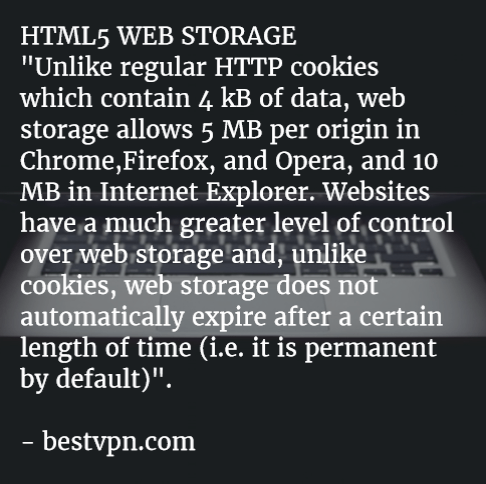
Image from: marketing-partners.com
Since some weeks ago, I used:
for my web search and I was able to open the main Google Homepage without to be redirected to any local Goole site.
What I usually obtained was:
1 – less “personalized” search results: the algorithm will be not “contaminated” by my local IP and I will able to find information “cleaned” by local trends;
2 – the possibility to use the “same” Google even when I am abroad;
3 – the security that my searches were always up-to-date respect the global actual trends. For my experience when I search some particular topics as “marketing” I obtain, in the first Google page, fresh news only using Google in its NCR version. If I try to use my local Google homepage I have to spend more time setting the Google’s “advanced search” or trying to understand what information are “really” fresh new.

Image from: mods2015.com
I found the right solution when I visited ycombinator.com and I found the post created by newman314 that submitted a link that combined NCR and SSL protocol (for a little bit of more privacy).
https://encrypted.google.com/search?q=test&qscrl=1&n…
https://encrypted.google.com/search?q=test&qscrl=1&ncr=1
Where the word “test” is what I am looking for.
Then I also found a faster solution by dragop:
http://www.google.com/?gfe_rd=cr&gws_rd=cr
and, in the same webpage, a shorter version from 3dfan:
http://www.google.com/?gws_rd=cr
On my side I prefer to use this other URL that gives me the same results through an SSL connection:
To be sure that the results were really the same and not simply related with the English language and influenced by the IP, I tested this URL comparing them from what I obtained from the above mentioned:
http://www.google.com/?gws_rd=cr
I discovered that what I “received” using encrypted.google.com are really the same links and they are not just the standard local results in the English language.
I know that cookies will not allow me to have real “septic” results but this is the first step to a less passive use of Google search because I would like to be a more active user and not just a passive customer pampered by Google.
 The first time I noticed doubled icons appearing on my Android 4.4 smartphone I thought that it was a temporary problem. So I tried to solve that with a simple reboot but I didn’t succeed.
Moreover when I tried to delete just one of the doubled icons I uninstalled the App…. This kind of matter is typical of smartphones and it usually doesn’t happen on tablets or Android PCs where you have a dedicated room (the “menu” page) to uninstall software (Apps) and different “screens” to organize them.
This means that if you delete a App’s icon from one of the “screens” you will still have your software installed into your device. The problem of double icons on smartphones is caused by a wrong configuration of your personal settings on Google Play Store.
To solve it, you have to:
1 – find all the problematic Apps;
2 – go to Google Play — Settings – and deselect “Add icon to home screen”;
3 – uninstall the “problematic” Apps;
4 – reinstall them.
To conclude it’s better to solve this kind of problem as soon as you notice it because, to solve the matter, you will have to waste your time uninstalling and reinstalling all the Apps with doubled icons.
 Wikipedia contains many information about million of topics but each single thematic page doesn’t contain all the possible info or links about that specific subject. In fact some other details about a topic, or related to it, can be in other parts of Wikipedia not linked to the main topic.
In my experience, sometimes you can find some really interesting details about a topic if you simply use a Google query as:
Where the topic is “Chet Baker” and it is searched by Google into the entire Wikipedia.org website. If you deeply peep the results you can now find some information not contained in the “Chet Baker” page in Wikipedia.
These tip is really simple but I think it could be useful for journalists, data miners or for all that people who are not satisfied by a simple Wikipedia search. 
 If you work in an office where many document are daily processed you will appreciate one quick tip about using Google Drive as a on-the-go scanner. As you certainly know you can set Google Drive to always convert documents into Google Formats when you upload a new one. You can also decide to automate the process and Google will automatically convert the files without asking you again about it but, for my experience, it’s more more flexible and useful to define the conversion parameters every time I decide to upload a new document. For this reason I ticked the “Confirm settings before each upload” option in the upload menu.
One, not so known, feature is represented by the internal Google OCR that is able to read text also contained in jpg files. This means that you can simply take a picture of the text you want to modify and Google will convert it into a text file in few secs. During some test we made, a medium quality photograph is more than sufficient to have good results with Google OCR.
To activate this feature don’t forget to put a tick on the “Convert text from PDF and image files to Google documents” option and to specify the document language when you upload the jpg files into your Google Drive.
 Computer Borders