 Sometimes it is really easy, other times you waste your time. A good synchronization between files or folders is something you need everyday but it could become a nightmare if you miss something.
In my specific case I need to automate a synchronization between a folder (F1) where I usually save my office files (Documents) with a second folder contained, for security reasons, in an encrypted volume/partition (F2). This last folder (F2) automatically synchronize its content with a third folder (F3), located in the same encrypted volume/partition, that is the client folder of a remote storage hosting (F4).
This also means that when I am out of the office and I add a file in the online storage host (F4) the document is automatically copied to the client folder of the remote storage hosting and to the folder located in an encrypted volume/partition (F2 and F3).
Moreover, I need to erase the Documents folder F1 as soon as it is synchronized with its mirror F2 in the encrypted volume.
The described scenario is common in the everyday working life and it is conceptually not hard to solve… in theory… When I tried to set up the above described operations using grsync on Fedora and Ubuntu I had big problems to obtain an acceptable result.
Many times the synchronization was unidirectional and I was not able to run it properly just using grsync still I found one right solution with Synkron. Synkron is a multi platform software (Linux, OSX, Windows and portable) written in C++ that is really flexible for all multitasking synchronization needs.
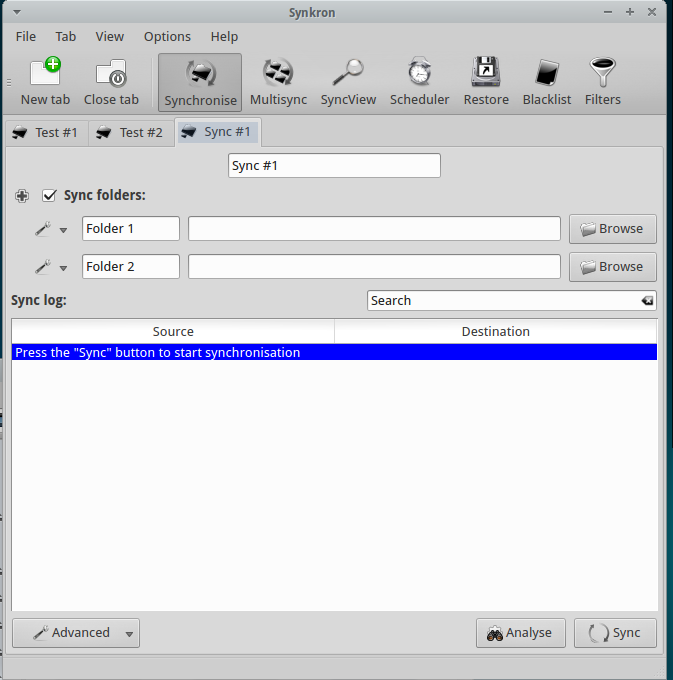
 First of all, Synkron is multi-tab and this is a winning features because it let you to “slice” any problem (synchronization matter) into simple, easy to solve, tasks.
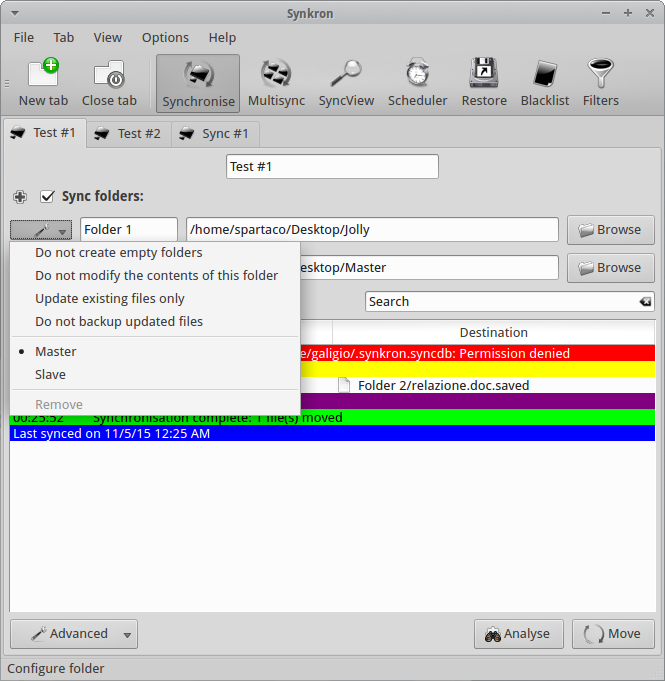
In my example I determined the two Folders I wanted to sync – F1 & F2) and decided thath both folders had to be considered as Master by the software.

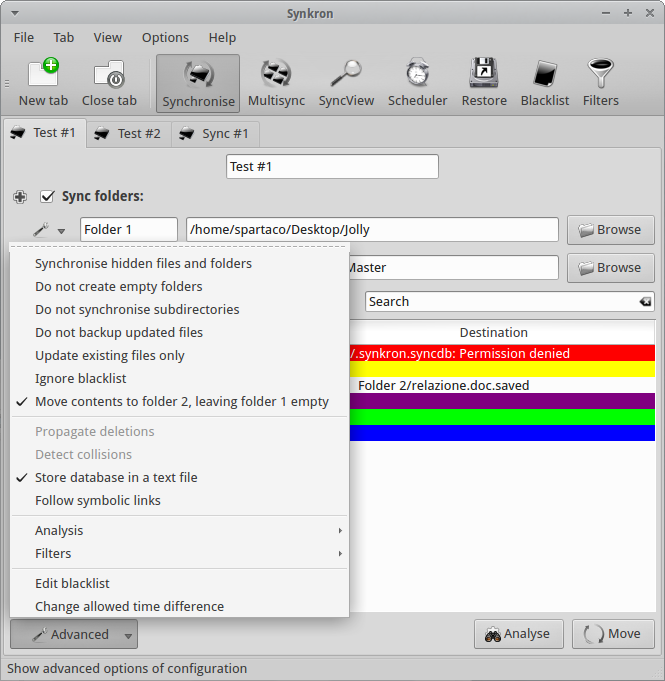
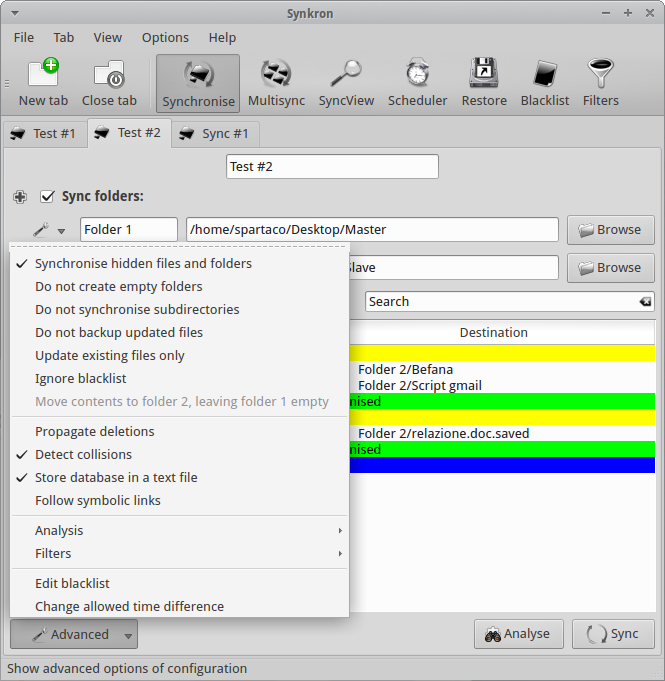
Then I used the Advanced Menu and I chose to “Move contents to Folder 2, leaving folder 1 empty” and to “Store database in a text file” for my convenience (F1 to F2 deleting F1 contents after synchronization).

At this point, I opened a second synchronization tab where I selected two folders (F2 to F3 sync) and I also asked Synkron to “Synchronize hidden files and folders” and to “Detect collisions”.

At this point I had obtained an acceptable solution to my initial task, simply dividing my problem into two separate operations.
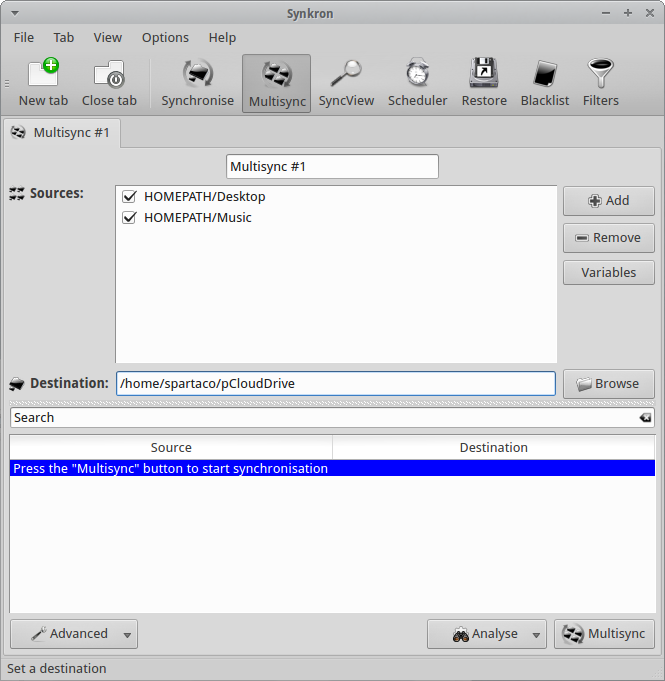
Moreover, I’ld like to focus your attention on the fact that Synkron has a specific feature for multi-synchronizing three or more folders at the same tome. The tuning of this particular feature is really intuitive and you can also selected many of the different advanced options we described here above.

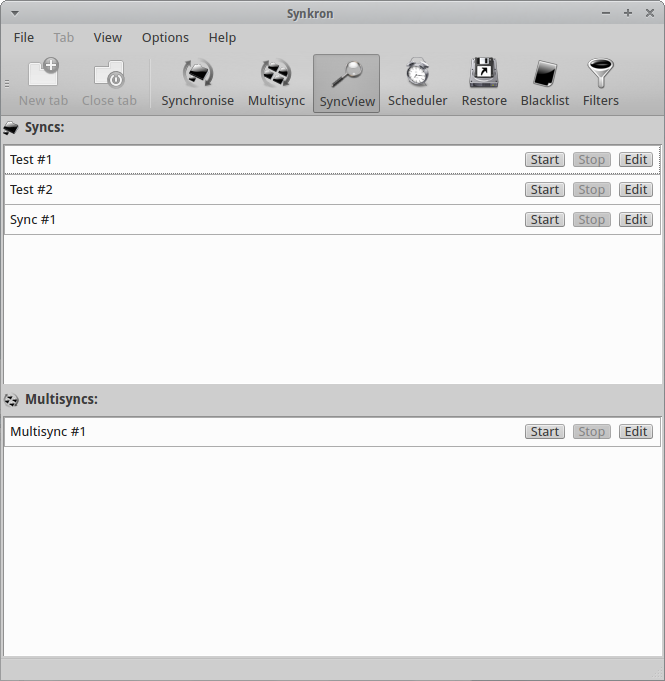
If you have complex synchronization needs and you have many tabs configured you can always choose what tabs you want to activate or deactivate using the “Sync folders” option you find in the upper part of each tabs. Another option for this specific issue is represented by the SyncView visualization that let ypu to have a quick general glimpse about the state of all the sync and multisync tabs.

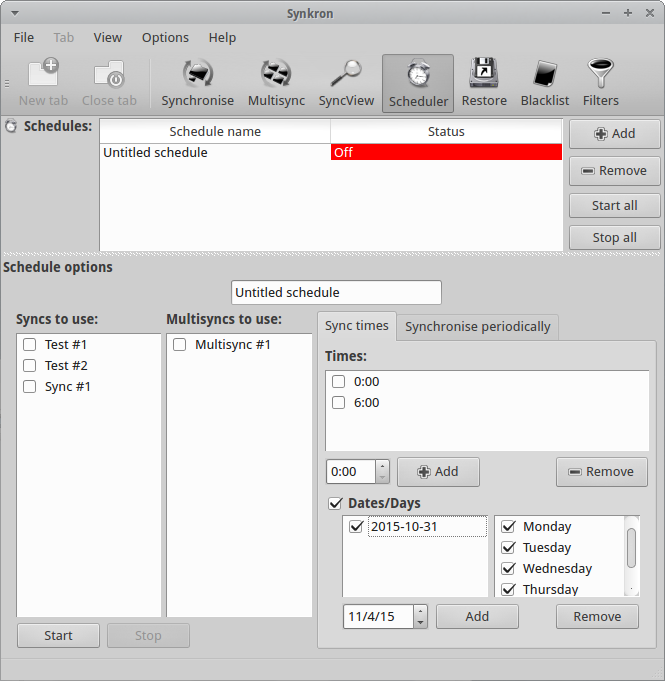
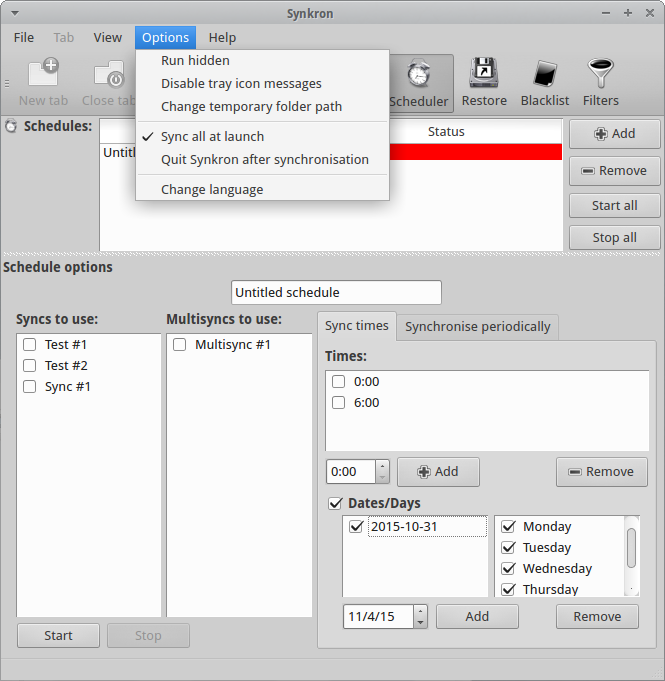
Synkron has simply fantastic scheduling options that are able to solve any need you may have.

Furthermore you can decide to automatically synchronize your folder as soon as you launch Synkron.
You can also decide to automatically run Synkron at the startup but, in this case, you need to manually configure your Startup Menu.

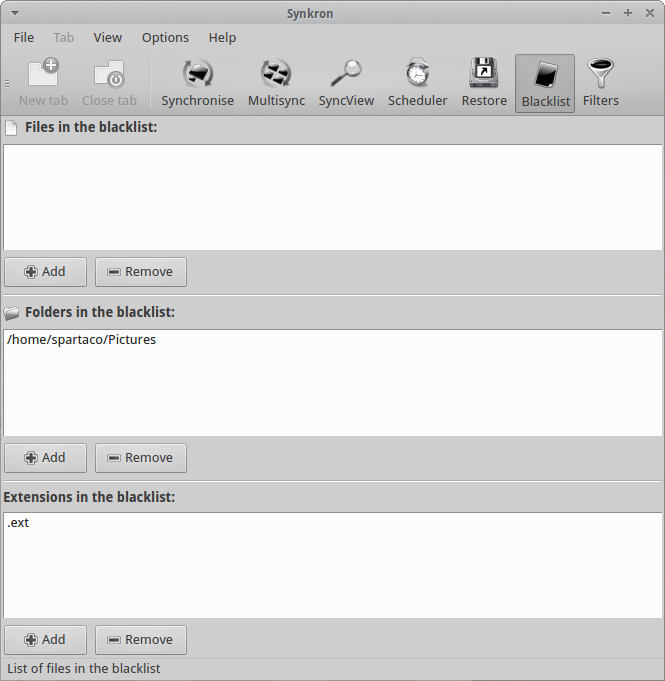
As extra features you can always decide to create Blacklists that will exclude specific files, folders or extensions from the synchronization.
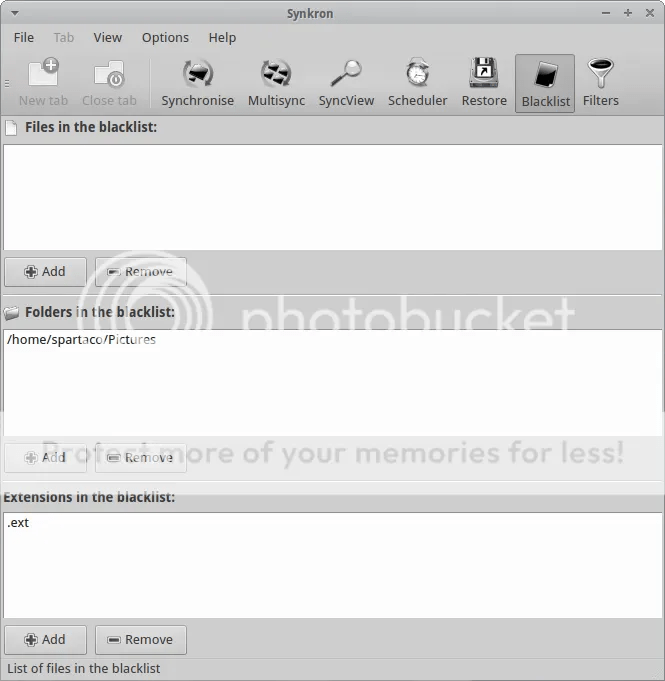
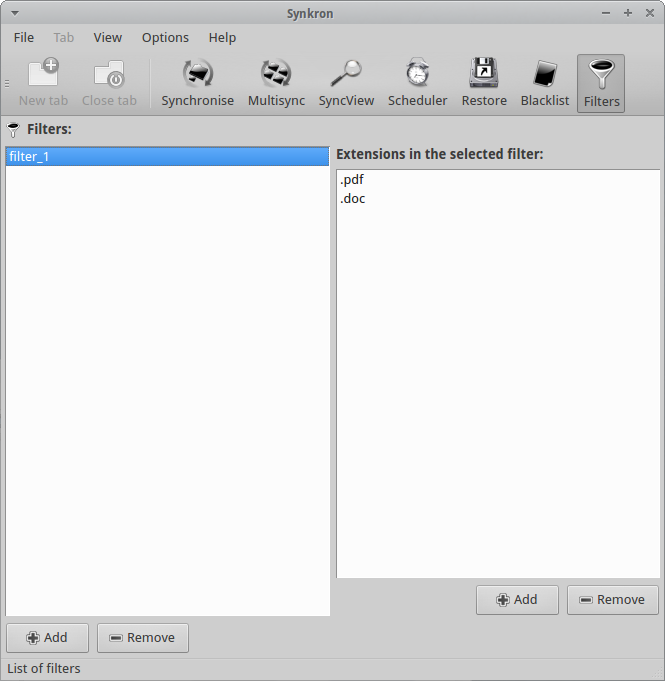
In addition you can define Filters by extensions to better refine your synchronization.

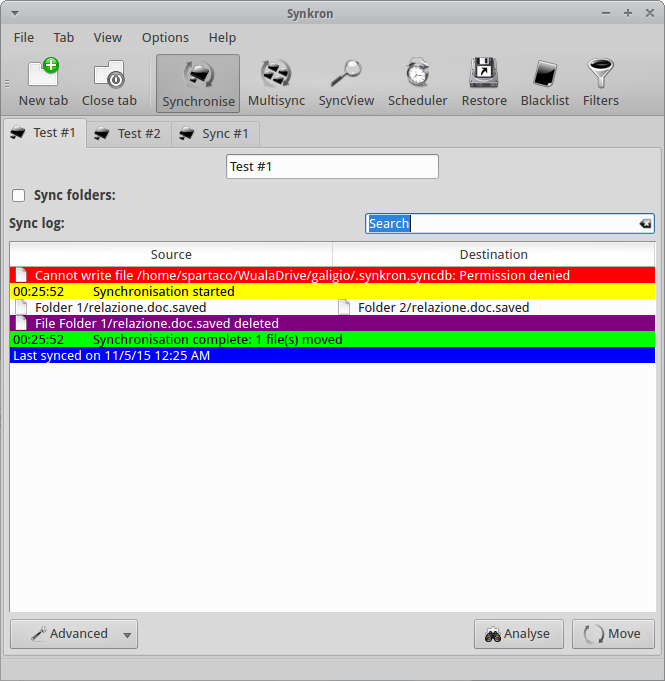
Last but not least, when you run Synkron you obtain a detailed report in real-time where you can check the state of operations by colors.







 Computer Borders