Category Archives: Linux Tips

A new multimedia open-source standard to replace DVD and Blu-Ray DRM limitations: Lib-Ray

At the beginning we astonished because the video quality on DVD was something of incredible. Then Blu-Ray destroyed all the standards we were used to enjoy while watching our movies. During last 7 years the home theatre industry has developed its standards in a geometric way but the DRM topics have increased our technical barrier between people who legitimately bought DVDs and Blu-Rays and the possibility of creating backup copies.

The war between DRM and hackers is absorbing. When a new standard of DRM has been developed we wait to know how much time will pass before someone can crack it. And it is only a matter of time because it is not technically possible to create the perfect barrier against multimedia supports when, by definition, the key to decrypt the files is somewhere in the disk or on the media player. During last years, the reverse engineering has increase the chances we have to deeply understand and rewrite proprietary software.

Lib-Ray is a “new” ambitious project to create a new open source multimedia standard which could be able to challenge DVD and Blu-Ray. The developers describe Lib-Ray as “multimedia website on a disk”. The manual you can download from Lib-Ray websites, describes in details all the structure you have to create on the disk for your files. Lib-Ray runs on java libraries and html5 structure and its framework is represented by Inkscape, Gimp, Audacity, xiph.org, Flac and code from Mozilla and Chromium.

In few words, you don’t need a specific hardware to run Lib-Ray disks but each computer with a Chromium browser and a bunch of open source software will be able to perfectly play your disks (as simple as genial!).

Last but not least, on the Lib-Ray website you will also find a Downloads page dedicated to dedicated manuals, libraries and one interesting template. AddThis

Searching a Gmail notifier for Ubuntu 10.04… an unpredictable Odyssey!

Finding a versatile Gmail notifier for my laptop seemed to be not so difficult and, after a first quick search, I selected a bunch of software I believed interesting. But when I tested them I was not satisfied by they behaviour especially because they didn’t have many of the features I wanted.
First of all I started installing the Gmail software I found in the Screenlets repositories on my Ubuntu but it was not able to update itself. Probably the firewall denied to the screenlet to communicate externally. I didn’t want to spend much time (sic) on the research of a Gmail notifier so I decided do uninstall it.

My second option was Popper and reading the program description I believed tha t was really the right one but.. after the configuration I was not impressed by the final flexibility and interaction this software offers. Just to know, for a quick configuration you need Popper configurator that is in the

The next step was represented by KCheckGmail that is for KDE and runs properly also on Gnome but, in this case, the program is not updated with the last Gmail configuration parameters and so it is nice but useless..

Then I tried with Gmail Notify. The configuration is quick and easy but it offers poor results. I mean that you have just the subject of new emails and no possibility to visualize them with a simple mouse click if you haven’t previously done the login of your Gmail account using the browser.

Finally I installed cGmail through the Ubuntu Software Center and I found what I was looking for: a simple program which let me know about new emails and let me open them with a click. The graphic interface is basic but after a couple of hours wasted on searching an effective solution I was satisfied!

Last but not least, if you don’t want to install a Gmail notifier directly on your Ubuntu, consider to install the add-on Gmail Watcher  on Firefox.

Please, if you have better solution and you want to share them with us, don’t hesitate to comment this post. Thank you! AddThis

Reinstalling and Fixing Grub 2 by NixiePixel

AddThis

Recovering the GRUB 2 Boot Loader by cgermany77

AddThis

How to correctly configure and use the Windows Network on Ubuntu 10.04 LTS

At the beginning it appeared as a no-solved mystery because in all the many posts I read, there were no effective solutions. On my Ubuntu 10.04 LTS I was no able to use the external hard disk I had connected to the LAN and every time I tried to mount it I only received this message: Unable to mount location – Failed to retrieve share list from server


In few words it was not possible to use the Windows Network and all the people with the same problem (which is specific for the Ubuntu 10.04) suggested to reconfigure Samba but all the configuration and scripts I tried were no effective to let me use the external hard disk.

At the end I found someone who talked about a possible firewall misconfiguration and I tried in many ways to bypass the situation using ufw commands and opening ports and services over the LAN:

$ sudo ufw status
[sudo] password for *****:
Status: active

To                                      Action            From
—                                        ——                —-
135,139,445/tcp           ALLOW       Anywhere (log)
137,138/udp                  ALLOW       Anywhere (log)
Samba                             ALLOW       Anywhere
192.168.0.3 Samba     ALLOW       10.0.0.0/8
10.0.0.0/8                    ALLOW       192.168.0.3 Samba

Unfortunately, every new permission I granted to Samba on my Firewall was not a real solution but when I tried to stop the Firewall (System –> Administration –> Firewall Configuration) using the default firewall manager, Ubuntu was able to find and work on the external hard disk.

For this reason I made some tests and found this solution:

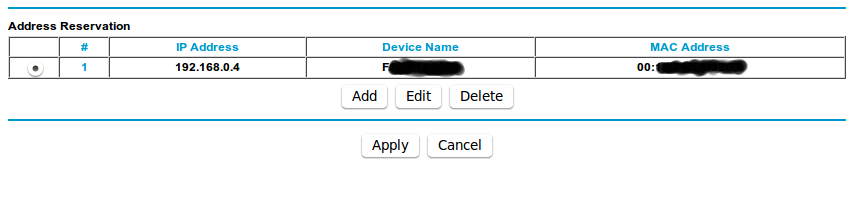
1 – enter your router settings and find the list of the attached device

2 – find the name and the MAC address of the LAN device you want to connect to your PC

3 – find the menu for the Lan Setup and add an Address Reservation for the above device. Now you are sure that the router will always assign the same address to the device

4 – back to Ubuntu, install and launch Firestarter (for some incomprehensible reasons the default firewall manager is not able to create rules for Samba services and ports)

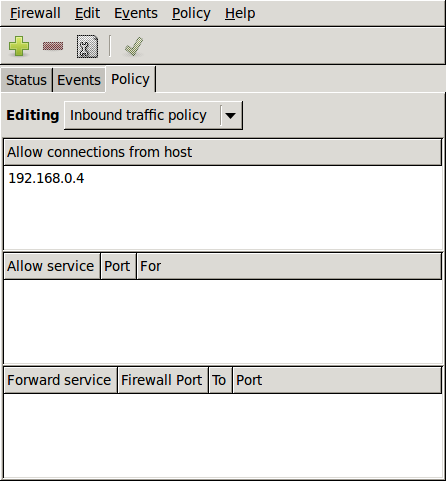
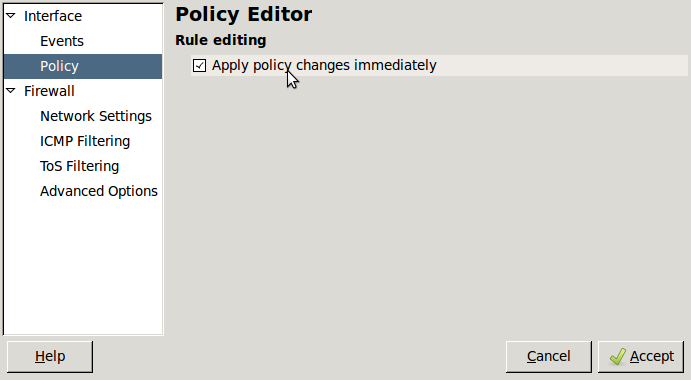
5 – on Firestarter, go to Preferences —> Policy Editor and click on “Apply policy changes immediately”

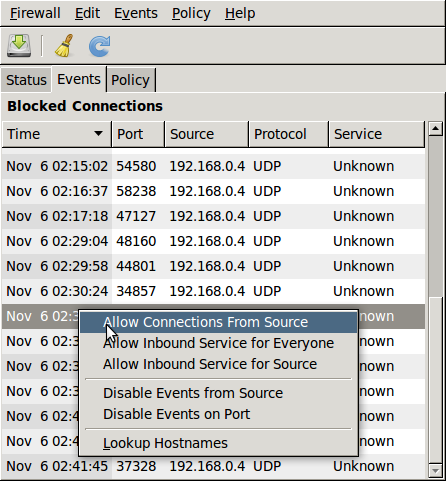
6 – try to connect again to Windows Network, obviously (sic) it will not work but then go to Firestarter —> Events and you will notice that the last line is the “missing” external disk which has an “unknown” service

7 – right-click the mouse on this line and “Allow connections from source”. Now the external hard disk is visible from Ubuntu 10.04 LTS and it is possible to work on it!

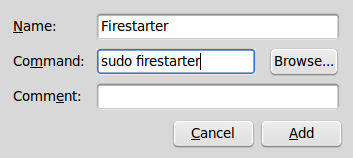
8 – to be sure that your LAN device will be rightly connected to Ubuntu 10.04 every time you boot up it: go to System –> Preferences –> Startup Applications

9 – add a new Firestarter rule typing the following command: sudo firestarter

That’s all! I hope you can find this post useful! AddThis

Changing the default text editor on Ubuntu

There is a few software that will use the editor command to find out what text editor to use. Example commands will be dch to add a new .deb changelog entry, revision control softwares when prompting for commit a message …
There is basically 2 ways for changing the default editor:

1. System Wide
Run Terminal and type:
$ sudo update-alternatives –config editor
And then choose whichever editor you want to be default.

2. User Level
As a user, you cannot change the setting for the whole system, but you can add an alias for editor to let say vim.
Open and edit ~/.bashrc and add:
alias editor=vim
Next time you will open a bash prompt, your default editor will be vim. AddThis

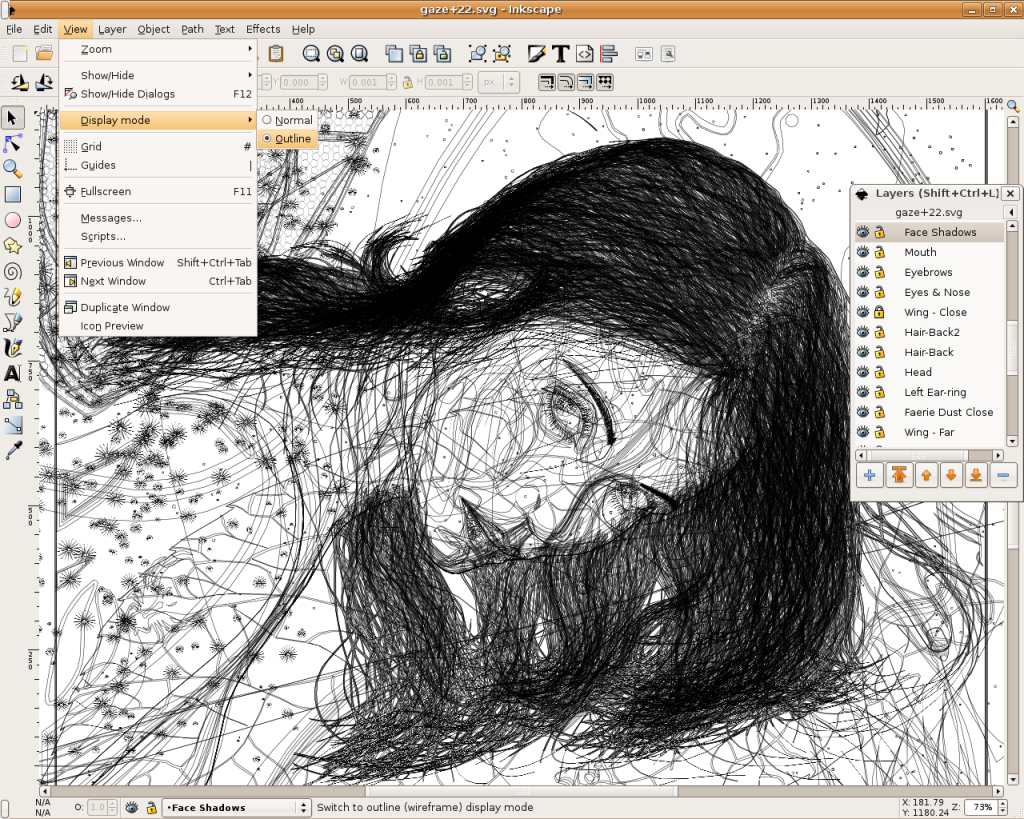
How to Install Inkscape on Linux (with special instructions for Ubuntu)

Inkscape is an open-source SVG editor with capabilities similar to Illustrator, CorelDraw, Visio, etc. Supported SVG features include basic shapes, paths, text, alpha blending, transforms, gradients, node editing, svg-to-png export, grouping, and more. Its main motivation is to provide the Open Source community with a fully XML, SVG, and CSS2 compliant SVG drawing tool.
These are the founding goals for Inkscape:
– Full SVG (plus XML, CSS2) compliance
– Core written in C/C++
– Gtk-based user interface following the standards set out in the GNOME Human     Interface Guidelines (HIG)
– Emphasis on a small core and extensibility. Usually Inkscape’s extensions are always first-class so we can say “no” to features in the core without guilt.
– Open, community-oriented development processes
– Baseline is the Sodipodi Hydra codebase
Where a better solution cannot be found, default to the way Illustrator does it.

Probably the easiest way to install on Ubuntu is to use the apt command.
Open a terminal and type;
sudo apt-get update (enter)
sudo apt-get install inkscape (enter)

  • Ubuntu Linux Development Versions

As it approaches release, nightly i386 and AMD64 builds of the latest Inkscape development version are provided at http://ubuntu.cafuego.net. On that site, one should select the appropriate Ubuntu or Debian release, then the Inkscape link, and finally the provided package. AddThis mp3 link Flattr this!

Recovering root password under Linux with single user mode

It happens sometime that you can’t remember root password. On Linux, recovering root password can be done by booting Linux under a specific mode: single user mode.
This tutorial will show how to boot Linux in single user mode when using GRUB and finally how to change root password.
During normal usage, a Linux OS runs under runlevels between 2 and 5 which corresponds to various multi-user modes. Booting Linux under runlevel 1 will allow one to enter into a specific mode, single user mode. Under such a level, you directly get a root prompt. From there, changing root password is a piece of cake.
Some Linux distribution, such as Ubuntu for instance, offer a specific boot menu entry where it is stated “Recovery Mode” or “Single-User Mode“. If this is your case, selecting this menu entry will boot your machine into single user mode, you can carry on with the next part. If not, you might want to read this part.
Using GRUB, you can manually edit the proposed menu entry at boot time. To do so, when GRUB is presenting the menu list (you might need to press ESC first), follow those instructions:
– use the arrows to select the boot entry you want to modify.
– press e to edit the entry
– use the arrows to go to kernel line
– press e to edit this entry
– at the end of the line add the word: single
– press ESC to go back to the parent menu
– press b to boot this kernel
The kernel should be booting as usual (except for the graphical splash screen you might be used to), and you will finally get a root prompt (sh#).
Here we are, we have gained root access to the filesystem, let’s finally change the password.
As root, changing password does not ask for your old password, therefore running the command:
# passwd
will prompt you for your new password and will ask you to confirm it to make sure there is no typo.
That’s it, you can now reboot your box and gain root access again. AddThis mp3 link

Auto Mount Drives at System Startup on Ubuntu

Ubuntu is capable of reading and writing files stored on Windows formatted partitions, but partitions must be ‘mounted’ before they can be accessed each time you start up the system. With these steps, you can auto mount the drives or partitions without the need to manually mount them for access.
Install Storage Device Manager if it has not been added.
– go to Applications (or Main Menu) > Ubuntu Software Center.
– enter pysdm in the Search Box.
– select Storage Device Manager, click the “Install” button.
– go to System > Administration > Storage Device Manager.
– extend the list of sda and select the sda you want to auto mount, click ‘OK’ to configure.
– click the “Assistant” button.
– uncheck “Mount file system in read only mode” and keep “The file system is mounted at boot time” checked.
– click the “Mount”, “Apply” then “Close” button, and restart the system.
In case you wish to remove the auto-mount of a certain drive or partition, you can similarly use Storage Device Manager to do the setting.

Note: If you need to identify disk partitions by label, paste ls /dev/disk/by-label -g in Terminal, or to view partition sizes and file systems, enter sudo fdisk -l. Disk Utility mentioned in “Name or Label a Partition” also gives you a glance of device numbers, partition types, sizes and labels. AddThis mp3 link

Set Aero Glass Effect in Ubuntu

In Ubuntu you can set nearly the same aero glass effect to window borders with alpha transparency as available in Windows 7:

– press Alt+F2 to bring up “Run Application” window.
– type gconf-editor into the box, click “Run” to bring up Configuration Editor.
– browse to apps > gwd, look for “metacity_theme_active_opacity” on the right panel.
– change the value in “metacity_theme_active_opacity” from 1 to 0.75 (or smaller such as 0.5 for more transparency).
Then go to System > Preferences > CompizConfig Settings Manager:
– select “Effects” from the left panel.
– tick “Blur Windows” and click the “Close” button. (Note: default values in Blur Windows can be applied.)
Note: If the aero glass effect doesn’t work, check if you have updated your display driver. To check, go to System > Administration > Additional Drivers, activate the recommended graphics driver and restart the system. AddThis mp3 link