
Category Archives: Ubuntu

How to Install Inkscape on Linux (with special instructions for Ubuntu)

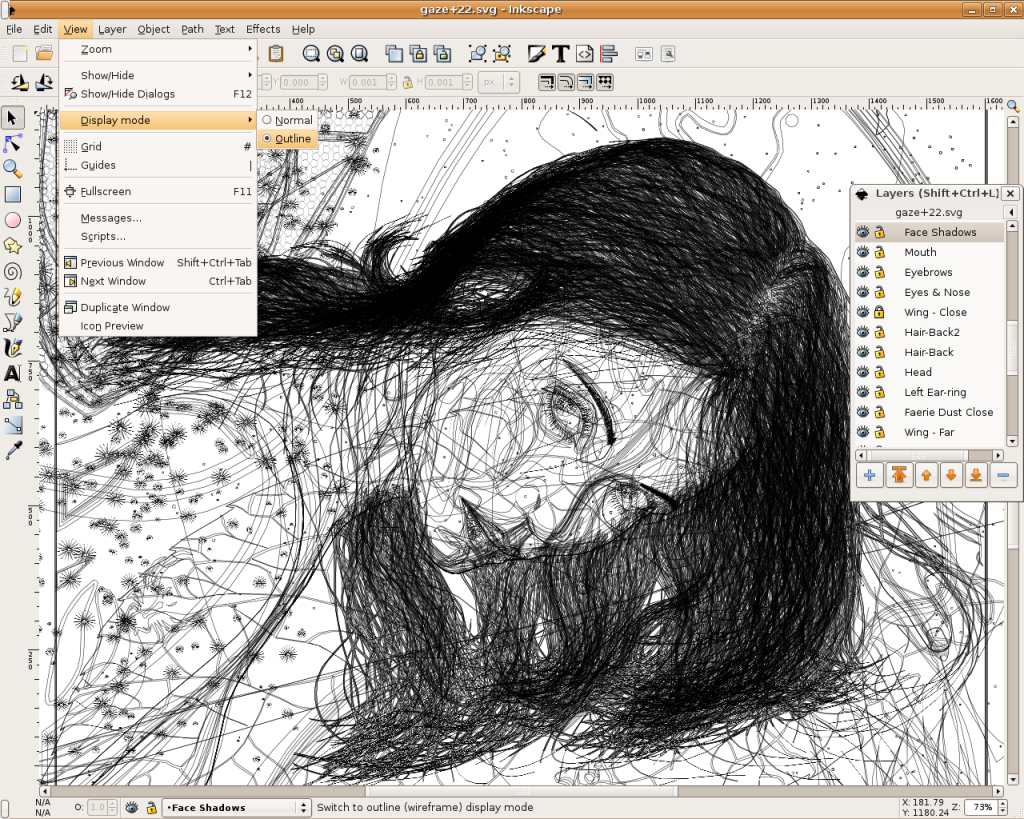
Inkscape is an open-source SVG editor with capabilities similar to Illustrator, CorelDraw, Visio, etc. Supported SVG features include basic shapes, paths, text, alpha blending, transforms, gradients, node editing, svg-to-png export, grouping, and more. Its main motivation is to provide the Open Source community with a fully XML, SVG, and CSS2 compliant SVG drawing tool.
These are the founding goals for Inkscape:
– Full SVG (plus XML, CSS2) compliance
– Core written in C/C++
– Gtk-based user interface following the standards set out in the GNOME Human     Interface Guidelines (HIG)
– Emphasis on a small core and extensibility. Usually Inkscape’s extensions are always first-class so we can say “no” to features in the core without guilt.
– Open, community-oriented development processes
– Baseline is the Sodipodi Hydra codebase
Where a better solution cannot be found, default to the way Illustrator does it.

Probably the easiest way to install on Ubuntu is to use the apt command.
Open a terminal and type;
sudo apt-get update (enter)
sudo apt-get install inkscape (enter)

  • Ubuntu Linux Development Versions

As it approaches release, nightly i386 and AMD64 builds of the latest Inkscape development version are provided at http://ubuntu.cafuego.net. On that site, one should select the appropriate Ubuntu or Debian release, then the Inkscape link, and finally the provided package. AddThis mp3 link Flattr this!

Recovering root password under Linux with single user mode

It happens sometime that you can’t remember root password. On Linux, recovering root password can be done by booting Linux under a specific mode: single user mode.
This tutorial will show how to boot Linux in single user mode when using GRUB and finally how to change root password.
During normal usage, a Linux OS runs under runlevels between 2 and 5 which corresponds to various multi-user modes. Booting Linux under runlevel 1 will allow one to enter into a specific mode, single user mode. Under such a level, you directly get a root prompt. From there, changing root password is a piece of cake.
Some Linux distribution, such as Ubuntu for instance, offer a specific boot menu entry where it is stated “Recovery Mode” or “Single-User Mode“. If this is your case, selecting this menu entry will boot your machine into single user mode, you can carry on with the next part. If not, you might want to read this part.
Using GRUB, you can manually edit the proposed menu entry at boot time. To do so, when GRUB is presenting the menu list (you might need to press ESC first), follow those instructions:
– use the arrows to select the boot entry you want to modify.
– press e to edit the entry
– use the arrows to go to kernel line
– press e to edit this entry
– at the end of the line add the word: single
– press ESC to go back to the parent menu
– press b to boot this kernel
The kernel should be booting as usual (except for the graphical splash screen you might be used to), and you will finally get a root prompt (sh#).
Here we are, we have gained root access to the filesystem, let’s finally change the password.
As root, changing password does not ask for your old password, therefore running the command:
# passwd
will prompt you for your new password and will ask you to confirm it to make sure there is no typo.
That’s it, you can now reboot your box and gain root access again. AddThis mp3 link

Auto Mount Drives at System Startup on Ubuntu

Ubuntu is capable of reading and writing files stored on Windows formatted partitions, but partitions must be ‘mounted’ before they can be accessed each time you start up the system. With these steps, you can auto mount the drives or partitions without the need to manually mount them for access.
Install Storage Device Manager if it has not been added.
– go to Applications (or Main Menu) > Ubuntu Software Center.
– enter pysdm in the Search Box.
– select Storage Device Manager, click the “Install” button.
– go to System > Administration > Storage Device Manager.
– extend the list of sda and select the sda you want to auto mount, click ‘OK’ to configure.
– click the “Assistant” button.
– uncheck “Mount file system in read only mode” and keep “The file system is mounted at boot time” checked.
– click the “Mount”, “Apply” then “Close” button, and restart the system.
In case you wish to remove the auto-mount of a certain drive or partition, you can similarly use Storage Device Manager to do the setting.

Note: If you need to identify disk partitions by label, paste ls /dev/disk/by-label -g in Terminal, or to view partition sizes and file systems, enter sudo fdisk -l. Disk Utility mentioned in “Name or Label a Partition” also gives you a glance of device numbers, partition types, sizes and labels. AddThis mp3 link

Enable Windows 7 Aero Snap in Ubuntu

In Windows 7, you can click and drag a window to the left or right edge of the desktop and it will fill half of the screen, or snap a window to the top edge of the desktop and it will be maximized.

In Ubuntu, you can click and drag a window to the left, right or top edge of the desktop to achieve the same result.

In addition to CompizConfig Settings Manager, install WmCtrl if not added:
– go to Applications (or Main Menu) > Accessories > Terminal.
– enter sudo apt-get install wmctrl
– enter password when prompted.
– go To System > Preferences > CompizConfig Settings Manager.
– select “General” from the left panel and click “Commands”.
In Command line 0, 1 and 2, paste the following codes:

Command line 0, paste:

WIDTH=`xdpyinfo | grep ‘dimensions:’ | cut -f 2 -d ‘:’ | cut -f 1 -d ‘x’` && HALF=$(($WIDTH/2)) && wmctrl -r :ACTIVE: -b add,maximized_vert && wmctrl -r :ACTIVE: -e 0,0,0,$HALF,-1

Command line 1, paste:

WIDTH=`xdpyinfo | grep ‘dimensions:’ | cut -f 2 -d ‘:’ | cut -f 1 -d ‘x’` && HALF=$(($WIDTH/2)) && wmctrl -r :ACTIVE: -b add,maximized_vert && wmctrl -r :ACTIVE: -e 0,$HALF,0,$HALF,-1

Command line 2, paste:

wmctrl -r :ACTIVE: -b add,maximized_vert,maximized_horz

In the same window, click “Edge Bindings” tab.
Change Run Command 0, 1 and 2 from “None” to “Left”, “Right” and “Top” respectively.
Click “Back” button and select “General Options”, change “Edge Trigger Delay” to about 500. AddThis mp3 link

Name or Label a Partition using Ubuntu

Nautilus file manager shows the root directory as File System for your Ubuntu system partition. If you have other partitions (or volumes), it shows them as xx GB Filesystem if they’re not named or labelled.
Using Disk Utility is one of the effective ways to name a partition easily:
– go to System > Administration > Disk Utility
– select the item Hard Disk.
In the Volumes section, click a partition you want to label then:
– click “Edit Filesystem Label” (Note 1)
In the Label box, enter a name, e.g. Data-Disk, and click Apply.
The file manager should now show the partition label, such as Data-Disk, instead of xx GB Filesystem.

Note 1: If the option for “Edit Filesystem Label” is not shown, click “Unmount Volume” before hand. In case you can’t unmount a volume, try Storage Device Manager to unmount it. See Auto Mount Drives at System Startup.

Note 2: This tip is for naming a partition using Disk Utility, use other advanced features such as format, edit or delete partition with caution as they can delete data on your disk. AddThis mp3 link

Set your Ubuntu Desktop Fully Transparent Panel

When you set the panel to be transparent in the default Ambiance theme in Ubuntu 10.10 or 10.04, you will find that some panel items’ backgrounds are not transparent, but you can make them transparent and consistent with others, following these steps:
– Go to Applications (or Main Menu) > Accessories > Terminal.
– Enter: cp -R /usr/share/themes/Ambiance ~/.themes/
– Enter: gedit ~/.themes/Ambiance/gtk-2.0/apps/gnome-panel.rc (for Ubuntu 10.10) OR gedit ~/.themes/Ambiance/gtk-2.0/gtkrc (for Ubuntu 10.04), to open the file with gedit.
– Search for this line bg_pixmap[NORMAL] = “img/panel.png” (for Ubuntu 10.10) OR bg_pixmap[NORMAL] = “panel_bg.png” (for Ubuntu 10.04)
– Comment out the line by placing a # at the beginning of the line, like this: #   bg_pixmap[NORMAL] = …
– Save the file.
– Go to System > Preferences > Appearance, switch to the other theme and then back to the Ambiance theme.
Note: If you’d like to change to the Radiance theme, replace Ambiance with Radiance in the above command lines, but you’d like to change to the New Wave theme, then enter: cp -R /usr/share/themes/”New Wave” ~/.themes/ in step 2, enter gedit ~/.themes/”New Wave”/gtk-2.0/gtkrc in step 3, search for and comment out this line bg_pixmap[NORMAL] = “Images/Panel/PanelBarLong.png” in steps 4 and 5 respectively. AddThis mp3 link

Ubuntu to Windows XP folder sharing

Computer networks are sometimes comprised of various OS and while operating a network made up fully of Ubuntu desktop and server computer systems would definitely be enjoyable, some community environments can consist of both Ubuntu and Microsoft Windows systems working together.
If you want to make an Ubuntu shared folder be accessible to Windows XP,  run the NTFS configuration tool on the drive.
Don’t forget that it is advisable to have admin rights to do that modification.
Select application->Accessories->Terminal
then type the following:

sudo gedit /etc/samba/smb.conf

and in the [global] section add the following line:

usershare proprietor only = false

AddThis mp3 link

Using iPhone internet sharing over bluetooth under Linux

To use your iPhone’s internet connection through a Linux notebook over bluetooth, you have to open Tethering option on your iPhone device, under the Settings->General->Network section.

After that you can install Blueman (a simple and intuitive bluetooth manager) for easily configuring bluetooth PAN network:

apt-get install blueman

Start blueman-manager and find your mobile device and connect to it. When connection completed successfully, select Device->Add->Network Access Point in blueman-manager.
And the last step, configure the network interface:

dhclient bnep

AddThis mp3 link

Logwatch on Ubuntu Desktop/Server

Logwatch is an Ubuntu modular log analyzer that runs every night and mails you the results. It can also be run from command line. The output is by service and you can limit the output to one particular service. The subscripts which are responsible for the output, mostly convert the raw log lines in structured format.
Logwatch generally ignores the time component in the output, that means, you will know that the reported event was logged in the requested range of time, but you will have to go to the raw log files to get the exact details.
Install logwatch using the following command:

sudo apt-get install logwatch

This will install all the required packages

Configuring Logwatch:

first you need to make sure you server is able to send the mails outside you can do this using postfix with SMTP server configuration.

Now you need to edit logwatch.conf file:

sudo nano /usr/share/logwatch/default.conf/logwatch.conf

Change the following information:

Output = mail
Format = html
MailTo = test@gmail.com

Save and exit the file

If you want to know more available options check logcheck manpage using the following command from your terminal:

man logcheck

Now edit the 00logwatch file

sudo nano /etc/cron.daily/00logwatch

add the following line:

/usr/sbin/logwatch –mailto test@gmail.com

Save and exit the file

This tool is very useful, give it a try! AddThis mp3 link

Maximize internet speed connection in Ubuntu via sysctl

Do you want to maximize your bandwidth? Here are few important settings you should do to speed up your internet and it works in Ubuntu and all Linux operating system via sysctl.
First open a Terminal via Applications->Accessories->Terminal
Type:

sudo gedit /etc/sysctl.conf

Then Paste the Following at the end of the file:

# increase TCP max buffer size setable using setsockopt()
net.core.rmem_max = 16777216
net.core.wmem_max = 16777216
# increase Linux autotuning TCP buffer limits
# min, default, and max number of bytes to use
# set max to at least 4MB, or higher if you use very high BDP paths
net.ipv4.tcp_rmem = 4096 87380 16777216
net.ipv4.tcp_wmem = 4096 65536 16777216
# don’t cache ssthresh from previous connection
net.ipv4.tcp_no_metrics_save = 1
net.ipv4.tcp_moderate_rcvbuf = 1
# recommended to increase this for 1000 BT or higher
net.core.netdev_max_backlog = 2500
# for 10 GigE, use this, uncomment below
# net.core.netdev_max_backlog = 30000
# Turn off timestamps if you’re on a gigabit or very busy network
# Having it off is one less thing the IP stack needs to work on
#net.ipv4.tcp_timestamps = 0
# disable tcp selective acknowledgements.
net.ipv4.tcp_sack = 0
#enable window scaling
net.ipv4.tcp_window_scaling = 1

Press Ctrl-S to save, then alt-F4 to exit and then type:

sudo sysctl -p

to apply the settings.

Now, check your speed using speed-test site or download files in the net.

You can disable all these settings by removing these lines you added via:

sudo gedit /etc/sysctl.conf

AddThis mp3 link