
Tag Archives: Gnome

How to Install Inkscape on Linux (with special instructions for Ubuntu)

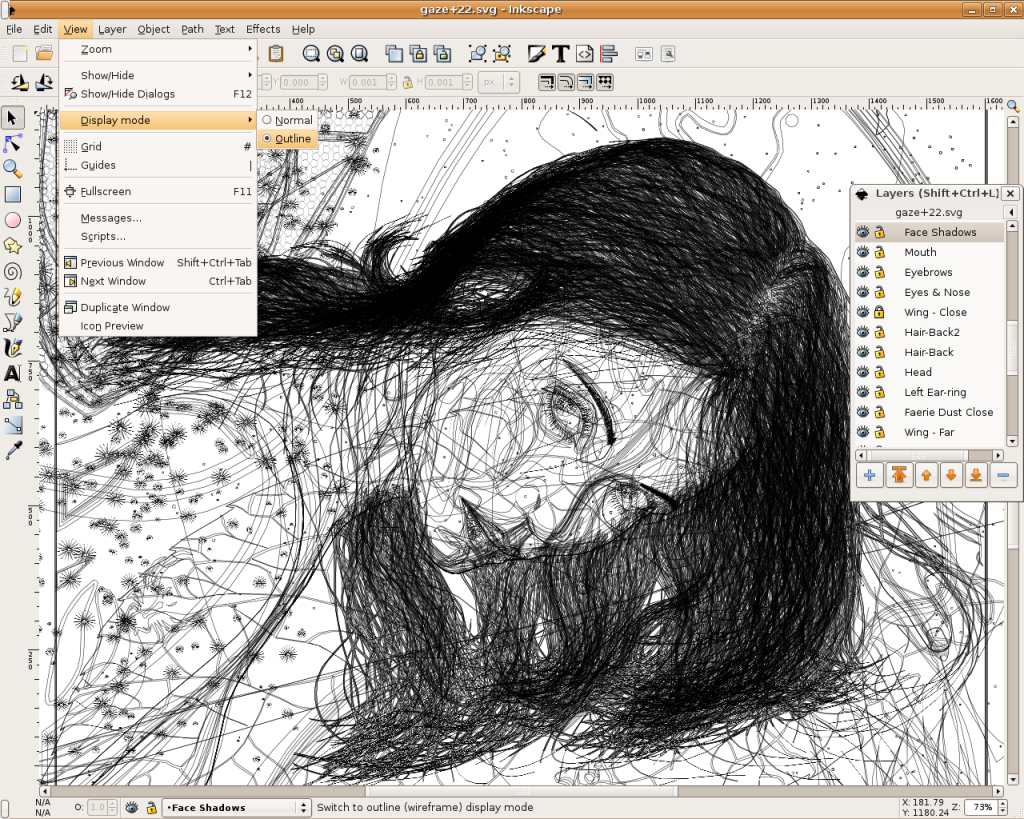
Inkscape is an open-source SVG editor with capabilities similar to Illustrator, CorelDraw, Visio, etc. Supported SVG features include basic shapes, paths, text, alpha blending, transforms, gradients, node editing, svg-to-png export, grouping, and more. Its main motivation is to provide the Open Source community with a fully XML, SVG, and CSS2 compliant SVG drawing tool.
These are the founding goals for Inkscape:
– Full SVG (plus XML, CSS2) compliance
– Core written in C/C++
– Gtk-based user interface following the standards set out in the GNOME Human     Interface Guidelines (HIG)
– Emphasis on a small core and extensibility. Usually Inkscape’s extensions are always first-class so we can say “no” to features in the core without guilt.
– Open, community-oriented development processes
– Baseline is the Sodipodi Hydra codebase
Where a better solution cannot be found, default to the way Illustrator does it.

Probably the easiest way to install on Ubuntu is to use the apt command.
Open a terminal and type;
sudo apt-get update (enter)
sudo apt-get install inkscape (enter)

  • Ubuntu Linux Development Versions

As it approaches release, nightly i386 and AMD64 builds of the latest Inkscape development version are provided at http://ubuntu.cafuego.net. On that site, one should select the appropriate Ubuntu or Debian release, then the Inkscape link, and finally the provided package. AddThis mp3 link Flattr this!

Get Kindle for PC to Ubuntu (if you really don’t like Calibre)

Amazon’s Kindle a popular portable e-book reader device, lately made Kindle for PC application that allows you to download and have books on your computer rather than having a portable e-book reader device. There’s only Kindle Windows version but the nice thing is you can have this application in Linux.
This is tested in Ubuntu 9 running Gnome. You can use different version of Linux, but first you must have Wine HQ installed to you computer. Then download the EXE file of Kindle for PC application in Amazon.
Install this with Wine HQ software loader and proceed to the normal installation, the same thing that you do in Windows environment.
Note:

– At your first run you won’t see anything at all

– Configure Wine first and add Kindle for PC as an application and make it run in Windows 98 mode

– If it won’t work, change to other mode

– When it opens successfully you have to input you Amazon email add and password to register the software.

But, please, don’t forget that if you prefer open source software, you can directly use Calibre, a powerful free software we posted a while ago. AddThis

Remote Control your Ubuntu

Managing  the Remote Desktop on Ubuntu is quite easy.  You can allow users to access your desktop with VNC Viewer utility that is included in Ubuntu pack and can be downloaded for free also in Windows PCs. The Remote Desktop feature is very useful but follow, at least, one important safety tip: when your desktop remote control is enabled, the only defense against attacks is your firewall and it must be properly installed and configured correctly. In any case, do not forget that Remote Desktop still represents a first level security risk.

To tune up the Remote Desktop just follow these simple steps:

– go to System > Preference > Remote Desktop on the Gnome top menu:


– check the first two check boxes for remote to be enabled.

– if you want to connect your PC through the web and a  “Your desktop is only reachable over the local network” notice appears, please do not forget to forward Port 5900 to the IP you see a line below in the menu

– in the Security section, when selecting the “You must confirm each access to this machine” check box, you will be needed to be at the computer to allow the other person to access your desktop. If you are trying to remote access one of your own computer, you would want to uncheck this box

– do not forget that the password check box should always be checked and you should enter a real secure password You will be prompted for this password when you try to log on

– for a better safety be sure that an icon will be displayed on the Ubuntu upper bar when someone is connected

AddThis mp3 link

How to repair the missing upper panel on Ubuntu 10.04 Netbook

After my last update I was not able to visualize my upper panel on Ubuntu 10.04 Netbook. After some internet searches and tests I found these two solutions which were useful to me:

Solution A

– right click on the background and choose Change Desktop Background

– go to Visual Effects and click on Normal

Solution B

– ALT + F2 and when in Terminal type

gnome-panel

If you want to save the configuration and visualize the upper panel for the next time you use Ubuntu, please type in terminal:

gnome-session-save

I am sure there are better ways to solve this problem, so if you have suggestion you are free to comment this post. Thanks.

AddThis mp3 link

How to create your personalized Linux OS using SUSE Studio

This week, in our Linux Page (in Spanish) we uploaded a brief post about SUSE Studio an online service which allows you to create new distribution based on openSUSE 11.2. The online OS builder allows you to choose between 32 bit or 64 bit system based on SUSE, GNOME, KDE, Minimal X or text only Server. In the next menu you will be asked to choose all the software you prefer (7,876 different packages). After this, you can also choose and personalize, for example: language, keyboard, network, firewall and users. Moreover, you can personalize the boot-up and all the programs you want to automatically autostart. SUSE Studio is very interesting and allows you to create the best Linux OX for all your needs. Recommended! AddThis mp3 link

Appnr: an useful webpage where to find the best -ready to be installed- programs for Gnome, KDE and XFCE!

Today in our Linux Page (in Spanish) we have posted a brief review about http://appnr.com/ an online resource page where it is possible to find a huge amount of programs ready to be installed. In few words it is possible to directly install them with just a click on the the download button on the right of the page. To take advantage of this feature please, check (once a time) to have apt url installed. If you have not apt url on your PC you can install it by terminal with sudo apt-get install apturl. Moreover the appnr.com website is very easy to explore with a very intuitive graphical menu on the left side of the screen and a powerful internal search engine. Appnr.com also contains a very practical search option which allows you to find the programs already separated between Gnome, KDE and XFCE. To sum up it is possible to affirm that appnr.com could be very useful especially when we don’t find .deb packages and don’t want to spend time manually installing programs. Anyway, to keep always my Ubuntu updated, I personally prefer to  directly add repositories in Third Party Software (in System – Software Sources). Something to try! AddThis mp3 link

LinTube.com: a video mine for Linux videos and tutorials!

LinTube LogoLinTube is a new website whose purpose is to find and collect videos about Linux and all its distributions. LinTube webpage is very essential and full of Google Ads but it is very well structured and with just few clicks is possible to find the topics you are looking for and the related videos. At the moment, the main categories are: Commercials,Compiz, Distributions (Ubuntu, Fedora, Mandriva, Slackware), Fun Stuff, GNOME, HowTo, KDE, Linux Events, Linux Gadgets, Mediacenter, Misc, Security. LinTube is always updated and on the video linked are very well selected, the majority of them are very interesting and you will discover yourself spending much time on this website. For more, brief information, please, feel free to visit our Linux Page (in Spanish). AddThis mp3 link

Linux Distribution Chooser (LDC): a simple but effective tutor to choose the best Linux distribution for your needs!

Linux Distribution ChooserThis week in our Linux Page (in Spanish) we decided to add a short review about LCD (Linux Distribution Choose) a very basic but (we think) effective on-line test which allows people to better choose the most effective Linux distribution for they specific needs. The on-line test starts with few generic questions about your HD partition, Linux skills and if you want to install Linux on a desktop or a laptop. LDC continues asking you some more information about your favourite package management and the preferred desktop environment. The last key answer is about the hardware (you can choose between Mac or PC) and finally you will receive your personalized suggestion about the ideal Linux distribution for you. Simple, useful (for beginners) and fast test. Recommended! AddThismp3 link