Tag Archives: tips

HTML5 Privacy Matters: DOM Storage. How to solve it in only 2 steps!

Recently I started an online course that was created using the Google Course Builder.

After I registered the course I was not able to access it because “my browser didn’t allow the web storage” and, for this reason, a message informed me that it would be necessary to use a up-to-date browser as Chrome or Firefox.

The only problem is that I always use Firefox. Obviously a “particular” version of Firefox where I also added a bunch of different add-ons to enhance the privacy protection level of my navigation and, for this reason, the Google course was not available for me.

Normally I would have decided to quit the course because I prefer not to modify my Firefox configuration after I spent so much time searching the best add-ons to preserve a minimum of privacy.  But, in this case, I really wanted to attend the course and so I decided to manually operate on the Firefox configuration to “solve” the problem and allow Google to keep all the information it would have considered as essential.

This is the list of what I did:

– open Firefox and type:

about:config

in the address bar.

– search for:

dom.storage.enabled

and change its configuration from “false” to “true” double-clicking on it.

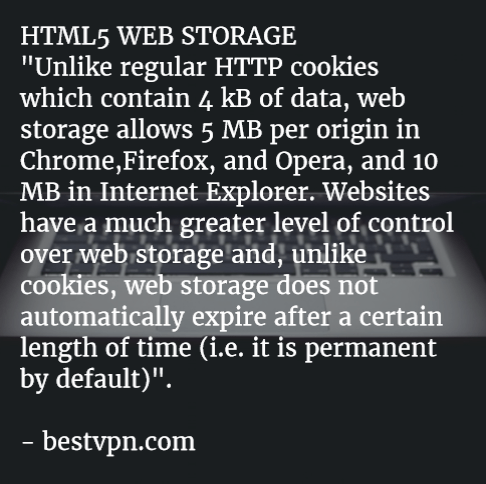
After this fast change in the Firefox’s configuration menu I was able to attend the Google course but….. I am conscious that my privacy is a little bit less protected because now Google can store up to 5 MB of content on my browser. In fact, before HTML 5 we were used to “cookies” and we were able to “manage” (better: erase) them also if, as the LSO Flash cookies, they were more persistent than usual. Moreover in the old html times, the space available for cookies on your local browser was 4 KB (yes… KB) but now, in the Html 5 era, a single website can easily manage and permanently store till 5 MB on your browser. And this is the reason why I decided to protect my privacy disabling the DOM Storage on Firefox and this is also the reason because I will disable DOM Storage as soon as I complete the Google course…
DOM STORAGE
If you are not a simple user but you prefer to directly and consciously operate on the Firefox configuration to improve your privacy level, you would read this interesting post by BestVPN.
————-

References:

3 Good Reasons to persist in using Google ncr = no country redirect

why_istock_000007228941xsmall-300x198

Image from: marketing-partners.com

Since some weeks ago, I used:

http://google.com/ncr

for my web search and I was able to open the main Google Homepage without to be redirected to any local Goole site.

What I usually obtained was:

1 – less “personalized” search results: the algorithm will be not “contaminated” by my local IP and I will able to find information “cleaned” by local trends;

2 – the possibility to use the “same” Google even when I am abroad;

3 – the security that my searches were always up-to-date respect the global actual trends. For my experience when I search some particular topics as “marketing” I obtain, in the first Google page, fresh news only using Google in its NCR version. If I try to use my local Google homepage I have to spend more time setting the Google’s “advanced search” or trying to understand what information are “really” fresh new.

url-720x340

Image from: mods2015.com

I found the right solution when I visited ycombinator.com and I found the post created by newman314 that submitted a link that combined NCR and SSL protocol (for a little bit of more privacy).

https://encrypted.google.com/search?q=test&qscrl=1&n…

https://encrypted.google.com/search?q=test&qscrl=1&ncr=1

Where the word “test” is what I am looking for.

Then I also found a faster solution by dragop:

http://www.google.com/?gfe_rd=cr&gws_rd=cr

and, in the same webpage, a shorter version from 3dfan:

http://www.google.com/?gws_rd=cr

On my side I prefer to use this other URL that gives me the same results through an SSL connection:

https://encrypted.google.com

To be sure that the results were really the same and not simply related with the English language and influenced by the IP, I tested this URL comparing them from what I obtained from the above mentioned:

http://www.google.com/?gws_rd=cr

I discovered that what I “received” using encrypted.google.com are really the same links and they are not just the standard local results in the English language.

I know that cookies will not allow me to have real “septic” results but this is the first step to a less passive use of Google search because I would like to be a more active user and not just a passive customer pampered by Google.

Start 2016 with a bunch of unusual Linux OS!

linux-distributions-to-look-forward-in-2016

What’s better than testing? For me nothing!

For this reason, let me introduce some “unusual” Linux distribution proposed by Jesse Afolabi @Jesseflb via Techmint.

VeltOS and PapyrOS are based on Arch but the last one is in its pre-alpha testing so it’s not suggested for beginners.

Moreover, we may decide to begin 2016 with Korora that is still one of my favorite projects also after so many years since the first release.

Last but not least, we have Solus OS 2 that it is not the most Linux distribution I tested but it is stable and really well built.

Happy 2016!

Link

3 things you need to remember when Upgrading to Fedora 23 as for the Unicmen’s instructions

The upgrade from Fedora 22 to Fedora 23 is not automatic, as usual in my Fedora experience, but it is really simple to manage if you follow the path suggested by Unixmen.

There are few things you need:

connect your laptop to the power plug (if you use a laptop);

– a couple of hours (something more or less depending on your CPU, RAM, Internet connection speed, etc..);

few lines of commands on the Terminal

The upgrading process is well structured and to start it you need to launch Terminal and upgrade the native Fedora Fedup with its new version that now is integrated into DNF:

dnf upgrade

Then you have to install the DNF plugin:

dnf install dnf-plugin-system-upgrade

and finally you can start the “core” part of the upgrade just typing:

dnf system-upgrade download –releasever=23 –allowerasing –best 

Where:

– allowerasing will continue the upgrade also in presence of any “old” (not yet upgraded) third part repositories that normally would have completely stopped the main upgrading process

-best is a verbose mode in case of unsatisfied dependencies

After a while, depending on your Internet connection speed, you will be able to conclude the upgrade typing:

dnf system-upgrade reboot

Your laptop will reboot and the upgrade starts.

From now you spend more than 40 minutes waiting and answering to few easy questions that the OS asks you to solve some configuration matters.

The length of the waiting time depends obviously on the CPU, the RAM and the type of Hard Disk installed into your PC.

That’s it!

Link
http3a2f2fwww-redpill-linpro-com2fsysadvent2fassets2fimg2fbackup_disk

Image from redpill-linpro.com

Cloning block devices online using Software RAID

Link

ubuntugnomea

Image: Jack Wallen


Ubuntu GNOME 15.10: The perfect Linux desktop distribution


Synkron: a flexible & powerful way to synchronize your files or folders on Linux – An “encrypted” example for security and privacy reasons

Sometimes it is really easy, other times you waste your time. A good synchronization between files or folders is something you need everyday but it could become a nightmare if you miss something.

In my specific case I need to automate a synchronization between a folder (F1) where I usually save my office files (Documents) with a second folder contained, for security reasons, in an encrypted volume/partition (F2). This last folder (F2) automatically synchronize its content with a third folder (F3), located in the same encrypted volume/partition, that is the client folder of a remote storage hosting (F4).

This also means that when I am out of the office and I add a file in the online storage host (F4) the document is automatically copied to the client folder of the remote storage hosting and to the folder located in an encrypted volume/partition (F2 and F3).

Moreover, I need to erase the Documents folder F1 as soon as it is synchronized with its mirror F2 in the encrypted volume.

The described scenario is common in the everyday working life and it is conceptually not hard to solve… in theory… When I tried to set up the above described operations using grsync on Fedora and Ubuntu I had big problems to obtain an acceptable result.

Many times the synchronization was unidirectional and I was not able to run it properly just using grsync still I found one right solution with Synkron. Synkron  is a multi platform software (Linux, OSX, Windows and portable) written in C++ that is really flexible for all multitasking synchronization needs.

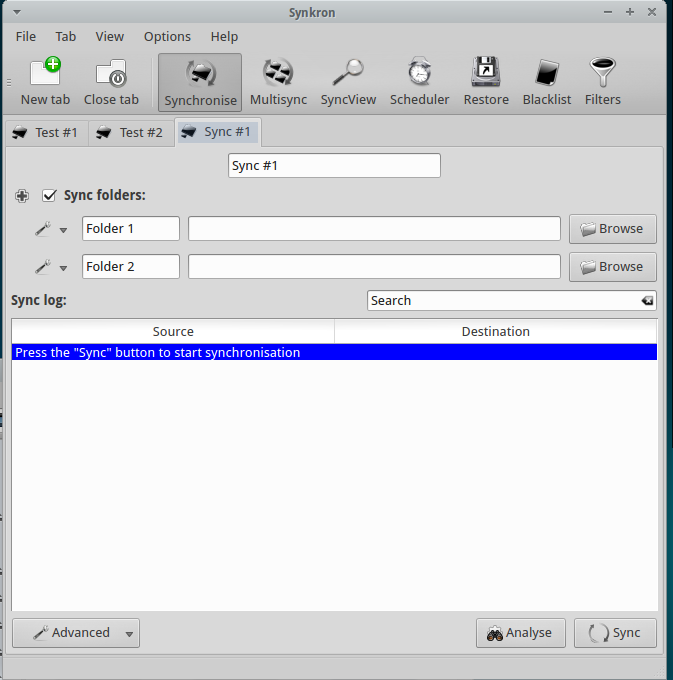
First of all, Synkron is multi-tab and this is a winning features because it let you to “slice” any problem (synchronization matter) into simple, easy to solve, tasks.

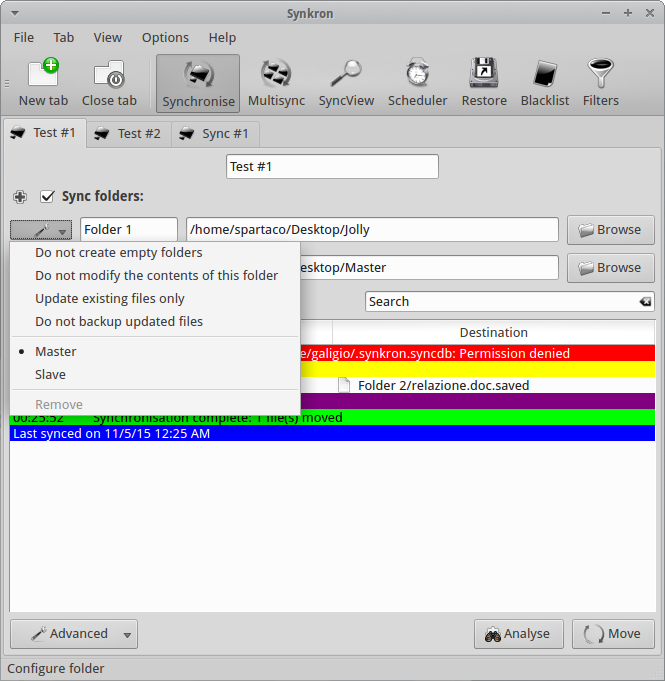
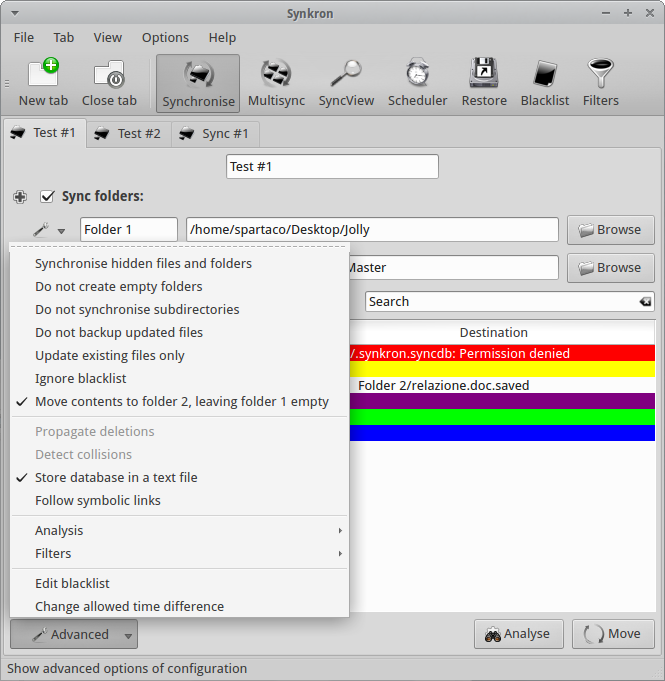
In my example I determined the two Folders I wanted to sync – F1 & F2) and  decided thath both folders had to be considered as Master by the software.

Then I used the Advanced Menu and I chose to “Move contents to Folder 2, leaving folder 1 empty” and to “Store database in a text file” for my convenience (F1 to F2 deleting F1 contents after synchronization).

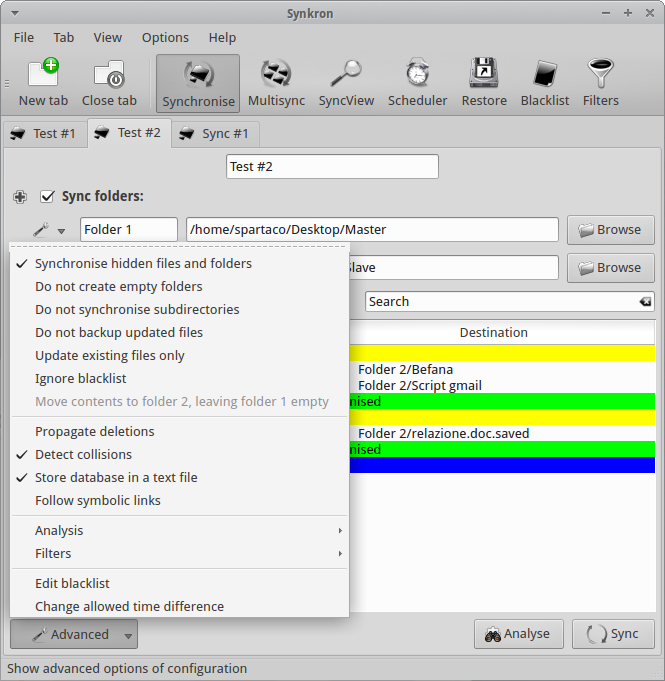
At this point, I opened a second synchronization tab where I selected two folders (F2 to F3 sync) and I also asked Synkron to “Synchronize hidden files and folders” and to “Detect collisions”.

At this point I had obtained an acceptable solution to my initial task, simply dividing my problem into two separate operations.

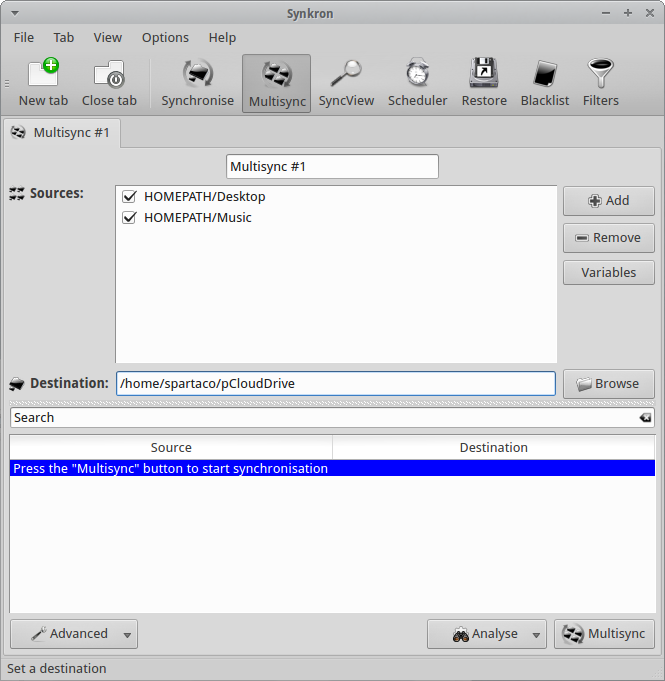
Moreover, I’ld like to focus your attention on the fact that Synkron has a specific feature for multi-synchronizing three or more folders at the same tome. The tuning of this particular feature is really intuitive and you can also selected many of the different advanced options we described here above.

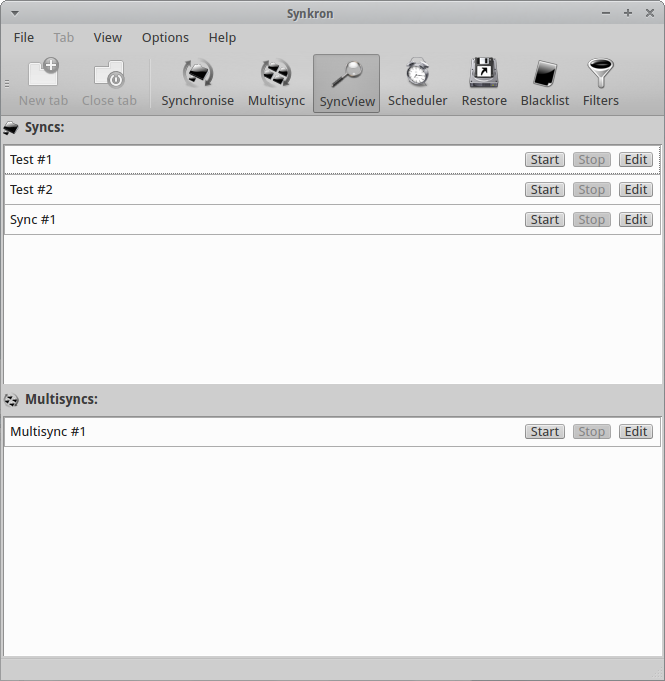
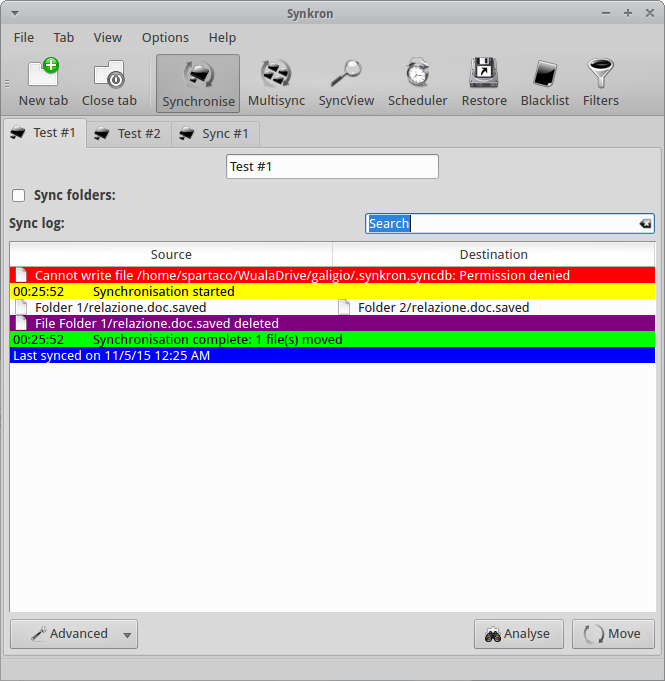
If you have complex synchronization needs and you have many tabs configured you can always choose what tabs you want to activate or deactivate using the “Sync folders” option you find in the upper part of each tabs. Another option for this specific issue is represented by the SyncView visualization that let ypu to have a quick general glimpse about the state of all the sync and multisync tabs.

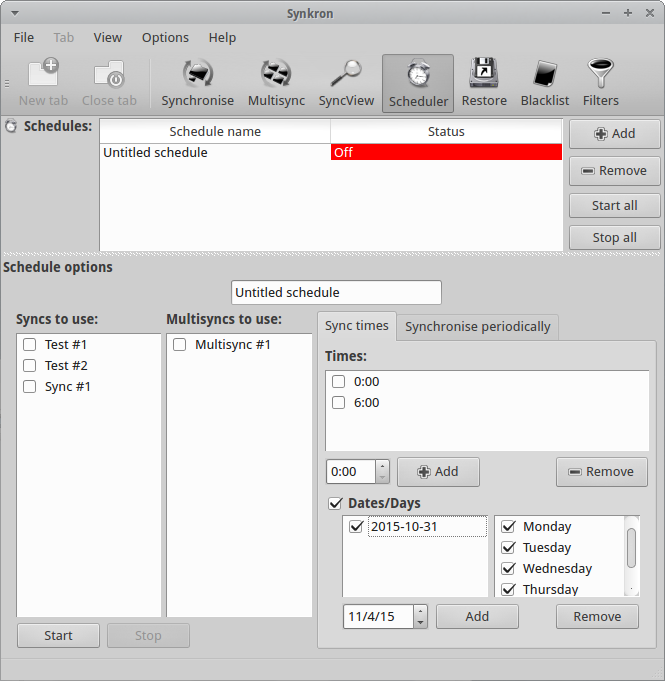
Synkron has simply fantastic scheduling options that are able to solve any need you may have.

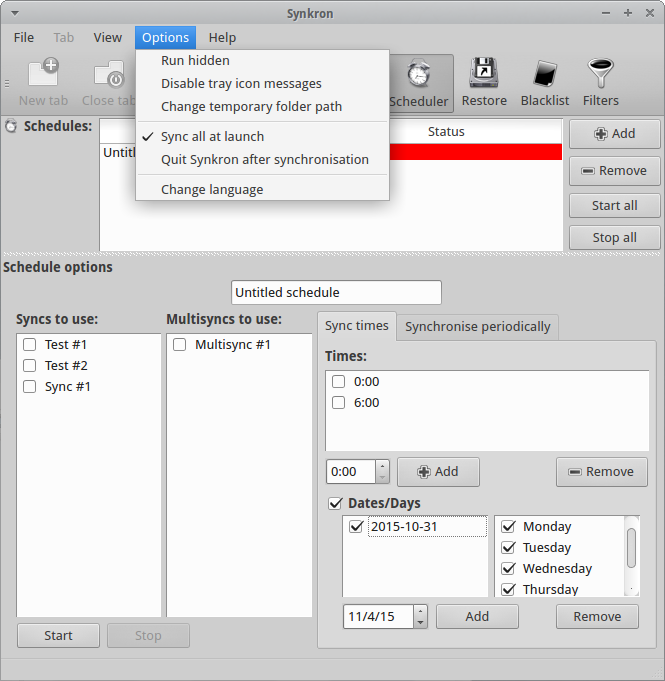
Furthermore you can decide to automatically synchronize your folder as soon as you launch Synkron.

You can also decide to automatically run Synkron at the startup but, in this case, you need to manually configure your Startup Menu.

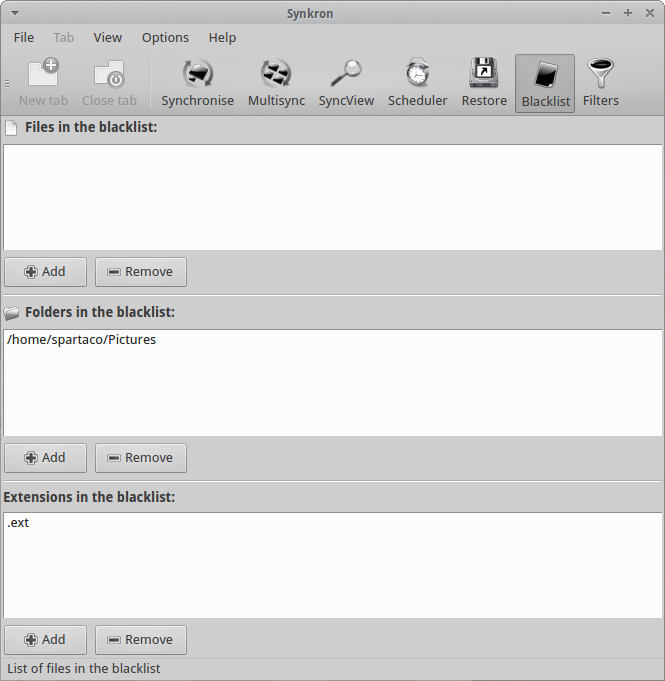
As extra features you can always decide to create Blacklists that will exclude specific files, folders or extensions from the synchronization.
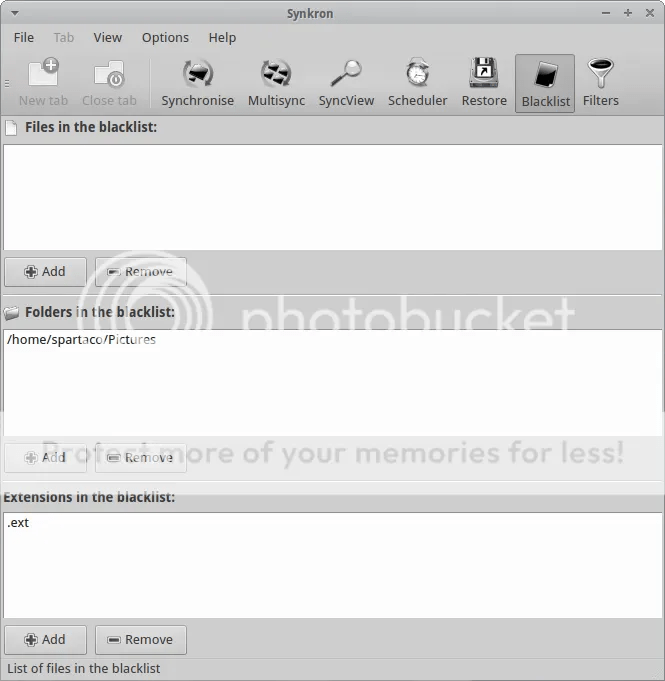
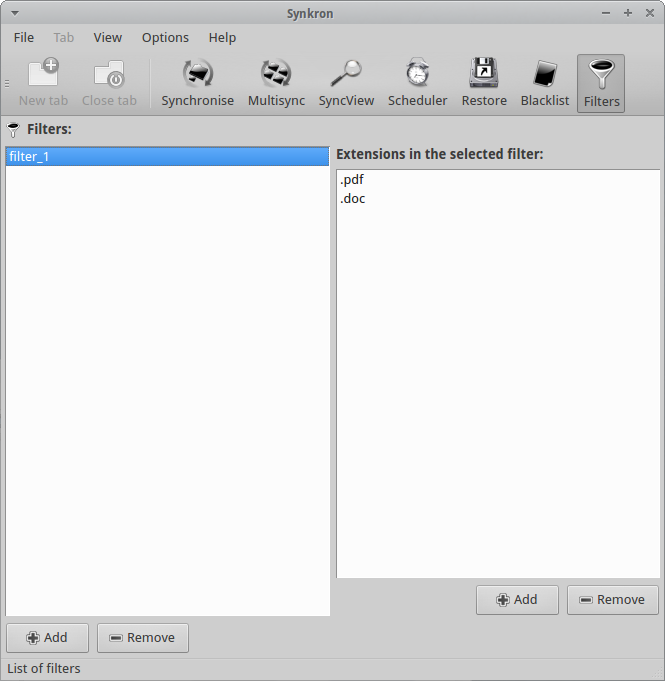
In addition you can define Filters by extensions to better refine your synchronization.

Last but not least, when you run Synkron you obtain a detailed report in real-time where you can check the state of operations by colors.


Link

Sourcing Revolution! Googling In Ways You Never Have