Optimizing Linux for Slow Computers by Jenny List (and AkitaOnRails) via 

Optimizing Linux for Slow Computers by Jenny List (and AkitaOnRails) via

“If your computer having problems or lags while using Windows operating systems, you’ll discover some fast and lightweight OS in this article. There is another post where we discussed best alternative operating systems that are not specifically for old PC’s”
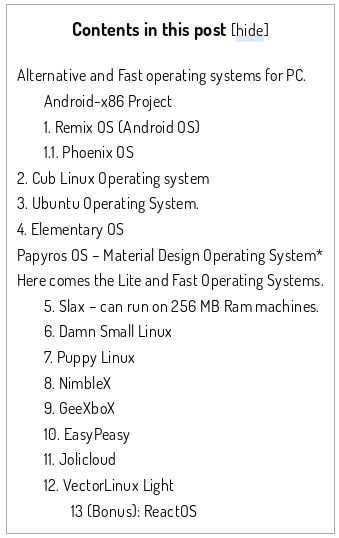
 Are you looking for a up-to-date Linux Distro to use that old laptop you have in the dust in the far corner of your garage? It could not be so easy to find the best Linux Distro to install on it but howtouselinux.net did some great twests for all us:
The review is really well-done and the graphic display of results let you to quickly choose what is the best Distro candidate for your laptop depending on hardware, your tastes and the final use you want to give to your laptop.
In my experience the howtouselinux.net review let me to save a lot of time because I was able to focus my tersts just on the two Distros that seemed to have the right prerequisites for my old eeepc 900: Peppermint OS and Macpup. Recommended!


Image from: oriental-press.com
sudo nano /etc/ddclient.conf
sudo /etc/init.d/ddclient status
What’s better than testing? For me nothing!
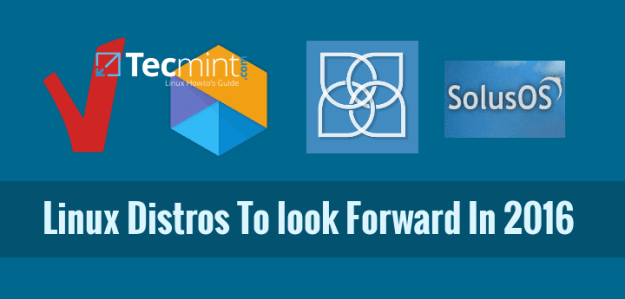
For this reason, let me introduce some “unusual” Linux distribution proposed by Jesse Afolabi @Jesseflb via Techmint.
VeltOS and PapyrOS are based on Arch but the last one is in its pre-alpha testing so it’s not suggested for beginners.
Moreover, we may decide to begin 2016 with Korora that is still one of my favorite projects also after so many years since the first release.
Last but not least, we have Solus OS 2 that it is not the most Linux distribution I tested but it is stable and really well built.
Happy 2016!
The upgrade from Fedora 22 to Fedora 23 is not automatic, as usual in my Fedora experience, but it is really simple to manage if you follow the path suggested by Unixmen.
There are few things you need:
– connect your laptop to the power plug (if you use a laptop);
– a couple of hours (something more or less depending on your CPU, RAM, Internet connection speed, etc..);
– few lines of commands on the Terminal

Image from https://fedoramagazine.org
The upgrading process is well structured and to start it you need to launch Terminal and upgrade the native Fedora Fedup with its new version that now is integrated into DNF:
dnf upgrade
Then you have to install the DNF plugin:
dnf install dnf-plugin-system-upgrade
and finally you can start the “core” part of the upgrade just typing:
dnf system-upgrade download –releasever=23 –allowerasing –best
Where:
– allowerasing will continue the upgrade also in presence of any “old” (not yet upgraded) third part repositories that normally would have completely stopped the main upgrading process
-best is a verbose mode in case of unsatisfied dependencies
After a while, depending on your Internet connection speed, you will be able to conclude the upgrade typing:
dnf system-upgrade reboot
Your laptop will reboot and the upgrade starts.
From now you spend more than 40 minutes waiting and answering to few easy questions that the OS asks you to solve some configuration matters.
The length of the waiting time depends obviously on the CPU, the RAM and the type of Hard Disk installed into your PC.
That’s it!
 If you are looking for a light Linux OS for your computer you can test Bodhi Linux. This specific Linux version, based on Ubuntu, utilizes the enlightenment graphical interface. For this reason Bodhi is particularly indicated also to give new life to computers with no updated hardware.
The graphical interface is really “zen” or rather clean, easy to navigate but complete. We tested the 32 bit version and it was a smooth experience also if we used a single core pc with 2 GB of RAM.
Before testing Bodhi you have to keep in mind that this Linux OS is really user oriented. It means it has just some few pre-installed programs and so you are free to customize it as you prefer. Last thing to remember is that Bodhi is a semi-rolling distribution ans so it will be updated in occasion of Ubuntu Long Term Releases (LTS). Try it, it is worth a chance!
 When it comes to the most recent generation of computers, there is an option to start an operating system right from a USB stick, without an actual installation process. This may be an option to use or test a different operating system without affecting in any way the one that is already installed.
Starting from version 8.10, Ubuntu can be installed on a USB stick in a more easy way by every single user, regardless of their knowledge in Linux. To perform the installation, the user must have a version of 8.10 or later on CD and a USB stick with a capacity of at least 700 MB free space available, but this can vary according to the version of Ubuntu that you want to use for this process.
To install Ubuntu on the USB stick, you can simply boot the Live CD mode of Ubuntu or alternatively, if already installed on your on your system, you can follow the following simple procedure to do this, which is described in some basic steps below.
First of all, you need to access the Ubuntu menu bar, via System> Administration, choose Create a USB startup disk.
At this point, you will be asked to specify the source disk image of Ubuntu. If you have the Ubuntu CD in optical drive, it should appear in the list and will be selected. Otherwise, click Other and specify the location of the image. The .iso format will do it, but other versions may work as well.
When completed, you can use the stick on any computer that can boot from such units. Just tell the computer’s BIOS to use this option and restart the respective machine. The same procedure can be applied for the any distribution of Linux, so this is a helpful tutorial for everyone. 
 5 commands to check memory usage on Linux
 Computer Borders