Category Archives: Tecnologia

Reinstalling and Fixing Grub 2 by NixiePixel

AddThis

Recovering the GRUB 2 Boot Loader by cgermany77

AddThis

How to manage the GRUB and purge old Kernel versions on the start-up menu

After a kernel update, you find the start-up menu populated with extra lines related to all the old kernel versions plus the current one. To manage the start-up manager and safely remove old kernels you have to manually operate on it.
First of all you have to double-check what is the current kernel version.
Open a Terminal and type:
uname -r
The result will be something similar to: 2.6.32-35-generic
Then you will go to the boot directory through the command:
cd /boot ls vmlinuz*
The next step will be to obtain more information about old kernel you have on our PC:
ls vmlinuz*
Now in the Terminal you have results similar to these:
vmlinuz-2.6.32-21-generic  vmlinuz-2.6.32-25-generic  vmlinuz-2.6.32-35-generic
vmlinuz-2.6.32-24-generic  vmlinuz-2.6.32-26-generic
As last step you have to remove all the old version of the kernel using this command:
sudo apt-get remove linux-image-X.X.XX-XX-generic
where “x” is the obsolete kernel version you want to purge. In my specific case the proper command line I used was:
sudo apt-get remove linux-image-2.6.32-21-generic linux-image-2.6.32-24-generic linux-image-2.6.32-25-generic linux-image-2.6.32-26-generic
Last but not least go to System –> Administration –> StartUp Manager (available for installation on Synaptics or on Ubuntu Software Center) and select your OS choice in the Default Operating System menu. That’s all! AddThis

Configurar Iptables con Firestarter en ubuntu by josealeguinea

AddThis

How to correctly configure and use the Windows Network on Ubuntu 10.04 LTS

At the beginning it appeared as a no-solved mystery because in all the many posts I read, there were no effective solutions. On my Ubuntu 10.04 LTS I was no able to use the external hard disk I had connected to the LAN and every time I tried to mount it I only received this message: Unable to mount location – Failed to retrieve share list from server


In few words it was not possible to use the Windows Network and all the people with the same problem (which is specific for the Ubuntu 10.04) suggested to reconfigure Samba but all the configuration and scripts I tried were no effective to let me use the external hard disk.

At the end I found someone who talked about a possible firewall misconfiguration and I tried in many ways to bypass the situation using ufw commands and opening ports and services over the LAN:

$ sudo ufw status
[sudo] password for *****:
Status: active

To                                      Action            From
—                                        ——                —-
135,139,445/tcp           ALLOW       Anywhere (log)
137,138/udp                  ALLOW       Anywhere (log)
Samba                             ALLOW       Anywhere
192.168.0.3 Samba     ALLOW       10.0.0.0/8
10.0.0.0/8                    ALLOW       192.168.0.3 Samba

Unfortunately, every new permission I granted to Samba on my Firewall was not a real solution but when I tried to stop the Firewall (System –> Administration –> Firewall Configuration) using the default firewall manager, Ubuntu was able to find and work on the external hard disk.

For this reason I made some tests and found this solution:

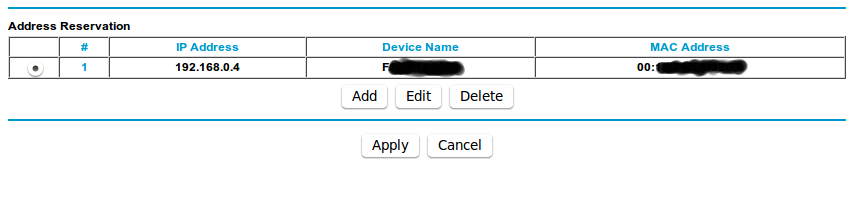
1 – enter your router settings and find the list of the attached device

2 – find the name and the MAC address of the LAN device you want to connect to your PC

3 – find the menu for the Lan Setup and add an Address Reservation for the above device. Now you are sure that the router will always assign the same address to the device

4 – back to Ubuntu, install and launch Firestarter (for some incomprehensible reasons the default firewall manager is not able to create rules for Samba services and ports)

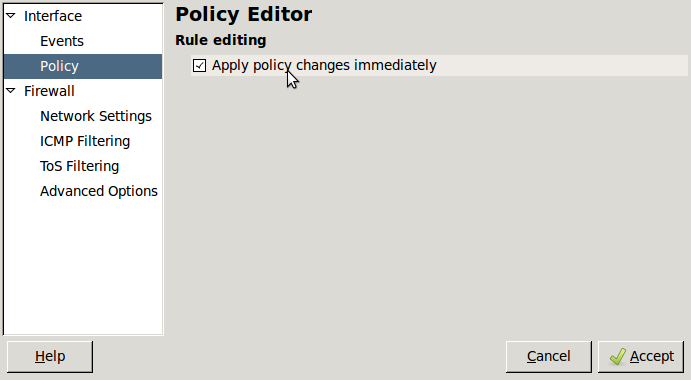
5 – on Firestarter, go to Preferences —> Policy Editor and click on “Apply policy changes immediately”

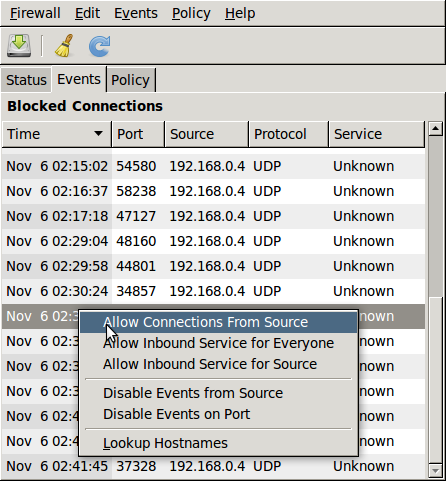
6 – try to connect again to Windows Network, obviously (sic) it will not work but then go to Firestarter —> Events and you will notice that the last line is the “missing” external disk which has an “unknown” service

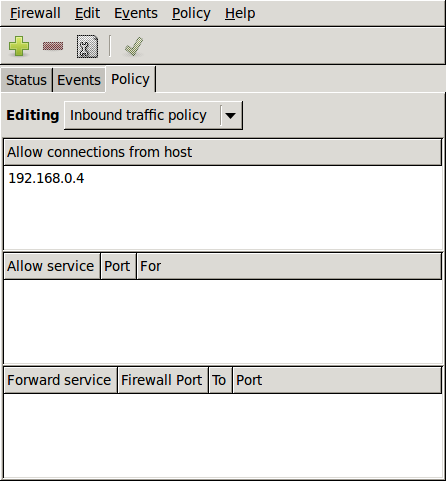
7 – right-click the mouse on this line and “Allow connections from source”. Now the external hard disk is visible from Ubuntu 10.04 LTS and it is possible to work on it!

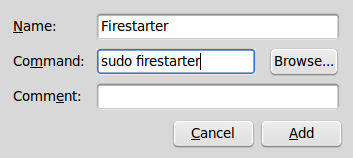
8 – to be sure that your LAN device will be rightly connected to Ubuntu 10.04 every time you boot up it: go to System –> Preferences –> Startup Applications

9 – add a new Firestarter rule typing the following command: sudo firestarter

That’s all! I hope you can find this post useful! AddThis

Video – Fix .ICEauthority by danny6465

AddThis

Fix .ICEauthority problem at Linux boot up

After upgrading my Ubuntu 10.04 LTS I had an error window at every boot up session. The message advised me about:

Could not update ICEauthority file /home/username/.ICEauthority

ICEauthority is the Inter-Client Exchange (ICE) Protocol that allows  authentication, negotiation, setting up and taking down connections between programs. In few words, if two programs have the same cookies, they will talk and exchange data through ICEauthority.

To fix this matter open the Terminal and type:

ls -al

Then you find a line similar to this:

-rw——-  1 root        root           35226 2011-10-06 00:24 .ICEauthority

This means that your profile (username on a Linux OS) is not allowed to manage ICEauthority and you have to gain full permission to solve the boot up problem:

sudo chown username:username ~/.ICEauthority

Where username is your user profile on Linux.

Then type:

sudo chmod u+rw ~/.ICEauthority

To check if you succeeded, type again:

ls -al

and this time you will find a line like this:

-rw——-  1 username username    35226 2011-10-06 00:24 .ICEauthority

That’s all! AddThis

Video – Compiz with Gnome Classic (Fallback Mode) – Ubuntu 11.10 by gotbletu

AddThis

Video – Instalar LibreOffice en Ubuntu 10.04/10.10 by orthusnet

AddThis

How to uninstall OpenOffice and install LibreOffice on Ubuntu 10.04 LTS

At the end I decided! I want to uninstall OpenOffice on my Ubuntu 10.04 LTS and substitute it with an always updated LibreOffice. After some researches on the web I decide to develop my own procedure to be sure that LibreOffice will be always updated with the last available edition.

First of all it is necessary to remove OpenOffice:

– go to System –> Administration –> Synaptic Package Manager –> Quick Search and type OpenOffice

– Mark for Complete Removal all the installed OpenOffice software and Apply  your choice, then exit the program

Now, open Terminal and add the PPA repository:

sudo add-apt-repository ppa:libreoffice/ppa

Update the system:

sudo apt-get update Last but not least, go back to Synaptic Package Manager –> Quick Search and type LibreOffice

Select the LibreOffice software and all the add-ons you prefer then Apply  your choice.

That’s all! You have the last version of LibreOffice installed on your Ubuntu 10.04 LTS and you are also sure that Synaptic will update the packages when a new version is available! AddThis