Category Archives: Ubuntu

How to uninstall OpenOffice and install LibreOffice on Ubuntu 10.04 LTS

At the end I decided! I want to uninstall OpenOffice on my Ubuntu 10.04 LTS and substitute it with an always updated LibreOffice. After some researches on the web I decide to develop my own procedure to be sure that LibreOffice will be always updated with the last available edition.

First of all it is necessary to remove OpenOffice:

– go to System –> Administration –> Synaptic Package Manager –> Quick Search and type OpenOffice

– Mark for Complete Removal all the installed OpenOffice software and Apply  your choice, then exit the program

Now, open Terminal and add the PPA repository:

sudo add-apt-repository ppa:libreoffice/ppa

Update the system:

sudo apt-get update Last but not least, go back to Synaptic Package Manager –> Quick Search and type LibreOffice

Select the LibreOffice software and all the add-ons you prefer then Apply  your choice.

That’s all! You have the last version of LibreOffice installed on your Ubuntu 10.04 LTS and you are also sure that Synaptic will update the packages when a new version is available! AddThis

Video – What makes Ubuntu 11.10 so great? (by celebrateubuntu)

AddThis

Video – Change GRUB menu list by curemind

AddThis

How to Change the Boot Order in Ubuntu

If you installed Ubuntu and Windows at the same time, you probably noticed that when you start your computer you can choose what operating system to launch. The responsible software for this is usually the GRUB loader and its menu. Obviously, after you install Ubuntu, it is placed as the first option and if you do not explicitly choose Windows in a few seconds, Ubuntu will be started. But what if you want Windows as your default option? Here is how you change the order:

1. Launch a new Ubuntu Terminal (Applications, Accessories). Type in the following command:

sudo cp /boot/grub/menu.lst /boot/grub/menu.lst_backup

This will create a backup of the GRUB configuration file.

2. Now open the file. We’ll do it with a new command:

sudo gedit /boot/grub/menu.lst

You will be prompted for a password, after which a text editor will be launched. In most of the situations, the menu.lst file contains many comments. You have to search for a line that says

default 0

This should not be very far from the end of file. Here you will have to intervene. After a few lines you will the variable called ‘timeout’ and its value (10 by default). If you want to have more or less time available for choosing your operating system, change the 10 with what number you want.

So back to the boot sequence. Scroll through the file again until you find:

title Ubuntu, kernel 2.6.17-10-generic

There will be more titles. Count the order number of Windows, but start from 0. The value you choose should overwrite the default one. For example, if Windows is the 4th title in the list, you will need to type

default 4

instead of ‘default 0’, which was described above. All you need to do at this point is to save the file and restart your computer. AddThis

How To Install and Configure Conky by DarkJediHacker

AddThis

Install Conky system monitor for Linux and configure it in few basic steps

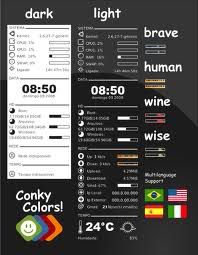
Conky is one of the most powerful and versatile system monitors for Linux desktops. It allows you to monitor and display all the information about your hardware, top processes, network, emails and more. At the moment more than 300 different feature has been built for Conky and searching on the web you always find the perfect feature already developed by someone.

– Installation on Ubuntu:

in Terminal run: sudo apt-get install conky

– Configuration:

In Terminal run: sudo nautilus

Go to File System: /etc/conky/conky.conf

Save a copy of the original conky.conf in another location and open the original file with Gedit Text Editor

First of all change: own_window yes to own_window no

Choose your preferred alignment (some samples below…):
alignment top_right
or
alignment middle_right
or
alignment bottom_right

Play with: update_interval 1.0
and change the interval value till you find the right ratio to obtain the best speed for you (in my case it was 0.80).

Add this line to eliminate any flickering:
double_buffer yes
but, on some computers, all the icon on your desktop will be hidden and you need to use (move) the mouse to discover them if you will not add this parameter: own_window_type normal

Add, as last line (or in other position if you prefer):
${color red} ${cpugraph} to have a clear graph about cpu (obviously you can choose the color you prefer)

For automatic start of Conky at startup, please follow the following instructions:
Run Startup Applications in System –> Preferences
Click on Add and save after updating the following instructions
Name: Conky
Command: /usr/bin/conky

Restart Ubuntu to check your new Conky “applet”

Link to Conky: http://conky.sourceforge.net/

For more info about Conky’s variables: http://conky.sourceforge.net/variables.html

Find online some pre-compiled Conky configuration files, searching, for example, on: http://gnome-look.org
AddThis

How to install “old” add-ons on Firefox 5. The easy way!

Firefox add-onsI usually update my Firefox as soon as possible but often, especially after installing the new version 5 on a Ubuntu 11.04 platform, I had to lose many add-ons that I previously selected and used daily. To avoid this problem I found some tips on the web and I tested all of them with different results.

Solution 1
– download the .xpi file from its official Firefox add-on webpage using the right mouse button (Save Link As) on

– unzip the .xpi file with Archive Manager and open install.rdf using a Text Editor;

– find this line: em:maxVersion and change the value from e.g. 4.0.* to 5.0.*;

– click on   icon in the Firefox Add-ons Manager, select “Install Add-on From File…” and follow the visual instructions.
Unfortunately this solution didn’t work always during my tests

Solution 2
– open a new Tab on Firefox and type: about:config;

– agree to the warning message;

– search all the lines with the string extensions.checkCompatibility and set the values to false

– restart Firefox and enable or install your “old” add-ons.

Solution 3 – The easy one!
– open a new Tab on Firefox and click on Tools –> Add-ons;

– search for the Add-on Compatibility Reporter and install it;

– restart Firefox and you will be able to install all the old add-ons.

Sometimes you will discover that installing “old” add-ons doesn’t mean that they really run on Firefox 5 but, in my experience, more than the 70% of them will be good for the new version. Have fun!! AddThis

Technorati Tags: , , , , ,

How to Boot Ubuntu from USB

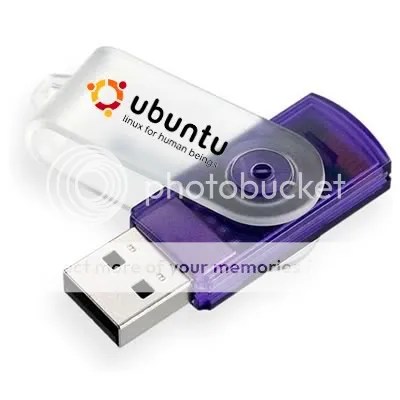
When it comes to the most recent generation of computers, there is an option to start an operating system right from a USB stick, without an actual installation process. This may be an option to use or test a different operating system without affecting in any way the one that is already installed.
Starting from version 8.10, Ubuntu can be installed on a USB stick in a more easy way by every single user, regardless of their knowledge in Linux. To perform the installation, the user must have a version of 8.10 or later on CD and a USB stick with a capacity of at least 700 MB free space available, but this can vary according to the version of Ubuntu that you want to use for this process.

To install Ubuntu on the USB stick, you can simply boot the Live CD mode of Ubuntu or alternatively, if already installed on your on your system, you can follow the following simple procedure to do this, which is described in some basic steps below.

First of all, you need to access the Ubuntu menu bar, via System> Administration, choose Create a USB startup disk.

At this point, you will be asked to specify the source disk image of Ubuntu. If you have the Ubuntu CD in optical drive, it should appear in the list and will be selected. Otherwise, click Other and specify the location of the image. The .iso format will do it, but other versions may work as well.

When completed, you can use the stick on any computer that can boot from such units. Just tell the computer’s BIOS to use this option and restart the respective machine. The same procedure can be applied for the any distribution of Linux, so this is a helpful tutorial for everyone. AddThis

Terminate unresponsive programs on Ubuntu

Xkill is part of the X11 utilities pre-installed in Ubuntu and a tool for terminating misbehaving X clients or unresponsive programs. You can easily add a shortcut key to launch xkill with the steps below:
– Go to System > Preferences > Keyboard Shortcuts.
– Click the Add button to create a custom shortcut.
– Enter xkill to both the Name and Command boxes and click the Apply button.
– Click on Disabled at the xkill row in the Keyboard Shortcuts window (Disabled is then changed to New shortcut…).
– Press a new key combination, e.g. Ctrl+Alt+X (New shortcut… is then changed to Ctrl+Alt+X).
– Click the Close button.
Xkill is ready for use. Press the above key combination to turn the cursor to an X-sign, move the X-sign and drop it into a program interface to terminate the unresponsive program, or cancel the X-sign with a right-click. AddThis

Changing the default text editor on Ubuntu

There is a few software that will use the editor command to find out what text editor to use. Example commands will be dch to add a new .deb changelog entry, revision control softwares when prompting for commit a message …
There is basically 2 ways for changing the default editor:

1. System Wide
Run Terminal and type:
$ sudo update-alternatives –config editor
And then choose whichever editor you want to be default.

2. User Level
As a user, you cannot change the setting for the whole system, but you can add an alias for editor to let say vim.
Open and edit ~/.bashrc and add:
alias editor=vim
Next time you will open a bash prompt, your default editor will be vim. AddThis