Tag Archives: security

How to permanently remove files in Ubuntu/linux and make them unrecoverable by NickMcDTV

AddThis

How to shred (permanently delete) files from your Hard Disks on Ubuntu Linux

In our last post we examined the possibility to recover deleted data from USB keys and disks. Today we want to focus your attention on the proper way to destroy sensitive data from your disks.

On Ubuntu you have the possibility to move any file to the Trash but, as we demonstrate in our last post, anyone has the possibility to recover them using a simple, basic GUI, program called PhotoRec.

If you want to be reasonably sure that none will be able to recover a file you decided to permanently delete you have to use the Shred command. Shred is native in Ubuntu Kernel and literally delete your files overwriting them repeatedly with arbitrary data. After you delete a file with Shred you can be sufficiently sure that recovering procedures will not succeed.

As usual we must warn you that technology is rapidly evolving and what could be considered sure today, tomorrow will be out of date! So, if you think you need to preserve your privacy in the best way, don’t forget to change the hard disks regularly and mechanically destroy your old ones. Sincerely we hope our readers haven’t this kind of need.

To start using Shred on Ubuntu you have to open a Terminal and type:

sudo shred –help

In this way you will visualize the grammar and all the possible options offered by this program.

The correct grammar to use Shred is:

shred [OPTIONS] FILE

or, if you want to shred a entire partition:

shred [OPTIONS] /dev/[HDA9]

The possible options are:

  -f, –force    change permissions to allow writing if necessary
-n, –iterations=N  overwrite N times instead of the default (3)
–random-source=FILE  get random bytes from FILE
-s, –size=N   shred this many bytes (suffixes like K, M, G accepted)
-u, –remove   truncate and remove file after overwriting
-v, –verbose  show progress
-x, –exact    do not round file sizes up to the next full block;
this is the default for non-regular files
-z, –zero     add a final overwrite with zeros to hide shredding
–help     display this help and exit
–version  output version information and exit

In our experience, to operate in the fastest way, we decided to add Shred on the Nautilus Menu and have the command ready with a simple right click on the mouse.

For this reason you have to open a Terminal and type:

sudo apt-get install nautilus-actions

Then you launch the program following this path: System->Preference->Nautilus Actions Configuration.

Last, you have to configure Shred filling e.g. the following parameters:

Label: Shred
Tooltip: Shred utility to securely erase files
Icon: gtk-dialog-warning
Path: shred
Parameters: -f -u -v -z %M
Filenames: *
Mimetypes: */*
Appears if selection contains: Both
Be sure to check the box “Appears if selection has multiple files or folders“

To finish your configuration, do not forget to open again a Terminal and type:

nautilus -q

nautilus

AddThis

How to correctly configure and use the Windows Network on Ubuntu 10.04 LTS

At the beginning it appeared as a no-solved mystery because in all the many posts I read, there were no effective solutions. On my Ubuntu 10.04 LTS I was no able to use the external hard disk I had connected to the LAN and every time I tried to mount it I only received this message: Unable to mount location – Failed to retrieve share list from server


In few words it was not possible to use the Windows Network and all the people with the same problem (which is specific for the Ubuntu 10.04) suggested to reconfigure Samba but all the configuration and scripts I tried were no effective to let me use the external hard disk.

At the end I found someone who talked about a possible firewall misconfiguration and I tried in many ways to bypass the situation using ufw commands and opening ports and services over the LAN:

$ sudo ufw status
[sudo] password for *****:
Status: active

To                                      Action            From
—                                        ——                —-
135,139,445/tcp           ALLOW       Anywhere (log)
137,138/udp                  ALLOW       Anywhere (log)
Samba                             ALLOW       Anywhere
192.168.0.3 Samba     ALLOW       10.0.0.0/8
10.0.0.0/8                    ALLOW       192.168.0.3 Samba

Unfortunately, every new permission I granted to Samba on my Firewall was not a real solution but when I tried to stop the Firewall (System –> Administration –> Firewall Configuration) using the default firewall manager, Ubuntu was able to find and work on the external hard disk.

For this reason I made some tests and found this solution:

1 – enter your router settings and find the list of the attached device

2 – find the name and the MAC address of the LAN device you want to connect to your PC

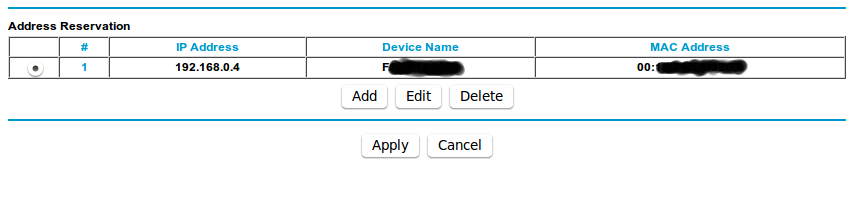
3 – find the menu for the Lan Setup and add an Address Reservation for the above device. Now you are sure that the router will always assign the same address to the device

4 – back to Ubuntu, install and launch Firestarter (for some incomprehensible reasons the default firewall manager is not able to create rules for Samba services and ports)

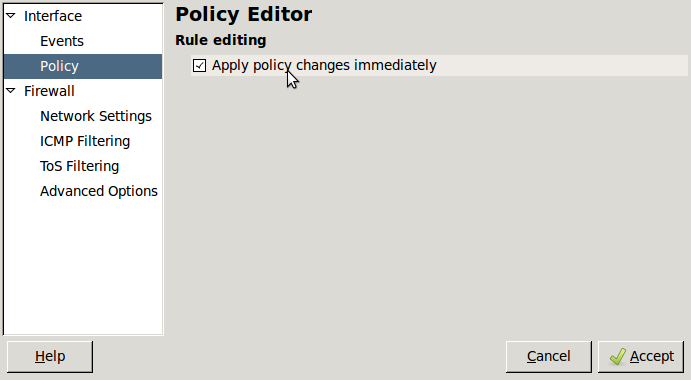
5 – on Firestarter, go to Preferences —> Policy Editor and click on “Apply policy changes immediately”

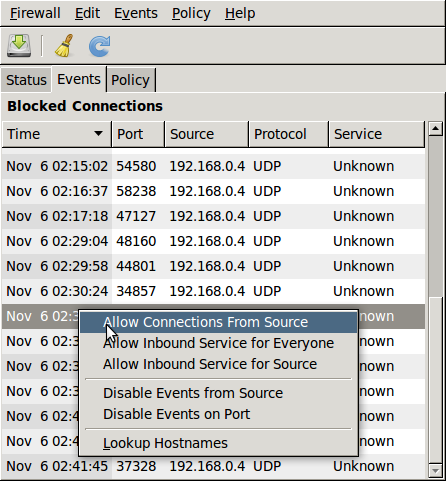
6 – try to connect again to Windows Network, obviously (sic) it will not work but then go to Firestarter —> Events and you will notice that the last line is the “missing” external disk which has an “unknown” service

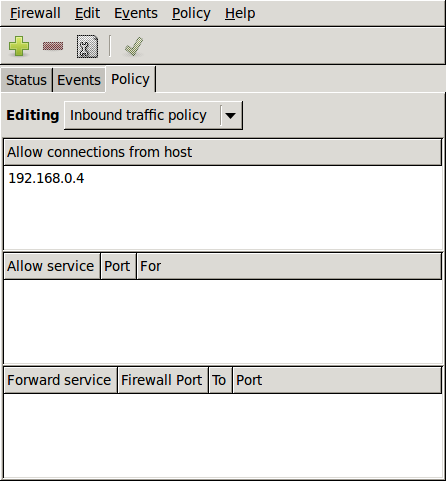
7 – right-click the mouse on this line and “Allow connections from source”. Now the external hard disk is visible from Ubuntu 10.04 LTS and it is possible to work on it!

8 – to be sure that your LAN device will be rightly connected to Ubuntu 10.04 every time you boot up it: go to System –> Preferences –> Startup Applications

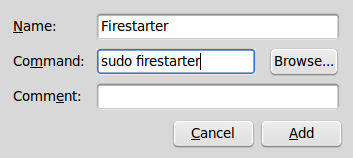
9 – add a new Firestarter rule typing the following command: sudo firestarter

That’s all! I hope you can find this post useful! AddThis

Stay safe! Install Rootkit Hunter on Linux and FreeBSD

Rootkit Hunter is a Unix-primarily based scanning tool that scans for rootkits, backdoors and possible local exploits. It does this by comparing SHA-1 hashes of vital files with known good ones in online database, looking for default directories (of rootkits), improper permissions, hidden records data, suspicious strings in kernel modules and particular tests for Linux or FreeBSD. Most instances rootkits are self-hiding toolkits utilized by blackhats, crackers and script kiddies, to keep away from the attention of the system admin. If you’re unsure  as to whether your system is compromised, you will get a second opinion from sources such as Linux-oriented forum. If your system is contaminated with a rootkit, cleaning it up will not be an option. Restoring can be not an option unless you might be expert, and have autonomous and an impartial means of verifying that the backup is clear, and does not include misconfigured or stale software. Never trust a potentially compromised machine! Basically a clean install of the OS is always advisable after backing up the system. AddThis mp3 link

LuckyBackup: Copias de Seguridad Sin Complicaciones

En estos días he estado buscando un programa que permita hacer Copias de Seguridad y que sea de uso practico, sencillo y muy intuitivo. Después de ver varios programas me he decantado sin lugar a duda para LuckyBackup. Para instalarlo es posible directamente desde los repositorios de nuestro sistema (Ubuntu y derivados) o directamente desde su propia Web y bajar la ultima versión 0.4.4 . Yo he instalado esta ultima versión y tengo que confirmar que es el mejor programa de Copias de Seguridad que he encontrado hasta el momento. LuckyBackup es muy fácil de configurar y permite efectuar diferentes sincronizaciones y mantener a salvo nuestros datos y todos los archivos. También he echo diferentes pruebas pasando carpetas a memorias USB, Disco Duro Externo y Disco Duro Interno, todo sin ningún problema (Descarga LuckyBackup).

AddThis mp3 link

How to protect your profile and emails on Thunderbird 3 (Ubuntu and Windows instructions)

On Thunderbird, the only way to be 99% sure nobody will read your emails is to save your profile on an encrypted folder (or disk partition) using e.g. TrueCrypt but if you are not concerned that you are under surveillance, you can simply use a quick and useful trick that allows Thunderbird to ask for the Master password every time you launch it.

In Ubuntu you have to follow two different steps. First of all, go to Edit —> Preferences —> Security —> Passwords and create your Master Password. Secondly, go to Edit —> Preferences —> Advanced —> Config Editor (click on “I’ll be careful, I promise”). Then in the filter bar, type password and change the parameter for mail.password_protect_local_cache to True. The next time you will launch Thunderbird nothing will be displayed (old and new emails) before you insert the correct Master Password.

If you are using Thunderbird on Windows you have to modify mail.password_protect_local_cache going to Tools —> Options —> Advanced —> Config Editor (click on “I’ll be careful, I promise”). Then, as for Ubuntu, in the filter bar type password and change the parameter for mail.password_protect_local_cache to True. AddThis mp3 link

Use chkrootkit to fight against rare (but always possible) rootkits on your Linux PCs!

This week, in our Linux Page (in Spanish), we would like to focus your attention on chkrootkit, an interesting software for Linux which can really help you to detect malicious rootkits on your Linux PC. Unfortunately, the last update we have found on the chkrootkit homepage is dated December 2007 but we hope to see a new release during the 2009. To check if you have chkrootkit already installed, type chkrootkit on you Terminal:

desktop:~$ chkrootkit

and you certainly will receive this message:
The program ‘chkrootkit’ is currently not installed.  You can install it by typing:
sudo apt-get install chkrootkit

Follow the above instructions and you will be ready to execute the software just typing:

sudo chkrootkit

Please, note that, at our first scan on Ubuntu 8.10, we found a false positive:

Checking `sniffer’… lo: not promisc and no packet sniffer sockets

eth0: PACKET SNIFFER(/sbin/dhclient3[4835])

Do not worry! This (unfortunately frequent) false positive has already been discussed by the community at

http://ubuntuforums.org/showthread.php?t=556517

and

http://ubuntuforums.org/showthread.php?t=270340

If you know other good anti-rootkits, please be so kind, to add a comment on this post. We are really interested to discover new “security software” (especially anti-rootkit) for Linux machines! AddThis mp3 link