Category Archives: GNU/Linux

Video – Instalar LibreOffice en Ubuntu 10.04/10.10 by orthusnet

AddThis

How to uninstall OpenOffice and install LibreOffice on Ubuntu 10.04 LTS

At the end I decided! I want to uninstall OpenOffice on my Ubuntu 10.04 LTS and substitute it with an always updated LibreOffice. After some researches on the web I decide to develop my own procedure to be sure that LibreOffice will be always updated with the last available edition.

First of all it is necessary to remove OpenOffice:

– go to System –> Administration –> Synaptic Package Manager –> Quick Search and type OpenOffice

– Mark for Complete Removal all the installed OpenOffice software and Apply  your choice, then exit the program

Now, open Terminal and add the PPA repository:

sudo add-apt-repository ppa:libreoffice/ppa

Update the system:

sudo apt-get update Last but not least, go back to Synaptic Package Manager –> Quick Search and type LibreOffice

Select the LibreOffice software and all the add-ons you prefer then Apply  your choice.

That’s all! You have the last version of LibreOffice installed on your Ubuntu 10.04 LTS and you are also sure that Synaptic will update the packages when a new version is available! AddThis

Video – What makes Ubuntu 11.10 so great? (by celebrateubuntu)

AddThis

Video – Change GRUB menu list by curemind

AddThis

How to Change the Boot Order in Ubuntu

If you installed Ubuntu and Windows at the same time, you probably noticed that when you start your computer you can choose what operating system to launch. The responsible software for this is usually the GRUB loader and its menu. Obviously, after you install Ubuntu, it is placed as the first option and if you do not explicitly choose Windows in a few seconds, Ubuntu will be started. But what if you want Windows as your default option? Here is how you change the order:

1. Launch a new Ubuntu Terminal (Applications, Accessories). Type in the following command:

sudo cp /boot/grub/menu.lst /boot/grub/menu.lst_backup

This will create a backup of the GRUB configuration file.

2. Now open the file. We’ll do it with a new command:

sudo gedit /boot/grub/menu.lst

You will be prompted for a password, after which a text editor will be launched. In most of the situations, the menu.lst file contains many comments. You have to search for a line that says

default 0

This should not be very far from the end of file. Here you will have to intervene. After a few lines you will the variable called ‘timeout’ and its value (10 by default). If you want to have more or less time available for choosing your operating system, change the 10 with what number you want.

So back to the boot sequence. Scroll through the file again until you find:

title Ubuntu, kernel 2.6.17-10-generic

There will be more titles. Count the order number of Windows, but start from 0. The value you choose should overwrite the default one. For example, if Windows is the 4th title in the list, you will need to type

default 4

instead of ‘default 0’, which was described above. All you need to do at this point is to save the file and restart your computer. AddThis

Video – Install Macbuntu on Ubuntu 11.04 by seaner992

AddThis

How to Make Your Ubuntu Desktop Look Like the One of Mac OS

If you are a fan of the design proposed by Apple for most of its operating systems, particularly Mac OS X, then there are a couple of things that you should take into consideration and some simple steps to follow. Therefore, you are advised to read the following information carefully in order to achieve the expected outcome in the shortest time.

There are two free pieces of software that can transform your Ubuntu desktop into one that looks identical to the one of Mac OS in no time. The Ubuntu version is called Macbuntu. First of all, you will need to install this program onto your local hard drive. Here is what you need to do for this step:

– If you are using Ubuntu 10.4 Lucid Lynx, you will need to open a new terminal and type the following lines into it:

$wget https://downloads.sourceforge.net/project/macbuntu/macbuntu-10.04/v2.2/Macbuntu-10.04.tar.gz -O /tmp/Macbuntu-10.04.tar.gz
$tar xzvf /tmp/Macbuntu-10.04.tar.gz -C /tmp
$cd /tmp/Macbuntu-10.04/
$./install.sh

– On the other hand, if Ubuntu 10.10 Maverik Meerkat or a similar version is installed in your system, you will need to use a different version of Macbuntu, which can be accessed by typing the following:

$wget https://downloads.sourceforge.net/project/macbuntu/macbuntu-10.10/v2.3/Macbuntu-10.10.tar.gz -O /tmp/Macbuntu-10.10.tar.gz
$tar xzvf /tmp/Macbuntu-10.10.tar.gz -C /tmp
$cd /tmp/Macbuntu-10.10/
$./install.sh

During the install process, you will be provided with the chance of choosing between different options. These are usually dependent on the different ways you wish your desktop to look like. Most of the choices will be based on your visual tastes, so make sure you choose according to them.

Finally, whenever you need to uninstall this special package for some reason you can follow the same procedure described above, with just an exception. Instead ./install.sh you will need to use the ./uninstall.sh command. AddThis

How To Install and Configure Conky by DarkJediHacker

AddThis

Install Conky system monitor for Linux and configure it in few basic steps

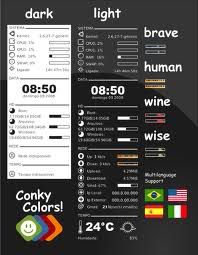
Conky is one of the most powerful and versatile system monitors for Linux desktops. It allows you to monitor and display all the information about your hardware, top processes, network, emails and more. At the moment more than 300 different feature has been built for Conky and searching on the web you always find the perfect feature already developed by someone.

– Installation on Ubuntu:

in Terminal run: sudo apt-get install conky

– Configuration:

In Terminal run: sudo nautilus

Go to File System: /etc/conky/conky.conf

Save a copy of the original conky.conf in another location and open the original file with Gedit Text Editor

First of all change: own_window yes to own_window no

Choose your preferred alignment (some samples below…):
alignment top_right
or
alignment middle_right
or
alignment bottom_right

Play with: update_interval 1.0
and change the interval value till you find the right ratio to obtain the best speed for you (in my case it was 0.80).

Add this line to eliminate any flickering:
double_buffer yes
but, on some computers, all the icon on your desktop will be hidden and you need to use (move) the mouse to discover them if you will not add this parameter: own_window_type normal

Add, as last line (or in other position if you prefer):
${color red} ${cpugraph} to have a clear graph about cpu (obviously you can choose the color you prefer)

For automatic start of Conky at startup, please follow the following instructions:
Run Startup Applications in System –> Preferences
Click on Add and save after updating the following instructions
Name: Conky
Command: /usr/bin/conky

Restart Ubuntu to check your new Conky “applet”

Link to Conky: http://conky.sourceforge.net/

For more info about Conky’s variables: http://conky.sourceforge.net/variables.html

Find online some pre-compiled Conky configuration files, searching, for example, on: http://gnome-look.org
AddThis

How to: Use Google Music for Android by CNET

AddThis