Software to Record Linux Tutorials by Matt via 
“My question: what apps do you use to record/stream your desktop while using your camera to insert your face live on the bottom right of your screen?”
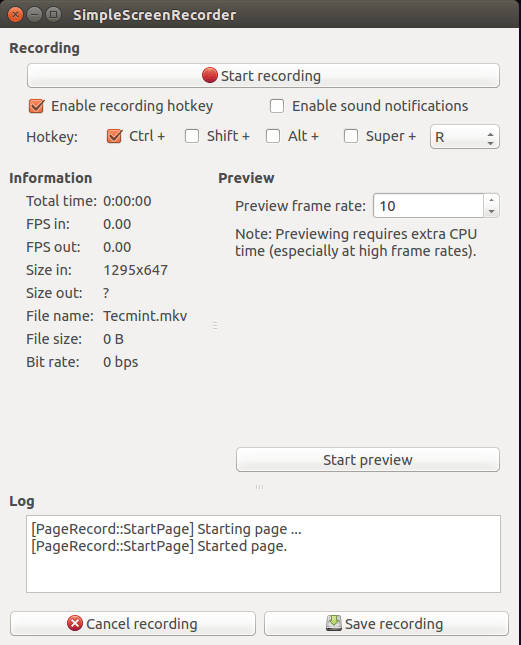

“My question: what apps do you use to record/stream your desktop while using your camera to insert your face live on the bottom right of your screen?”

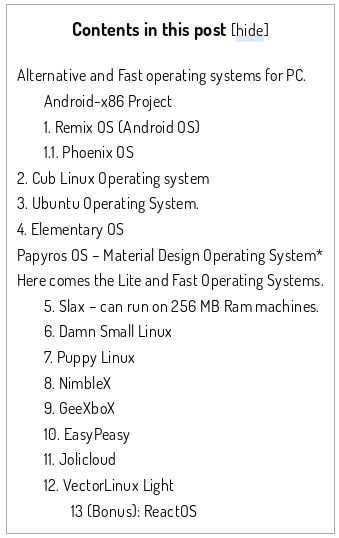
“If your computer having problems or lags while using Windows operating systems, you’ll discover some fast and lightweight OS in this article. There is another post where we discussed best alternative operating systems that are not specifically for old PC’s”

Courtesy of nixpal.com
When you want to check if you have a 32-bit or a 64-bit Linux you can open a Terminal and just type:
file /sbin/initor
archIf you prefer to know how much about the RAM you installed on the PC, type:
free -m
or
grep MemTotal /proc/meminfo
for more detailed info you can try:
cat /proc/meminfoor
grep MemTotal /proc/meminfo
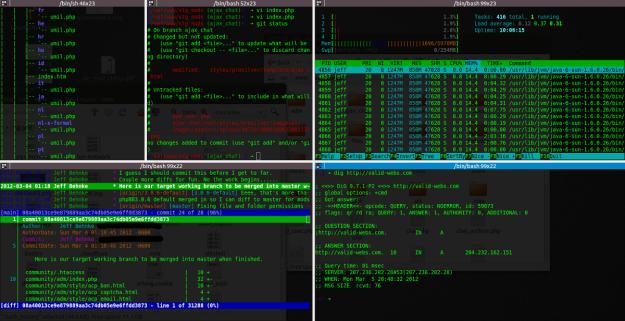
if you prefer to monitor your RAM in real time.
Courtesy of validwebs.com
 Are you looking for a up-to-date Linux Distro to use that old laptop you have in the dust in the far corner of your garage? It could not be so easy to find the best Linux Distro to install on it but howtouselinux.net did some great twests for all us:
The review is really well-done and the graphic display of results let you to quickly choose what is the best Distro candidate for your laptop depending on hardware, your tastes and the final use you want to give to your laptop.
In my experience the howtouselinux.net review let me to save a lot of time because I was able to focus my tersts just on the two Distros that seemed to have the right prerequisites for my old eeepc 900: Peppermint OS and Macpup. Recommended!


What’s better than testing? For me nothing!
For this reason, let me introduce some “unusual” Linux distribution proposed by Jesse Afolabi @Jesseflb via Techmint.
VeltOS and PapyrOS are based on Arch but the last one is in its pre-alpha testing so it’s not suggested for beginners.
Moreover, we may decide to begin 2016 with Korora that is still one of my favorite projects also after so many years since the first release.
Last but not least, we have Solus OS 2 that it is not the most Linux distribution I tested but it is stable and really well built.
Happy 2016!

Image by cibercity.biz

Image from redpill-linpro.com
 Sometimes simple things become hard problems. This happened to me when I discovered that my Fedora 18 OS was obsolete (very old indeed) and I tried to upgrade it to the Fedora 20 version.
Fedora 18 doesn’t support the automatic OS upgrade so I had to spend some hours to find information on Internet and create the right DIY solution for my case. At the end of my little (sic!) research I discovered that I was able not only able to upgrade the PC to Fedora 20 but I also found a good “trick” to upgrade to the latest Fedora 21 following in just a couple of steps with the help of fedup and some other escamotages.
This is how I succeed…
First, you have to open a Terminal and type:
su
init 3
but you will immediately leave the Fedora GUI and so it’s better if you write the below commands on an -old style, paper notepad- to be sure to have all the right information in you hands and correctly manage the upgrade from Fedora 18 to Fedora 20
sudo su -
yum update
yum install fedup
fedup-cli --network 20 --nogpgcheck
It’s better to add –nogpgcheck because often you are not able to complete your upgrade for the “old”, “bad saved” gpg key in your system.
reboot
Now, at the boot-up menu (GRUB 2 menu) you have to choose “System Upgrade (Fedup)”.
Then just to be sure you really have an up to date OS, in Terminal, type:
Yum update
If you have problems with one or more of your “old” repositories don’t forget to deconfigure them. In my case I had to launch this command line in Terminal due to skip an old repository and proceed with the upgrade:
yum-config-manager --save --setopt=home_moritzmolch_gencfsm.skip_if_unavailable=true
At this point, to upgrade from Fedora 20 to Fedora 21 you have to open (again) the Terminal and type:
su
fedup --network 21 --product=workstation --nogpgcheck
OR
fedup --network 21 --product=server --nogpgcheck
(if your Fedora version is the server one)
OR
fedup --network 21 --product=cloud --nogpgcheck
(for the Fedora cloud edition for generic virtual machines or Container)
Take it easy and go to bed for a long snap because, in my case, the download took some hours as for 2,577 files to be upgraded…
At the end, as before, you have to Reboot and select “System Upgrade (Fedup)” at the boot-up menu (GRUB 2 menu) and all the necessary files will be installed. Again, take a good book to read while you wait the installation.
Good luck and remind you MUST backup all your data before you start any upgrade because unforeseen risks are always around the corner!
References:
https://ask.fedoraproject.org/en/question/37247/upgrade-fedora-18-to-fedora-20-via-yum-or-fedup/
http://tecadmin.net/steps-to-upgrade-fedora-19-to-20-using-fedup-tool/
http://www.unixmen.com/upgrade-fedora-20-fedora-21-using-fedup/
https://ask.fedoraproject.org/en/question/39558/how-to-remove-a-repository-from-my-system
 Grooveshark is an online music service, very well-known and common especially in Europe. The quality of its mp3, offered just for listening is higher than what you find on YouTube and some programs were developed to allow listeners to search and listen songs without visiting the Grooveshark website. Some of these software let you save sample of songs for a later listening but this habit doesn’t complain with the copyright laws in many countries so we discourage this kind of practice.
Today we would like to just endorse the ability of a single developer (www.caleta.fm) who was able to modify one of these programs, GrooveDown, and adapt it to the new website requisites.
This developer, using wireshark, was able to identify the misconfiguration between GrooveDown and the Grooveshark’s server and to positively update the data (client version and password) exchanged.
More in general I think that GrooveDown is the best client to listen to Grooveshark also because it is more powerful, fast and easy to use than its competitors. In particular, during some tests I did, I was positively impressed by the results I obtained using GrooveDown because I received better and more complete search results than using, for example, GrooveOff which is too a good software but, for my personal experience, gave back less impressive results.
Last but not least I want to underline that the caleta.fm development of GrooveDown is really stable and it was developed in two different versions just to be used with Java6 or Java7 platform. Recommended! 
 5 commands to check memory usage on Linux
 Computer Borders