
Category Archives: Linux OS

How to Install Inkscape on Linux (with special instructions for Ubuntu)

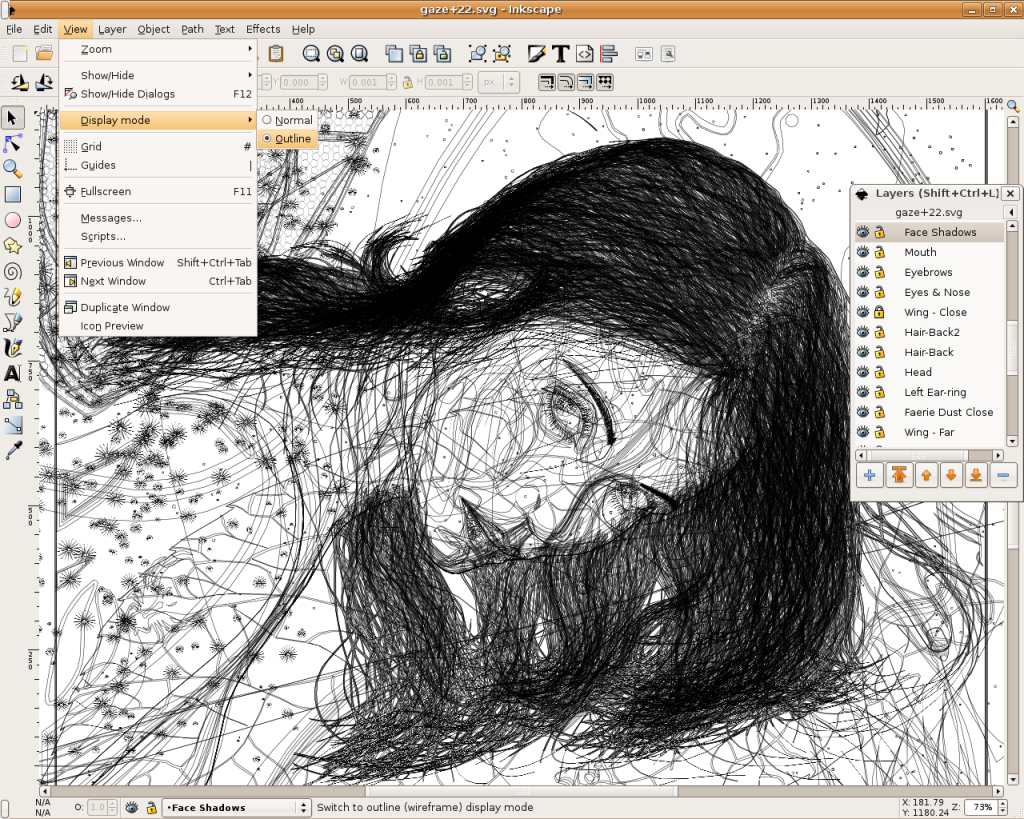
Inkscape is an open-source SVG editor with capabilities similar to Illustrator, CorelDraw, Visio, etc. Supported SVG features include basic shapes, paths, text, alpha blending, transforms, gradients, node editing, svg-to-png export, grouping, and more. Its main motivation is to provide the Open Source community with a fully XML, SVG, and CSS2 compliant SVG drawing tool.
These are the founding goals for Inkscape:
– Full SVG (plus XML, CSS2) compliance
– Core written in C/C++
– Gtk-based user interface following the standards set out in the GNOME Human     Interface Guidelines (HIG)
– Emphasis on a small core and extensibility. Usually Inkscape’s extensions are always first-class so we can say “no” to features in the core without guilt.
– Open, community-oriented development processes
– Baseline is the Sodipodi Hydra codebase
Where a better solution cannot be found, default to the way Illustrator does it.

Probably the easiest way to install on Ubuntu is to use the apt command.
Open a terminal and type;
sudo apt-get update (enter)
sudo apt-get install inkscape (enter)

  • Ubuntu Linux Development Versions

As it approaches release, nightly i386 and AMD64 builds of the latest Inkscape development version are provided at http://ubuntu.cafuego.net. On that site, one should select the appropriate Ubuntu or Debian release, then the Inkscape link, and finally the provided package. AddThis mp3 link Flattr this!

Finding Files using – locate – on Linux

Many Linux users use the ‘find’ utility when searching for files using the command line on their system. They’ll do a simple:
find / -name ‘pattern’
Really though, the power of find isn’t just in finding names of files but rather specific details about those files. For example, if you wanted to find files which are writable by both their owner and their group:
find / -perm -444 -perm /222 ! -perm /111
or perhaps find any file that’s been altered in your Download directory in the past 24 hours:
find /home/user/Downloads/ -mtime 0
As you can see, the find command is very versatile and can be used to find an array of different attributes of files.  There are times though where I’m just looking for something and I don’t want to have to wait for the command to scan the entire directory tree in order to track it down.  That’s where locate comes in with quick and simple results.
Using the locate command can only be accomplished if you install the mlocate package.  Most major distributions have this available.  If not, head over to the mlocate homepage and install manually.  Once that is accomplished, you’ll need to manually run a command to index your filesystem with it…otherwise, you’ll have to wait for the command to run automatically as it registers with cron to do so on a system level.  Open a terminal and change to your root user, then execute the following:
updatedb &
This updates the mlocate database that indexes your files and forks it to the background (the ‘&’ forks it to the background).  You can now logout of the terminal as root and the process will quietly work in the background.
After the command completes, using mlocate is as easy as using the locate command:
locate firefox | less
The command above will look for all files with Firefox in the name and pipe the command through less so you can use the space bar or enter key to scroll the file buffer.  Of course, the reason we pipe it through less is because any file that resides in the ‘firefox’ directory will be reported in the output.  While this tool isn’t as granular as the find command, it is a quick way to track down paths, directories, and files you know should exist.  Since the data is indexed using the updatedb command (by cron) the results are very quick and the command does not have to scan through the filesystem to return the results.
There are plenty more advanced options via flags (such as following symbolic links, making search term case-sensitive, and even using regexp).  See the man page for details on how each of these options work.  Play around with locate and see what you can do!  It’s a powerful and quick search command! AddThis mp3 link

Logwatch on Ubuntu Desktop/Server

Logwatch is an Ubuntu modular log analyzer that runs every night and mails you the results. It can also be run from command line. The output is by service and you can limit the output to one particular service. The subscripts which are responsible for the output, mostly convert the raw log lines in structured format.
Logwatch generally ignores the time component in the output, that means, you will know that the reported event was logged in the requested range of time, but you will have to go to the raw log files to get the exact details.
Install logwatch using the following command:

sudo apt-get install logwatch

This will install all the required packages

Configuring Logwatch:

first you need to make sure you server is able to send the mails outside you can do this using postfix with SMTP server configuration.

Now you need to edit logwatch.conf file:

sudo nano /usr/share/logwatch/default.conf/logwatch.conf

Change the following information:

Output = mail
Format = html
MailTo = test@gmail.com

Save and exit the file

If you want to know more available options check logcheck manpage using the following command from your terminal:

man logcheck

Now edit the 00logwatch file

sudo nano /etc/cron.daily/00logwatch

add the following line:

/usr/sbin/logwatch –mailto test@gmail.com

Save and exit the file

This tool is very useful, give it a try! AddThis mp3 link

Maximize internet speed connection in Ubuntu via sysctl

Do you want to maximize your bandwidth? Here are few important settings you should do to speed up your internet and it works in Ubuntu and all Linux operating system via sysctl.
First open a Terminal via Applications->Accessories->Terminal
Type:

sudo gedit /etc/sysctl.conf

Then Paste the Following at the end of the file:

# increase TCP max buffer size setable using setsockopt()
net.core.rmem_max = 16777216
net.core.wmem_max = 16777216
# increase Linux autotuning TCP buffer limits
# min, default, and max number of bytes to use
# set max to at least 4MB, or higher if you use very high BDP paths
net.ipv4.tcp_rmem = 4096 87380 16777216
net.ipv4.tcp_wmem = 4096 65536 16777216
# don’t cache ssthresh from previous connection
net.ipv4.tcp_no_metrics_save = 1
net.ipv4.tcp_moderate_rcvbuf = 1
# recommended to increase this for 1000 BT or higher
net.core.netdev_max_backlog = 2500
# for 10 GigE, use this, uncomment below
# net.core.netdev_max_backlog = 30000
# Turn off timestamps if you’re on a gigabit or very busy network
# Having it off is one less thing the IP stack needs to work on
#net.ipv4.tcp_timestamps = 0
# disable tcp selective acknowledgements.
net.ipv4.tcp_sack = 0
#enable window scaling
net.ipv4.tcp_window_scaling = 1

Press Ctrl-S to save, then alt-F4 to exit and then type:

sudo sysctl -p

to apply the settings.

Now, check your speed using speed-test site or download files in the net.

You can disable all these settings by removing these lines you added via:

sudo gedit /etc/sysctl.conf

AddThis mp3 link

DupeGuru: potente applicación para encontrar Archivos, Música y Fotos duplicados

Hoy os quiero hablar de un aplicación disponible en 3 diferentes formatos. se llama DupeGuru . Me parece una de las aplicaciones mas practicas y sencillas para encontrar: Archivos, Fotos o Canciones repetidas. Desde la propia pagina Web es posible descargase la que se necesites; es disponible para Windows, Mac OS X y por supuesto Linux ( 32/64 bit ) para usuario Debian/ Ubuntu es posible descargar directamente el paquete .deb e instalarlo en un par de click. Con esta aplicación podremos ver los archivos que tengamos duplicados y gracias a los datos que vienen incluidos será posible decidir cual nos interesa guardar y cual eliminar para recuperar espacio y tener mas orden en nuestro PC. En la pagina de descarga es posible elegir cual de las 3 aplicaciones se quiere descargar según nuestras necesitad. En la misma pagina hay disponible otras aplicaciones: MoneyGuru, PictureGuru y MusicGuru. La primera es una aplicación especifica para mantener controlada nuestras finanzas y las otras son aplicaciónes especificas para mantener organizada nuestra colecciones. En fin, os animo a probarlas porque yo ya lo he echo y tengo que decir que merece la pena.
Descarga DupeGuru

AddThis mp3 link

How to create your personalized Linux OS using SUSE Studio

This week, in our Linux Page (in Spanish) we uploaded a brief post about SUSE Studio an online service which allows you to create new distribution based on openSUSE 11.2. The online OS builder allows you to choose between 32 bit or 64 bit system based on SUSE, GNOME, KDE, Minimal X or text only Server. In the next menu you will be asked to choose all the software you prefer (7,876 different packages). After this, you can also choose and personalize, for example: language, keyboard, network, firewall and users. Moreover, you can personalize the boot-up and all the programs you want to automatically autostart. SUSE Studio is very interesting and allows you to create the best Linux OX for all your needs. Recommended! AddThis mp3 link

How to convert pdf to html on Ubuntu 9.04

This week, in our Linux Page (in Spanish), we tried to find how to freely convert pdf to html files. Unfortunately we have not been able to discover a satisfying solution. In fact, first of all (1) we upload our complex pdf file (text, color drawing and pictures) on Gmail email and we sent it to ourself. When we opened the email we click on “view as html” option and we were able to read the text (unfortunately too tiny) without drawings and pictures. It was not bad but we were really far from what we were looking for. As second experiment (2) we tried to use Kword and we had (as html) text and pictures but there were many incongruences between the texts and the borders and we missed some phrases. In few words, we had a better look but a worse result. Then (3) we installed pdftohtml using Synaptic Package Manager but unfortunately we were not satisfied from the html file we obtained. At this point we concentrated our researches on a free online solution and in order we tried: “Online conversion tools for Adobe PDF documents“, “convertpdftohtml“, “pdftextonline“, and “pdf-search-engine” but the results were not good. Unfortunately, we dismissed and I confess we could not find a solution to solve the task but we think that the “Kword solution”, if improved, is not far from a good solution in converting the file from pdf to html.  Please, if you have suggestions about this topic, feel free to add a comment. Thank you. AddThis mp3 link

Linux on Laptops!

This week, in our Linux Page (in Spanish) we added a brief post about www.linux-on-laptops.com: a very useful website where you can find tons of useful information about the best Linux version for your laptop. Linux-on-laptops is graphically very poor but the information it contains are terrific; in fact you just select your laptop brand and in a new webpage you are able to find all the laptop models related to that specific brand. With a couple of clicks you select your favourite Linux OS and you are redirect to external webpages and blogs where you receive all the necessary information to quick install that specific Linux version on your laptop. In a week time we made many tests and we found all the infos we were looking for. Moreover, linux-on-laptops is really updated with the most recent laptop models and Linux versions. Recommended! AddThis mp3 link

RepoGen: how to create and keep up-to-date your Software Sources on Ubuntu 8.04, 8.10, 9.04 and 9.10!

This week, in our Linux Page (in Spanish) we added a post about a new fantastic online service to manage and add software sources to your Sources List (System – Administration – Software Sources). Adding the right repository sources in Ubuntu is essential for a more practical and fast management of your OS. In fact, using the correct sources list you can be sure that your system is always updated and safe. RepoGen has been created for all these reasons. It also automatically compiles all the necessary GPG keys and you have just to add them (one by one) running the suggested command in the Terminal. We tested RepoGen on two different PCs running both Ubuntu 8.04 & Ubuntu 9.04 and were able to update our Software Sources in less of 15 minutes and without discovering a single problem. To conclude we strongly believe that RepoGen is an online service that can help you to save a lot of time and keep your Ubuntu always up-to-date! Strongly recommended! AddThis mp3 link

Skype 2.1.0.47 beta released!

Today, in our Linux Page (in Spanish), we posted some brief information about the new Linux beta version of Skype (2.1.0.47). The updated Skype distribution contains a new chat feature with an integrated SMS service. Also the audio and video codecs have been developed and a bluetooth option has been added. This beta release seems to be very stable and we hadn’t any problems during our tests. Skype released different versions related to main Linux distributions: Ubuntu, Debian, Fedora, OpenSuse and a very useful tar.bz2 for all the other Linux versions. Recommended! AddThis mp3 link