Category Archives: Tecnologia

Video – What makes Ubuntu 11.10 so great? (by celebrateubuntu)

AddThis

Video – Change GRUB menu list by curemind

AddThis

How to Change the Boot Order in Ubuntu

If you installed Ubuntu and Windows at the same time, you probably noticed that when you start your computer you can choose what operating system to launch. The responsible software for this is usually the GRUB loader and its menu. Obviously, after you install Ubuntu, it is placed as the first option and if you do not explicitly choose Windows in a few seconds, Ubuntu will be started. But what if you want Windows as your default option? Here is how you change the order:

1. Launch a new Ubuntu Terminal (Applications, Accessories). Type in the following command:

sudo cp /boot/grub/menu.lst /boot/grub/menu.lst_backup

This will create a backup of the GRUB configuration file.

2. Now open the file. We’ll do it with a new command:

sudo gedit /boot/grub/menu.lst

You will be prompted for a password, after which a text editor will be launched. In most of the situations, the menu.lst file contains many comments. You have to search for a line that says

default 0

This should not be very far from the end of file. Here you will have to intervene. After a few lines you will the variable called ‘timeout’ and its value (10 by default). If you want to have more or less time available for choosing your operating system, change the 10 with what number you want.

So back to the boot sequence. Scroll through the file again until you find:

title Ubuntu, kernel 2.6.17-10-generic

There will be more titles. Count the order number of Windows, but start from 0. The value you choose should overwrite the default one. For example, if Windows is the 4th title in the list, you will need to type

default 4

instead of ‘default 0’, which was described above. All you need to do at this point is to save the file and restart your computer. AddThis

Video – Install Macbuntu on Ubuntu 11.04 by seaner992

AddThis

How to Make Your Ubuntu Desktop Look Like the One of Mac OS

If you are a fan of the design proposed by Apple for most of its operating systems, particularly Mac OS X, then there are a couple of things that you should take into consideration and some simple steps to follow. Therefore, you are advised to read the following information carefully in order to achieve the expected outcome in the shortest time.

There are two free pieces of software that can transform your Ubuntu desktop into one that looks identical to the one of Mac OS in no time. The Ubuntu version is called Macbuntu. First of all, you will need to install this program onto your local hard drive. Here is what you need to do for this step:

– If you are using Ubuntu 10.4 Lucid Lynx, you will need to open a new terminal and type the following lines into it:

$wget https://downloads.sourceforge.net/project/macbuntu/macbuntu-10.04/v2.2/Macbuntu-10.04.tar.gz -O /tmp/Macbuntu-10.04.tar.gz
$tar xzvf /tmp/Macbuntu-10.04.tar.gz -C /tmp
$cd /tmp/Macbuntu-10.04/
$./install.sh

– On the other hand, if Ubuntu 10.10 Maverik Meerkat or a similar version is installed in your system, you will need to use a different version of Macbuntu, which can be accessed by typing the following:

$wget https://downloads.sourceforge.net/project/macbuntu/macbuntu-10.10/v2.3/Macbuntu-10.10.tar.gz -O /tmp/Macbuntu-10.10.tar.gz
$tar xzvf /tmp/Macbuntu-10.10.tar.gz -C /tmp
$cd /tmp/Macbuntu-10.10/
$./install.sh

During the install process, you will be provided with the chance of choosing between different options. These are usually dependent on the different ways you wish your desktop to look like. Most of the choices will be based on your visual tastes, so make sure you choose according to them.

Finally, whenever you need to uninstall this special package for some reason you can follow the same procedure described above, with just an exception. Instead ./install.sh you will need to use the ./uninstall.sh command. AddThis

How To Install and Configure Conky by DarkJediHacker

AddThis

Install Conky system monitor for Linux and configure it in few basic steps

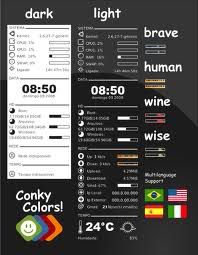
Conky is one of the most powerful and versatile system monitors for Linux desktops. It allows you to monitor and display all the information about your hardware, top processes, network, emails and more. At the moment more than 300 different feature has been built for Conky and searching on the web you always find the perfect feature already developed by someone.

– Installation on Ubuntu:

in Terminal run: sudo apt-get install conky

– Configuration:

In Terminal run: sudo nautilus

Go to File System: /etc/conky/conky.conf

Save a copy of the original conky.conf in another location and open the original file with Gedit Text Editor

First of all change: own_window yes to own_window no

Choose your preferred alignment (some samples below…):
alignment top_right
or
alignment middle_right
or
alignment bottom_right

Play with: update_interval 1.0
and change the interval value till you find the right ratio to obtain the best speed for you (in my case it was 0.80).

Add this line to eliminate any flickering:
double_buffer yes
but, on some computers, all the icon on your desktop will be hidden and you need to use (move) the mouse to discover them if you will not add this parameter: own_window_type normal

Add, as last line (or in other position if you prefer):
${color red} ${cpugraph} to have a clear graph about cpu (obviously you can choose the color you prefer)

For automatic start of Conky at startup, please follow the following instructions:
Run Startup Applications in System –> Preferences
Click on Add and save after updating the following instructions
Name: Conky
Command: /usr/bin/conky

Restart Ubuntu to check your new Conky “applet”

Link to Conky: http://conky.sourceforge.net/

For more info about Conky’s variables: http://conky.sourceforge.net/variables.html

Find online some pre-compiled Conky configuration files, searching, for example, on: http://gnome-look.org
AddThis

How to: Use Google Music for Android by CNET

AddThis

Google Music con Aplicación también para Linux

Desde hace unos meses Google ya ofrece el servicio Musica por streaming y de poder tener hasta 20.000 canciones almacenada en ” las nubes “; todavía este servicio no está disponible en España y Europa pero es igualmente posible conseguir una invitación.

Ante de todo hay que tener una cuenta de Gmail o crearse una. Luego dirigirse a la pagina de proxy.org para elegir un proxy de USA. Después de elegir el proxy hay que pegar la dirección que permite pedir la invitación a nombre de vuestra cuenta de Gmail y ya esperar que llegue la invitación por parte de Google, yo ya recibí la invitación y ya tengo mi Google Music activado.

Es un servicio muy interesante y funciona muy muy bien, aparte de los Artistas y las Canciones que nos Ofrece Google de forma gratuitas también podemos administrar nuestra música, la que tengamos en nuestro PC y subirla a nuestro Google Music gracias a una Aplicación especifica para Linux ( .deb, rpm, 32/64 bit ), así que ya no hay que instalar la versión para Windows y lanzarla con Wine. También está disponible una Aplicación para Android para que podamos escuchar en Streaming y administrar nuestra música sin tener que llenar la memoria de nuestro Smartphone.

Me parece un excelente servicio por parte de Google, funciona muy bien y sin coste alguno. Os dejo unos enlaces para que podáis pedir la invitación (yo tengo 8 disponibles, si alguien quiere inviar su correo yo puedo enviarle una invitación) y también otros para poder bajar la Aplicación para Android.

Proxy.org: http://proxy.org/

URL Invitación: http://music.google.com/music/usernotinvited.

Aplicación para Android: https://market.android.com/details?id=com.google.android.music

AddThis

Video – SGS i9000 running Darky v10.0 Beta 3 by exmatproton