Tag Archives: Linux Tips

Test your VPN through Terminal – Linux Tips

computer-VPN

Do you use a VPN to connect to Internet and increase your privacy? If you are one of the many you would be sure that the VPN you are paying is really working properly.

You can always use, via browser, one of those dedicated websites that check your Ip and, in some cases, test the real effectiveness of VPN and/or use Terminal.

But, for my experience, if you prefer to test your public IP without using the Terminal, the best tutorial for this specific task has been published by http://www.tecadmin.net.

Get Public IP using Linux Terminal

Recommended!… if you are looking for an extra test that you can manage directly from Terminal.

It’s time to find the best Linux Distro for your old laptop!

tuxAre you looking for a up-to-date Linux Distro to use that old laptop you have in the dust in the far corner of your garage? It could not be so easy to find the best Linux Distro to install on it but howtouselinux.net did some great twests for all us:

What is the best Linux distro for Laptop? 

The review is really well-done and the graphic display of results let you to quickly choose what is the best Distro candidate for your laptop depending on hardware, your tastes and the final use you want to give to your laptop.

In my experience the howtouselinux.net review let me to save a lot of time because I was able to focus my tersts just on the two Distros that seemed to have the right prerequisites for my old eeepc 900:  Peppermint OS and Macpup. Recommended!

375x150-embossed


3 steps to install DNScrypt to improve your privacy – Ubuntu version

Also if you use OpenDNS to improve your standard of privacy, you are not protected by “last mile” dangers but you can boost your security installing DNScrypt on your digital device. DNScrypt “works by encrypting all DNS traffic between the user and OpenDNS, preventing any spying, spoofing or man-in-the-middle attacks”.

DNScrypt “is a protocol that authenticates communications between a DNS client and a DNS resolver” and it “is not a replacement for a VPN, as it only authenticates DNS traffic, and doesn’t prevent “DNS leaks”, or third-party DNS resolvers from logging your activity”.

For this reason you have to be conscious that DNScrpt is just a -very good- improvement of your privacy but not the definitive solution to all your privacy concerns.

DNScrypt is so versatile that you can install it on every kind of device you prefer. In fact it is possible to download DNScrypt for servers, IOS, OSX, Android, Windows and Linux computers (DNScrypt-proxy version). Obviously the installation and setup will vary a little depending the OS you installed on your device.

Concept-Skyscraper-Feeds-on-Air-Pollution-Uses-It-to-Grow-433607-2

Image from softpedia.com

Here we are talking about DNScrypt installation on Ubuntu.

For this purpose I suggest to use the Terminal that allows you to install DNScrypt i just 3 steps:

sudo add-apt-repository ppa:anton+/dnscrypt
sudo apt-get update
sudo apt-get install dnscrypt-proxy

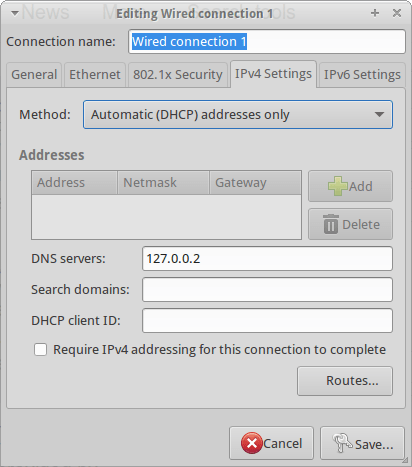
Last but not least, you need to interface the Internet traffic of your computer through the DNScrypt-proxy. For this reason you have to Edit your Network Configuration and add the address 127.0.0.2 to the “DNS Servers” line as for the below screenshot:

DNSCrypt

Now you can start DNScrypt just typing:

sudo dnscrypt-proxy -R opendns -a 127.0.0.2:53 -u okturtles

Where, in my specific case, okturtles is the name of the remote DNS resolver I decided to use. I chose that specific risolver from the list I found into into my computer after DNScrypt-proxy installation:

/usr/share/dnscrypt-proxy/dnscrypt-resolvers.csv

As usual in similar situations, you may want to spend another couple of minutes to configure your computer to start DNScrypt at the computer boot. Open the Session and Startup manager through the desktop Dash and Add this specific command to the Application Autostart menu:

sudo dnscrypt-proxy -R opendns -a 127.0.0.2:53 -u dnscrypt

Synkron: a flexible & powerful way to synchronize your files or folders on Linux – An “encrypted” example for security and privacy reasons

Sometimes it is really easy, other times you waste your time. A good synchronization between files or folders is something you need everyday but it could become a nightmare if you miss something.

In my specific case I need to automate a synchronization between a folder (F1) where I usually save my office files (Documents) with a second folder contained, for security reasons, in an encrypted volume/partition (F2). This last folder (F2) automatically synchronize its content with a third folder (F3), located in the same encrypted volume/partition, that is the client folder of a remote storage hosting (F4).

This also means that when I am out of the office and I add a file in the online storage host (F4) the document is automatically copied to the client folder of the remote storage hosting and to the folder located in an encrypted volume/partition (F2 and F3).

Moreover, I need to erase the Documents folder F1 as soon as it is synchronized with its mirror F2 in the encrypted volume.

The described scenario is common in the everyday working life and it is conceptually not hard to solve… in theory… When I tried to set up the above described operations using grsync on Fedora and Ubuntu I had big problems to obtain an acceptable result.

Many times the synchronization was unidirectional and I was not able to run it properly just using grsync still I found one right solution with Synkron. Synkron  is a multi platform software (Linux, OSX, Windows and portable) written in C++ that is really flexible for all multitasking synchronization needs.

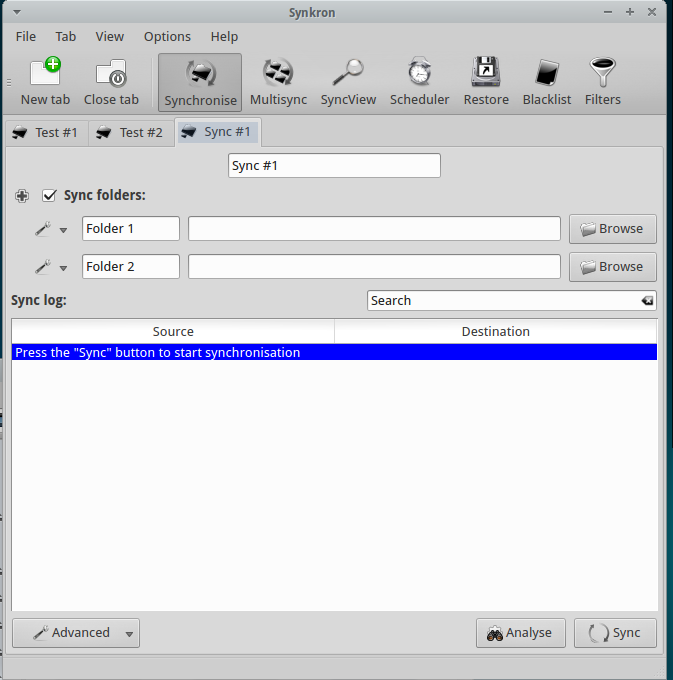
First of all, Synkron is multi-tab and this is a winning features because it let you to “slice” any problem (synchronization matter) into simple, easy to solve, tasks.

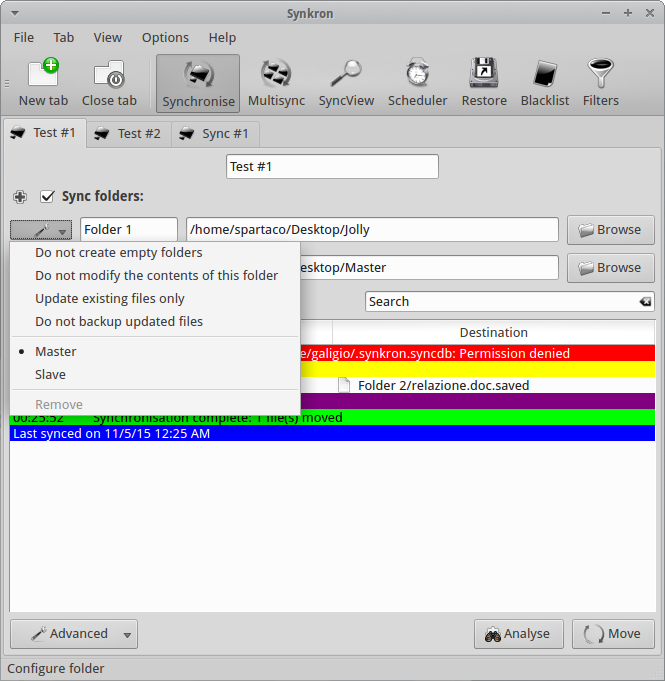
In my example I determined the two Folders I wanted to sync – F1 & F2) and  decided thath both folders had to be considered as Master by the software.

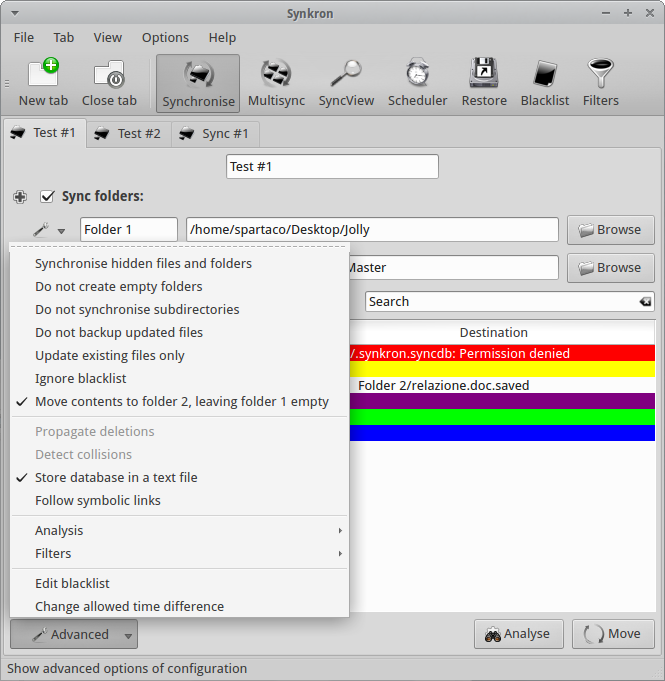
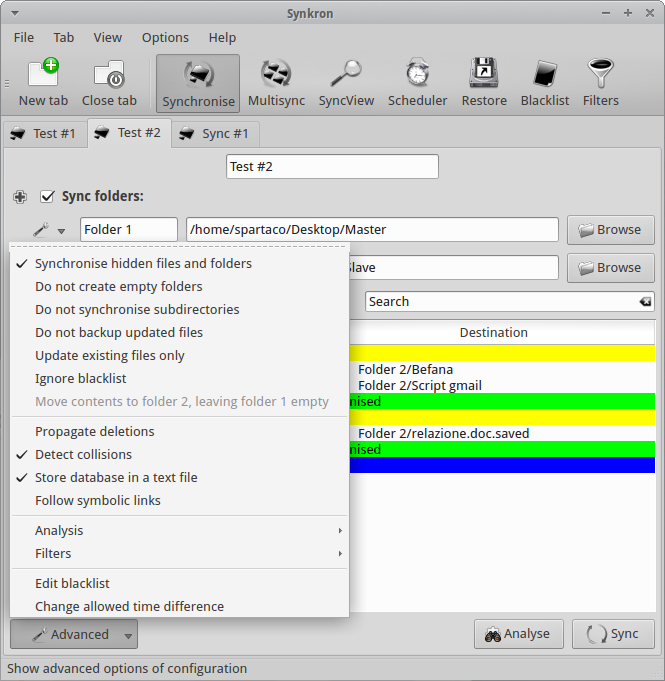
Then I used the Advanced Menu and I chose to “Move contents to Folder 2, leaving folder 1 empty” and to “Store database in a text file” for my convenience (F1 to F2 deleting F1 contents after synchronization).

At this point, I opened a second synchronization tab where I selected two folders (F2 to F3 sync) and I also asked Synkron to “Synchronize hidden files and folders” and to “Detect collisions”.

At this point I had obtained an acceptable solution to my initial task, simply dividing my problem into two separate operations.

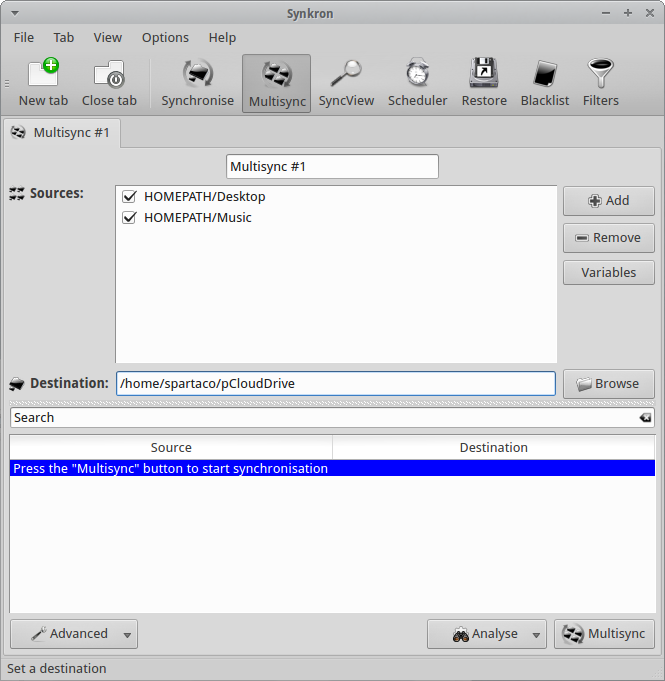
Moreover, I’ld like to focus your attention on the fact that Synkron has a specific feature for multi-synchronizing three or more folders at the same tome. The tuning of this particular feature is really intuitive and you can also selected many of the different advanced options we described here above.

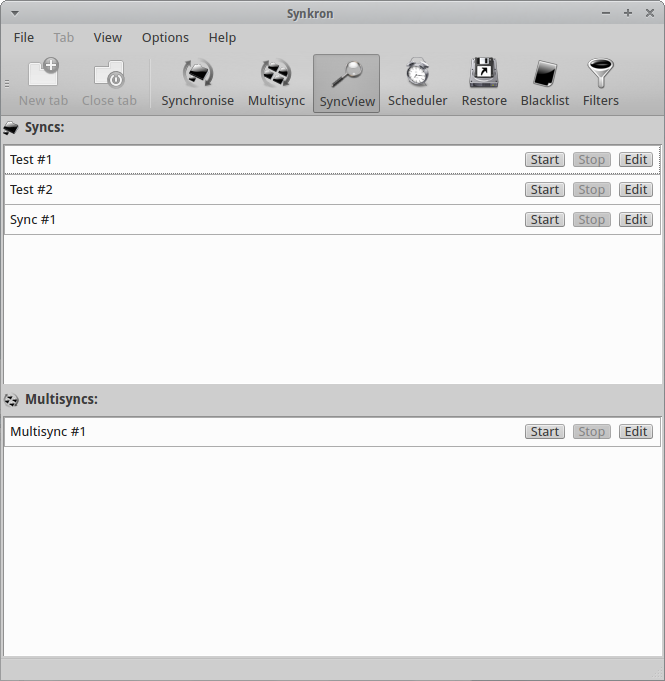
If you have complex synchronization needs and you have many tabs configured you can always choose what tabs you want to activate or deactivate using the “Sync folders” option you find in the upper part of each tabs. Another option for this specific issue is represented by the SyncView visualization that let ypu to have a quick general glimpse about the state of all the sync and multisync tabs.

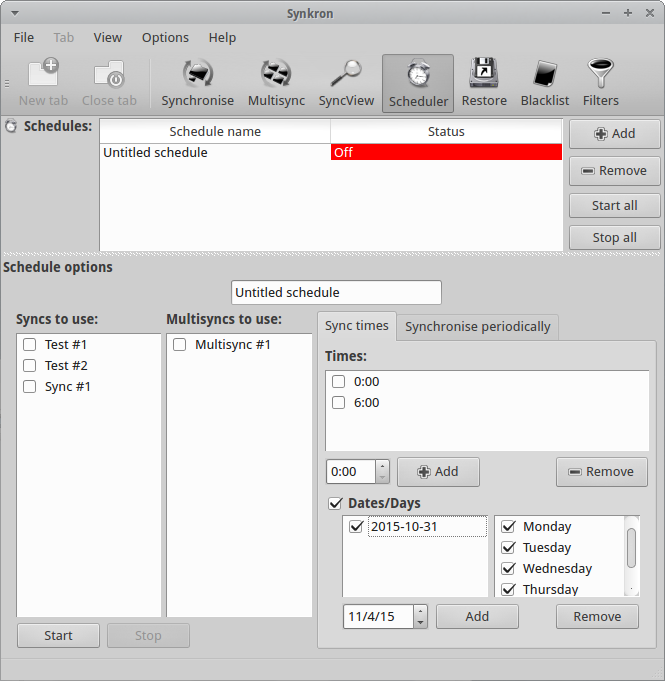
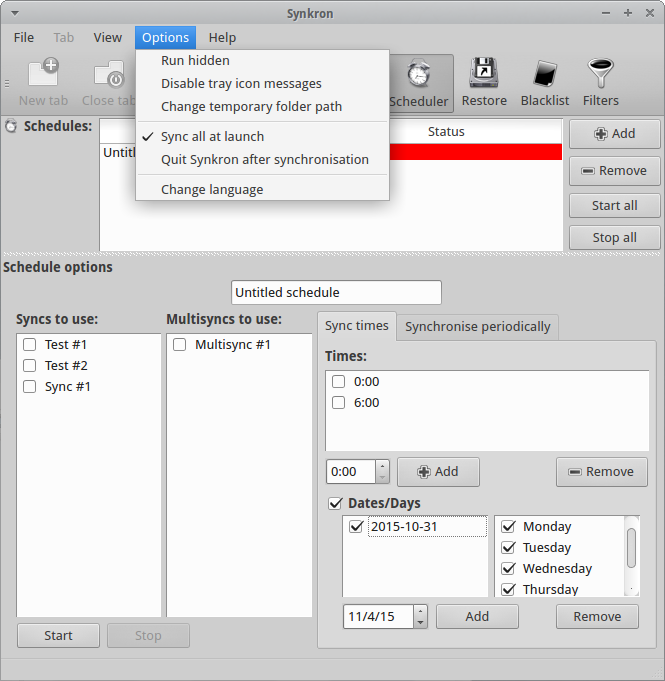
Synkron has simply fantastic scheduling options that are able to solve any need you may have.

Furthermore you can decide to automatically synchronize your folder as soon as you launch Synkron.

You can also decide to automatically run Synkron at the startup but, in this case, you need to manually configure your Startup Menu.

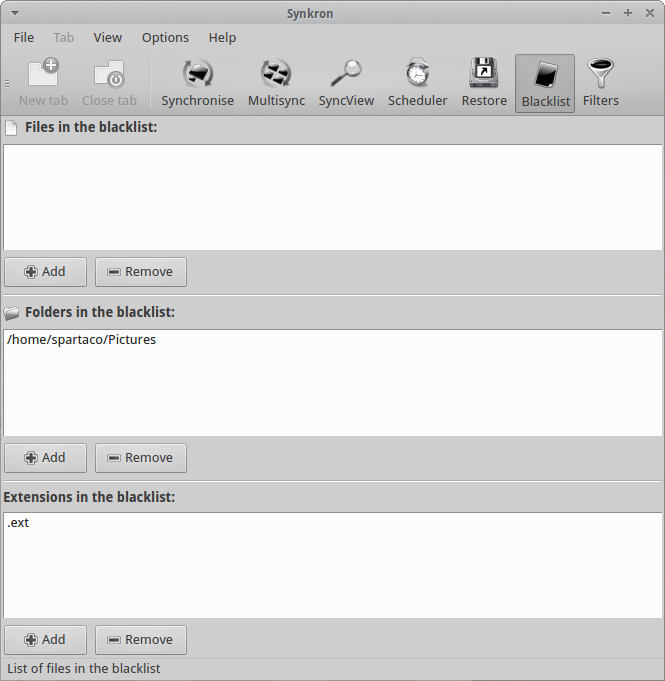
As extra features you can always decide to create Blacklists that will exclude specific files, folders or extensions from the synchronization.
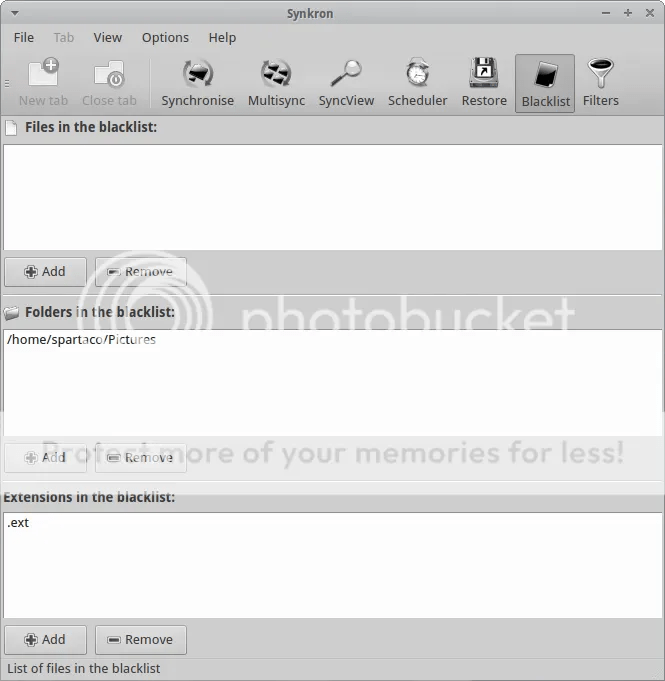
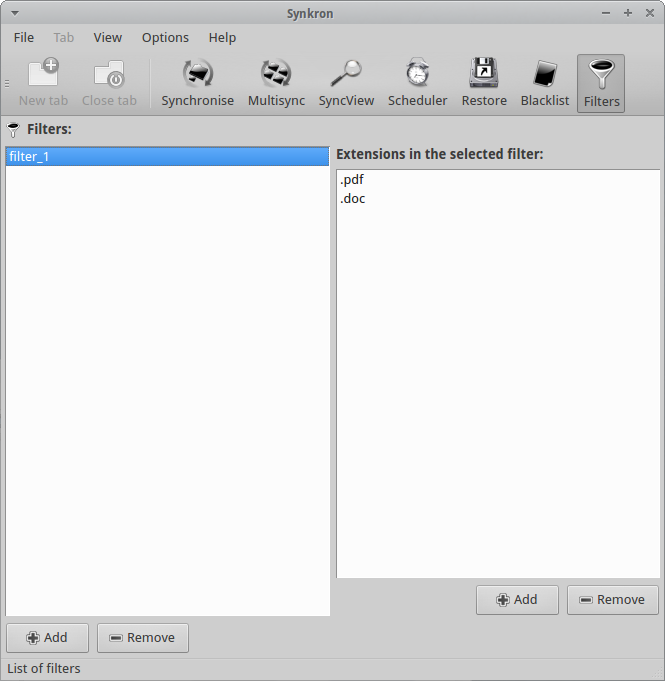
In addition you can define Filters by extensions to better refine your synchronization.

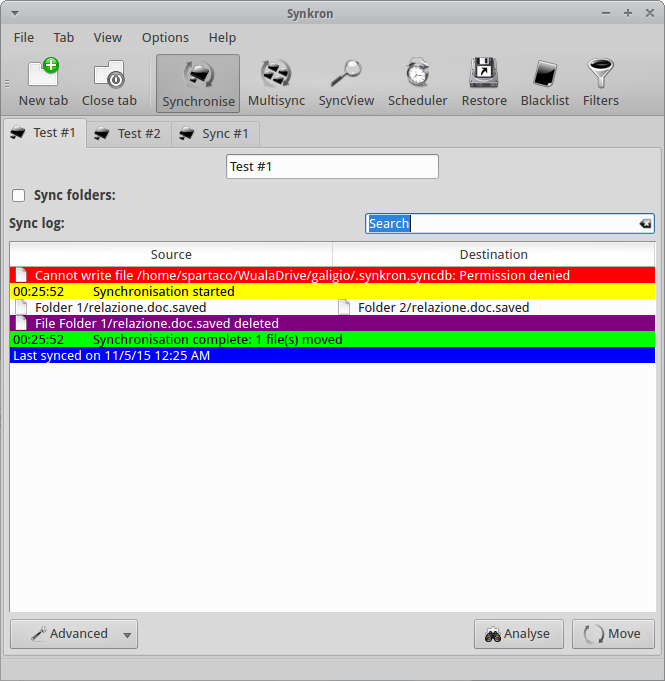
Last but not least, when you run Synkron you obtain a detailed report in real-time where you can check the state of operations by colors.


What about the low-cost Tablet Market?

Newcomers  are not always the happiest guy…. This because not often there is not  much room left by the first-comers that usually had the “good idea” and  consequently became the market leaders.

But sometimes things go differently. This is the case of low-cost tablet market where a  big number of semi-unknown producers from Asia have been able to create good products at a very affordable price.

If you google “tablet”  and visit some specialised, B2C, websites you can find some interesting  products. Obviously I’m not talking about the top of the production and you will not find any top level tablet but you could be interested to some of them if you consider their prices.

The middle level market wasn’t considered interesting by big players till now. But the  potential  increase of demand in this segment has changed the scenario. 

Tablets are very common devices and today many of us could be interested to have a second or third device to avoid the matter of carrying our expensive, branded tablet everywhere. Personally I am not planning to buy a second “branded” tablet to increase my comfort when in remote places but I could really consider to buy a second, not the top, device if it is really cheap. I am sure it will be a little be slower and less performant than the one I use every day but what does it matter if its price will be just a fraction of my main tablet?

For above marketing reasons Amazon is planning to sell a low-cost 50 USD tablet before the end of the year.

On one end the attended success of this marketing strategy could be read as another way to chain its customers to the brand. On the other end low-cost tablets represent a real remunerative economic niche that worths a good slice of the market (and consequently a lot of money).

Moreover the tablet market starts to be “mature” and this niche could be one of the last ones before the decline. Moreover Ubuntu is coming

In fact Ubuntu is actively working on a new generation of tablets that will run a native version of Linux. The tablet devices we are using today have enough power to smoothly run some of the main common Linux OS and overcome the main problems that were registered when some “primitive” Linux tablets were launched some years ago.

For this reason Linux enthusiasts like me hope in something new… and useful in the near future. Cross your fingers!

——————-

References:

http://www.wsj.com/articles/amazon-to-release-50-tablet-as-it-struggles-to-sell-pricier-devices-1441653902

Hibernate for Ubuntu

Since the Ubuntu 12.04 LTS the hibernate icon disappeared as possible option at the shutdown. It is not a big loss if you are not used to use (or overuse) it as I often do. Personally I think that the hibernate feature is really useful when you want to freeze your computer maintaining all the windows -and the work- you are working on at a precise moment. 

Ubuntu decided to “cut” this particular command from its GUI because it registered a remarkable number of problems caused by hardware conflicts in modern computers. 

If you use Ubuntu and you think that hibernate could till be useful for you (especially during busy working days), it is possible to insert again this specific feature as GUI on your Desktop.

First of all you have to test if your computer contains the right hardware for “hibernate” so open Terminal and type:

sudo pm-hibernate

The computer will hibernate itself but you have to reboot it to understand if hibernate worked properly in your case.

I hope (as it was for my PC) that all has gone well. In this case you can start to create the dedicated icon on your upper bar.

Before of starting it’s necessary to understand that the hibernate command will use the SWAP partition to save your temporarily data. Usually it is recommended to have a SWAP partition with, at least, the double of space of your RAM.

So I suggest to install Gparted to check the SWAP space and, only if necessary, increase your SWAP partition reducing the primary partition. Please, do this only after you safely backup all the data in your computer because this procedure could be risky if you are doing it for the first time and you have not enough experience:

sudo apt-get install gparted

Open a Terminal and install gedit and gksu (if you don’t have them already installed on your machine) typing:

sudo apt-get install gksu && sudo apt-get install gedit
Then type:
sudo gksu gedit /etc/polkit-1/localauthority/50-local.d/com.ubuntu.enable-hibernate.pkla
Now a blank gedit document, named enable-hibernate.pkla will appear on your screen.

Copy and paste the following text to “compile” it:

[Enable Hibernate]

Identity=unix-user:*

Action=org.freedesktop.upower.hibernate

ResultActive=yes

Save it and reboot your computer.

A new icon will appear on the right corner of the upper bar. When you click on it, a Terminal window will appear asking for the system password. Type it and click on Return and your PC will immediately hibernate. 

Good busy working days!

How to fix the number of kernels during the Ubuntu boot up!

UbuntuWe are sorry for the delay in uploading this new post but we had some technical problems. It happens! This week, in our Linux Page (in Spanish) we have posted a couple of simple but effective tips to choose how many Kernels you want you see when starting up your Ubuntu 8.04. Using Add/Remove Programs it is possible to install the “StartUp Manager” program which allows you to easily choose the number of kernels you prefer. Moreover we have suggested an alternative command line “delete” and “save” solution for the people who prefer to solve this inconvenience without installing new software. Good work! AddThis mp3 link