Tag Archives: Linux

It’s time to find the best Linux Distro for your old laptop!

tuxAre you looking for a up-to-date Linux Distro to use that old laptop you have in the dust in the far corner of your garage? It could not be so easy to find the best Linux Distro to install on it but howtouselinux.net did some great twests for all us:

What is the best Linux distro for Laptop? 

The review is really well-done and the graphic display of results let you to quickly choose what is the best Distro candidate for your laptop depending on hardware, your tastes and the final use you want to give to your laptop.

In my experience the howtouselinux.net review let me to save a lot of time because I was able to focus my tersts just on the two Distros that seemed to have the right prerequisites for my old eeepc 900:  Peppermint OS and Macpup. Recommended!

375x150-embossed


3 steps to install DNScrypt to improve your privacy – Ubuntu version

Also if you use OpenDNS to improve your standard of privacy, you are not protected by “last mile” dangers but you can boost your security installing DNScrypt on your digital device. DNScrypt “works by encrypting all DNS traffic between the user and OpenDNS, preventing any spying, spoofing or man-in-the-middle attacks”.

DNScrypt “is a protocol that authenticates communications between a DNS client and a DNS resolver” and it “is not a replacement for a VPN, as it only authenticates DNS traffic, and doesn’t prevent “DNS leaks”, or third-party DNS resolvers from logging your activity”.

For this reason you have to be conscious that DNScrpt is just a -very good- improvement of your privacy but not the definitive solution to all your privacy concerns.

DNScrypt is so versatile that you can install it on every kind of device you prefer. In fact it is possible to download DNScrypt for servers, IOS, OSX, Android, Windows and Linux computers (DNScrypt-proxy version). Obviously the installation and setup will vary a little depending the OS you installed on your device.

Concept-Skyscraper-Feeds-on-Air-Pollution-Uses-It-to-Grow-433607-2

Image from softpedia.com

Here we are talking about DNScrypt installation on Ubuntu.

For this purpose I suggest to use the Terminal that allows you to install DNScrypt i just 3 steps:

sudo add-apt-repository ppa:anton+/dnscrypt
sudo apt-get update
sudo apt-get install dnscrypt-proxy

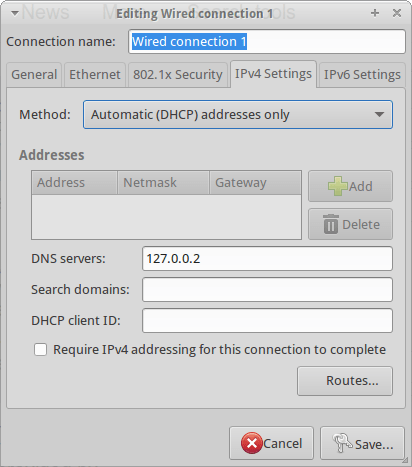
Last but not least, you need to interface the Internet traffic of your computer through the DNScrypt-proxy. For this reason you have to Edit your Network Configuration and add the address 127.0.0.2 to the “DNS Servers” line as for the below screenshot:

DNSCrypt

Now you can start DNScrypt just typing:

sudo dnscrypt-proxy -R opendns -a 127.0.0.2:53 -u okturtles

Where, in my specific case, okturtles is the name of the remote DNS resolver I decided to use. I chose that specific risolver from the list I found into into my computer after DNScrypt-proxy installation:

/usr/share/dnscrypt-proxy/dnscrypt-resolvers.csv

As usual in similar situations, you may want to spend another couple of minutes to configure your computer to start DNScrypt at the computer boot. Open the Session and Startup manager through the desktop Dash and Add this specific command to the Application Autostart menu:

sudo dnscrypt-proxy -R opendns -a 127.0.0.2:53 -u dnscrypt

Configure OpenDNS on your Ubuntu Computer through DDclient in just 6 steps – Tutorial

1 – Why should I change DNS? 
You “use” them in any moment, every time you are in front of a computer but usually you don’t consider to directly manage or change them because you think that it is not worthy to do anything with them. 
On the contrary, you know that many different online companies offer dedicated DNS addresses you can use to substitute the default DNS addresses provided by your ISP.
So, at this point, your main question is “Why should I change DNS on my route or my computer”?
For example, for one or more of these different reasons:
– to have a chance of a possible increasing of speed and reliability when you surf Internet; 
– if you want to delegate to a third “professional” part some security tasks (e.g. third party security filtering to protect yourself against phishing or viruses);
acces websites that are normally geoblocked by commercial policies/agreements or censorship imposed by Governments;
parental monitoring if you prefer to have a rough idea of what websites your children visit or if you whant to filter some specific contenents.
2 – Choose a reliable DNS provider
If you decide that you want to try a different DNS provider you need to choose a reliable one. A quick search on Internet will help you to find the most appropriate DNS Provider for your needs.
In this specific case we are examining how to configure the DNS from OpenDNS.com so, if you want to test it, you have to sign up for a free account on opendns.com or simply copy the DNS addresses you find in the bottom right of their homepage or sign up for a OpenDNS.com free account. In the last case, you have the possibility of monitoring your traffic in a professional statistical way and probably you will satisfy one or more of the reasons that may explain your choice to use different DNS. 
3 – Install DNS from OpenDNS on your router
If you want to use OpenDNS on your LAN you have to configure the router through the its configuration interface. The way you can do this varies from one router to another but in all the popular models you will easily find a specific sub-menu where you could activate the “use predefined DNS” option compiling the two addresses provided by OpenDNS.
In this way all your LAN traffic will be pipelined through OpenDNS and you will not need to singularly configure each computer you have.

dns4

Image from: oriental-press.com

4 – Install DNS from OpenDNS on your Linux computer
4a – Preliminary configuration.
The problem with opendns.com is that it doesn’t provide an official tutorial to correctly install its DNS on a Linux machine. For this reason you can follow this brief notes that I wrote after installing it on a Ubuntu 14.04 LTS Ubuntu computer.
Go to the OpenDNS.com support page dedicated to the installation on Ubuntu and follow their instructions:
I exactly followed all the instruction till the point 8 but, when I had big problems when I typed:
sudo ifdown eth0 && sudo ifup eth0
because this message appeared:
ERROR unknown interface eth0=eth0
The matter is that my ethernet is really named eth0 (I double checked using the commands ifconfig and netstat -r -n) but it was not possible to operate on it.
To solve this problem I used the Poorak’s Blog suggestion and I had to open the interface file via Terminal with:
sudo nano /etc/network/interfaces 

– or if you prefer:

sudo gedit /etc/network/interfaces
and manually add these lines:
auto eth0
iface eth0 inet dhcp
then I restarted my networking
sudo /etc/init.d/networking restart
4b – Install DDclient on Ubuntu if you have a dynamic IP
Normally the Internet Service Provides provides a dynamic IP to users that may change over time. So, if you don’t want to pay more to obtain a static IP, you need to install a software that could constantly communicate your actual IP address to OpenDNS.com. In my case, I dedcided to install DDclient to be able to continue to properly use the OpenDNS.com services.
To install DDclient I preliminarly had to install coreutils through Terminal:
sudo apt-get install coreutils
and the required SSH and SSL sockets:
sudo apt-get install ssh libio-socket-ssl-perl
and finally the DDclient:
sudo apt-get install ddclient
At this point you manually edit the configuration file:
sudo nano /etc/ddclient.conf
(or, if you prefer sudo gedit /etc/ddclient.conf)
typing:

##
## OpenDNS.com account-configuration
##
use=web, web=myip.dnsomatic.com
ssl=yes
server=updates.opendns.com
protocol=dyndns2
login=opendns_username
password=opendns_password
opendns_network_label

where:

– ‘opendns_network_label’ is the label given to the network you’re updating in your account.
If you have spaces in your network label, replace them with an underscore ( _ ) 
You can find the network label in the Settings Tab of the OpenDNS Dashboard.
– the login is your email address with OpenDNS
– the password is your opendns password. 
“If you have special characters in your password wrap the password in single-quotes ( ‘ ). 
If there are any single-quotes in your password, put backslash ( \ ) before the single-quote to escape the character”.
References:
5 – Start OpenDNS and DDclient on your Ubuntu computer
At this point you have all the elements to start  so you can open a Terminal and type: 
sudo /usr/sbin/ddclient chkconfig ddclient on && sudo /usr/sbin/ddclient service start
On the other side, if you want to check the status of DDclient, you will type:
sudo /etc/init.d/ddclient status

6 – Configure Linux OS to start DDclient at boot on Ubuntu

On Ubuntu is really simple to configure DDclient to start at the computer boot. You have to open the Session and Startup manager through the desktop Dash. Now you are able to Add a specific command to the Application Autostart menu to run DDclient at the boot:
sudo /usr/sbin/ddclient chkconfig ddclient on && sudo /usr/sbin/ddclient service start
If you are configuring OpenDNS through DDclient on a different Linux distribution you can google the right tutorial or follow the guide created on aboutLinux.info.
At this point you will automatically use OpenDNS on your Ubuntu computer. 

Start 2016 with a bunch of unusual Linux OS!

linux-distributions-to-look-forward-in-2016

What’s better than testing? For me nothing!

For this reason, let me introduce some “unusual” Linux distribution proposed by Jesse Afolabi @Jesseflb via Techmint.

VeltOS and PapyrOS are based on Arch but the last one is in its pre-alpha testing so it’s not suggested for beginners.

Moreover, we may decide to begin 2016 with Korora that is still one of my favorite projects also after so many years since the first release.

Last but not least, we have Solus OS 2 that it is not the most Linux distribution I tested but it is stable and really well built.

Happy 2016!

Could Privacy Law Limitations kill the Internet Dream?

Is Privacy a fundamental human right? Your personal answer to this question is the starting point to think about the current Internet legislation and to evaluate if the recent legal restrictions on civil rights could represent the “end of the Internet Dream.” A clear and motivated opinion about this issue is a strategic keypoint for all those people who, as me, operate everyday in one of the many Internet branches as consultants, lawyers, programmers, marketing experts, investors or, more often, as common users.

Dan Gillmor, via BACKCHANNEL, has recently underlined that a liberal legislation should not restrict end to end encryption, because it represents the best safeguards for tomorrow’s freedom. A standard use of fragile encryption, imposed by Law, will not only interfere with privacy, but will also heavily tamper with Internet global security.

o-INTERNET-PRIVACY-facebook

Image by quotesgram.com

On the other hand, Dan Patterson, via TECHREPUBLIC, has reported two different conversations with UN reporters who affirmed that strong encryption allows privacy and privacy is the corner stone of truth, especially for reporters, because it helps to “validate the veracity of information.”

Consequently, to preserve our privacy in our daily living it would be useful to:

  • Use Privilege VPN or  HTTPS connections when you surf Internet;
  • Use Encrypted Storage for your data, especially if you cannot avoid using cloud-based services;
  • Watch the Legislator: contact the MP/Politician who represents you and express your point of view, each time a restrictive Law proposal is under discussion.

As Citizens, the real challenge we have for the next months is represented by the influence we will be able to exercise on new Laws that should find a legal equilibrium between anti-terrorism surveillance and the need of protecting citizen’s personal information allowing the use of VPN/HTTPS connections and Encrypted Storage.

Link

3 things you need to remember when Upgrading to Fedora 23 as for the Unicmen’s instructions

The upgrade from Fedora 22 to Fedora 23 is not automatic, as usual in my Fedora experience, but it is really simple to manage if you follow the path suggested by Unixmen.

There are few things you need:

connect your laptop to the power plug (if you use a laptop);

– a couple of hours (something more or less depending on your CPU, RAM, Internet connection speed, etc..);

few lines of commands on the Terminal

The upgrading process is well structured and to start it you need to launch Terminal and upgrade the native Fedora Fedup with its new version that now is integrated into DNF:

dnf upgrade

Then you have to install the DNF plugin:

dnf install dnf-plugin-system-upgrade

and finally you can start the “core” part of the upgrade just typing:

dnf system-upgrade download –releasever=23 –allowerasing –best 

Where:

– allowerasing will continue the upgrade also in presence of any “old” (not yet upgraded) third part repositories that normally would have completely stopped the main upgrading process

-best is a verbose mode in case of unsatisfied dependencies

After a while, depending on your Internet connection speed, you will be able to conclude the upgrade typing:

dnf system-upgrade reboot

Your laptop will reboot and the upgrade starts.

From now you spend more than 40 minutes waiting and answering to few easy questions that the OS asks you to solve some configuration matters.

The length of the waiting time depends obviously on the CPU, the RAM and the type of Hard Disk installed into your PC.

That’s it!

Link
http3a2f2fwww-redpill-linpro-com2fsysadvent2fassets2fimg2fbackup_disk

Image from redpill-linpro.com

Cloning block devices online using Software RAID

Link

ubuntugnomea

Image: Jack Wallen


Ubuntu GNOME 15.10: The perfect Linux desktop distribution


TrueCrypt – Try it again! Waiting for CipherShed…

truecryptlogo_256TrueCrypt is safer than we thought! A specific audit tested TrueCrypt 7.1 unmantained through a complex verification process and the results are surprising.

First of all we have to consider that TrueCrypt is not mantained since 2014 and that its “natural” fork, VeraCrypt, is directly developed by Microsoft. For this simply reason many former TrueCrypt users prefer not to use VeraCrypt.

Secondly, the bugs revealed by the testers in TrueCrypt are less worrying than that discovered using its competitors solutions.

For this reason I decide to install TrueCrypt (that I use previously it was unmantained) on my Fedora 22 laptop.

To begin, I searched for a good repository and, at the end, I opted for that mantained by GRC. So I downloaded the TrueCrypt 7.1 archive from GRC that is still storing all the others TrueCrypt versions.

I decided to use the 7.1 version because it has more features than the last 7.2 version (the last known release of TrueCrypt). In any case I am monitoring the Swiss website and I wish that the CypherShed project will be completely developed soon.

After I extracted the file and moved it to a specific folder.

Last but not least I opened Terminal and typed:

sudo ./truecrypt-7.1a-setup-x64

and the software was correctly installed into my Fedora 22 OS.

After some tests I can adfirm that TrueCrypt is still a good security solution not only for the above mentioned audit but also because it is really stable, flexible, full of useful features and simple to use.

To sum up: Try it… again!