Category Archives: Linux

Wireless Power Transmission: real available technology and marketing advantages

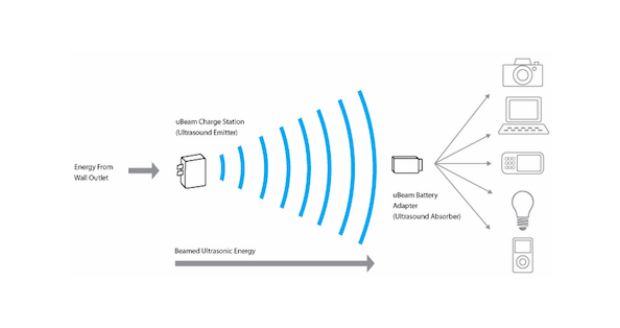
ubeamWireless energy transmission for remote charging is one of the most strategic key factor for the development of a new generation of tech devices in the near future. Few years ago some futuristic thinkers forecasted the possibility of wireless energy transmission between far places. In particular the academic community was interested in energy transmission between the planet earth and orbiting satellites equipped with solar power stations. 
This long range power transmission technology would radically change the energetic, economic and power equilibrium of our world but unfortunately, at the moment, this technology is not available. 
On the contrary, near range power transmission is something near the corner. 
After long researches an USA company  is launching the first generation commercial version of a wireless power transmitter with ultrasound that will allow to recharge (for the moment) mobile phones in a range of 15 feet (4.5 meters) just using a special cover. 
Fifteen feet are not a long range nor a medium one but the important thing is that it is contactless and that 15 feet start to be an interesting distance. 
So interesting that a big coffee shop chain as Starbucks  is considering to introduce these remote charging devices in all its shops. 
In this way all the customers will be able to automatically and freely charge their mobile devices as soon as they enter into the coffee shop. A good added value considering how much energy our devices need when strongly used during the day. And consequently, for many people, a good reason to prefer a store to another one. A potentially viral added value as well as a magnetic marketing strategy!
Last but not least, it must be considered that the success of this kind of technology operations is determined by costs. At the moment it is not possible to find any information about prices for the mobile device covers at the end consumer side. If the end users price for covers will be high, the huge, positive effects of a partnership with a big player as Starbucks couldn’t be enough without some kind of tech fashion pivot. 
Good luck uBeam! You have the right idea!
————–
References:

Update from Fedora 18 to 20 or 21 in few simple clicks and without (I hope) problems!

Fedora 21Sometimes simple things become hard problems. This happened to me when I discovered that my Fedora 18 OS was obsolete (very old indeed) and I tried to upgrade it to the Fedora 20 version.

Fedora 18 doesn’t support the automatic OS upgrade so I had to spend some hours to find information on Internet and create the right DIY solution for my case. At the end of my little (sic!) research I discovered that I was able not only able to upgrade the PC to Fedora 20 but I also found a good “trick” to upgrade to the latest Fedora 21 following in just a couple of steps with the help of fedup and some other escamotages.

This is how I succeed…

First, you have to open a Terminal and type:

su
init 3

but you will immediately leave the Fedora GUI and so it’s better if you write the below commands on an -old style, paper notepad- to be sure to have all the right information in you hands and correctly manage the upgrade from Fedora 18 to Fedora 20

sudo su -
yum update
yum install fedup
fedup-cli --network 20 --nogpgcheck

It’s better to add –nogpgcheck because often you are not able to complete your upgrade for the “old”, “bad saved” gpg key in your system.

reboot

Now, at the boot-up menu (GRUB 2 menu) you have to choose “System Upgrade (Fedup)”.

Then just to be sure you really have an up to date OS, in Terminal, type:

Yum update

If you have problems with one or more of your “old” repositories don’t forget to deconfigure them. In my case I had to launch this command line in Terminal due to skip an old repository and proceed with the upgrade:

yum-config-manager --save --setopt=home_moritzmolch_gencfsm.skip_if_unavailable=true

At this point, to upgrade from Fedora 20 to Fedora 21 you have to open (again) the Terminal and type:

su
fedup --network 21 --product=workstation --nogpgcheck

OR

fedup --network 21 --product=server --nogpgcheck

(if your Fedora version is the server one)

OR

fedup --network 21 --product=cloud --nogpgcheck

(for the Fedora cloud edition for generic virtual machines or Container)

Take it easy and go to bed for a long snap because, in my case, the download took some hours as for 2,577 files to be upgraded…

At the end, as before, you have to Reboot and select “System Upgrade (Fedup)” at the boot-up menu (GRUB 2 menu) and all the necessary files will be installed. Again, take a good book to read while you wait the installation.

Good luck and remind you MUST backup all your data before you start any upgrade because unforeseen risks are always around the corner!

References:

https://ask.fedoraproject.org/en/question/37247/upgrade-fedora-18-to-fedora-20-via-yum-or-fedup/

http://tecadmin.net/steps-to-upgrade-fedora-19-to-20-using-fedup-tool/

http://www.unixmen.com/upgrade-fedora-20-fedora-21-using-fedup/

https://ask.fedoraproject.org/en/question/39558/how-to-remove-a-repository-from-my-system

How to delete – double – icons on your Android smartphones!

Google Play StoreThe first time I noticed doubled icons appearing on my Android 4.4 smartphone I thought that it was a temporary problem. So I tried to solve that with a simple reboot but I didn’t succeed.

Moreover when I tried to delete just one of the doubled icons I uninstalled the App…. This kind of matter is typical of smartphones and it usually doesn’t happen on tablets or Android PCs where you have a dedicated room (the “menu” page) to uninstall software (Apps) and different “screens” to organize them.

This means that if you delete a App’s icon from one of the “screens” you will still have your software installed into your device. The problem of double icons on smartphones is caused by a wrong configuration of your personal settings on Google Play Store.

To solve it, you have to:

1 – find all the problematic Apps;

2 – go to Google Play — Settings – and deselect “Add icon to home screen”;

3 – uninstall the “problematic” Apps;

4 – reinstall them.

To conclude it’s better to solve this kind of problem as soon as you notice it because, to solve the matter, you will have to waste your time uninstalling and reinstalling all the Apps with doubled icons.

GrooveDown vs. GrooveOff: my personal experience using Grooveshark

Grooveshark is an online music service, very well-known and common especially in Europe. The quality of its mp3, offered just for listening is higher than what you find on YouTube and some programs were developed to allow listeners to search and listen songs without visiting the Grooveshark website.  Some of these software let you save sample of songs for a later listening but this habit doesn’t complain with the copyright laws in many countries so we discourage this kind of practice.

Today we would like to just endorse the ability of a single developer (www.caleta.fm) who was able to modify one of these programs, GrooveDown, and adapt it to the new website requisites.

This developer, using wireshark, was able to identify the misconfiguration between GrooveDown and the Grooveshark’s server and to positively update the data (client version and password) exchanged.

More in general I think that GrooveDown is the best client to listen to Grooveshark also because it is more powerful, fast and easy to use than its competitors. In particular, during some tests I did, I was positively impressed by the results I obtained using GrooveDown because I received better and more complete search results than using, for example, GrooveOff which is too a good software but, for my personal experience, gave back less impressive results.

Last but not least I want to underline that the caleta.fm development of GrooveDown is really stable and it was developed in two different versions just to be used with Java6 or Java7 platform. Recommended!

Once again about cookies, supercookies and Flash cookies… How to better protect Firefox, your Linux OS and.. you!

In a previous post I already suggested to use HTTPS Everywhere and HTTPS Finder to better protect your privacy on the web. Today I would like to focus your attention on the privacy risks caused by cookies.

Some of them can track your internet activity also when you have logged off from the websites that created them. In few words, some cookies can actively support the creation of a quite punctual profile of your interests and share these information with third parties without you know if your data will be anonymised and correctly stored.

Internet tracking is actual and silent and antivirus software are not the best solution to manage them because every day new types of apparently harmless cookies and supercookies are created and spread into our computers. Cookies usually don’t directly affect your internet browsing but they are a real risk if you want to protect your privacy. A good VPN service (e.g. one that does not link your payment to your “new” assigned VPN IP) could be the best solution but flash cookies, evercookies (a particular type of zombie cookies which are able to geometrically clone themselves outside the original folder where they were stored) could reveal your IP and your habits, just after you disconnect your OS from the VPN shield.

To improve your privacy you can start to combine your VPN with some particular Firefox add-on as Self-Destructing Cookies (for the regular cookies) and BetterPrivacy which has been developed to “search and destroy” Flash cookies.

To improve your privacy, never forget that  you can tune your Firefox Privacy settings also using  Secure Sanitizer which wipe the browser cache in a stronger way than Firefox itself.

Last but not least, don’t forget to “waste” some minutes of your time and use BleachBit after every internet session or every time you shutdown your computer. Better to be slow than sorry! 

How to manually mount USB drives on Ubuntu

The first time I had this kind of problem was when I was trying to create a bootable USB drive and a pop-up windows appeared informing me that “you must first mount USB drive /dev/sdc1 to a mount-point. Most distributions will do this automatically after you remove and reinsert the USB drive”. I had never had this matter on Linux because, normally, all the USB drives are immediately recognized and mounted but there is always a first time….

After some googling I discovered that a specific program dconf-editor could help me to check the Linux settings and to consequentlyresolve the situation.

First of all you need to install dconf-editor on your Linux so you have to open a Terminal and type:

sudo apt-get install dconf-tools

After the installation you launch dconf-editor (for MATE environment it’s into the System Tool menu) and navigate it to media-handling:

org –> gnome –> desktop –> media-handling

Now you have to be sure that commands automount and automount-open are both flagged.

If you discover that they are already flagged, its necessary to manually create a mount point using the Terminal.

Open a Terminal and type:

df -H

to see the mounted disks. If you are not able to find the USB drive that you want to mount then type:

sudo fdisk -l

and you’ll see all disks (mounted/unmounted).

Now you are able to know the right drive identity (e.g. sdb1, sdc1, sdd1) that your OS assigned to that specific drive. Memorize it and start to create the mount point:

sudo mkdir /media/newusb

where “newusb” is the mount point name you want to assign to your USB drive.

Then type:

sudo mount /dev/sdb1 /media/newusb

where “sdb1” is the drive identity we found before and “newusb” the mount-point name you choose.

That’s it, now your USB drive has a mounting point and you can use it (in my case I was able to create a bootable USB drive usiing Unetbootin)

You can find some extra useful tips about mounting USB drives at the Ubuntu community.  AddThis

Spring Time! Now you are ready to protect your Ubuntu – Debian system from Rootkits and Viruses

It’s Spring Time and after a long Winter surfing the web and testing new programs, it’s time to give a short rest to your computer, delete old files and scan the OS looking for possible rootkits or viruses. I usually use Ubuntu and the possibility of viruses is not high but… why I shouldn’t double-check to avoid viruses or rootkits?

– First step: Rootkits

Open your favourite Software Manager (I am na old school boy so Synaptics it’s my choice) and install rkhunter and chkrootkit. I know, they are two different programs that have the same goals so you can decide to install and use just one of them…

After the installation you can start using them just typing into a Terminal:

sudo rkhunter --update
sudo rkhunter --check

and/or:

sudo chkrootkit

Examine all the results and don’t be disoriented by possible “”false positives”. Try to understand if some “risks” you find in the results logs could be regular software you are using (e.g. encrypted disks, etc..)

– Second Step: Viruses

Install ClamAV to scan your disks and be sure you have not infected by common viruses.

Open a Terminal and type:

sudo aptitude install clamav clamav-daemon clamav-freshclam clamtk

Then to update the ClamAV engine and the virus lists just type:

sudo apt-get upgrade clamav clamav-daemon clamav-freshclam clamtk

At this point you find ClamTk into the Accessories Menu and you are able to scan your PC just clicking on some intuitive buttons in the graphical interface.

Good Luck!  AddThis

How to upgrade your Fedora system when the Software Upgrade doesn’t work!

Sometimes, if you use Fedora 18 – Spherical Cow, the Software Upgrade program couldn’t work properly. Software Upgrade shows you all the available upgrades but it is not able to install them. The download process starts but it will never finish and you wait for hours with no results. When and if you have this problem you can easily solve it launching a Terminal and typing the command:

yum update

In few minutes (depending on how many updates you need) your Fedora will be updated perfectly.

Last but not least, if you want to have a list of all the potential upgrades on your OS you can type:

yum list updates

and a complete list will be shown.  AddThis

Bodhi: a less known but powerful Linux distribution

If you are looking for a light Linux OS for your computer you can test Bodhi Linux. This specific Linux version, based on Ubuntu, utilizes the enlightenment graphical interface. For this reason Bodhi is particularly indicated also to give new life to computers with no updated hardware.

The graphical interface is really “zen” or rather clean, easy to navigate but complete. We tested the 32 bit version and it was a smooth experience also if we used a single core pc with 2 GB of RAM.

Before testing Bodhi you have to keep in mind that this Linux OS is really user oriented. It means it has just some few pre-installed programs and so you are free to customize it as you prefer. Last thing to remember is that Bodhi is a semi-rolling distribution ans so it will be updated in occasion of Ubuntu Long Term Releases (LTS). Try it, it is worth a chance!