Tag Archives: Ubuntu

Test your VPN through Terminal – Linux Tips

computer-VPN

Do you use a VPN to connect to Internet and increase your privacy? If you are one of the many you would be sure that the VPN you are paying is really working properly.

You can always use, via browser, one of those dedicated websites that check your Ip and, in some cases, test the real effectiveness of VPN and/or use Terminal.

But, for my experience, if you prefer to test your public IP without using the Terminal, the best tutorial for this specific task has been published by http://www.tecadmin.net.

Get Public IP using Linux Terminal

Recommended!… if you are looking for an extra test that you can manage directly from Terminal.

Link


79419-wallpaper_black1b5 commands to check memory usage on Linux

Simple Terminal Commands to check 32/64-bit Version and Installed RAM on Ubuntu Computer

linux-logo

Courtesy of nixpal.com

When you want to check if you have a 32-bit or a 64-bit Linux you can open a Terminal and just type:

file /sbin/init

or

arch

If you prefer to know how much about the RAM you installed on the PC, type:

free -m

or

grep MemTotal /proc/meminfo

for more detailed info you can try:

cat /proc/meminfo

or

grep MemTotal /proc/meminfo

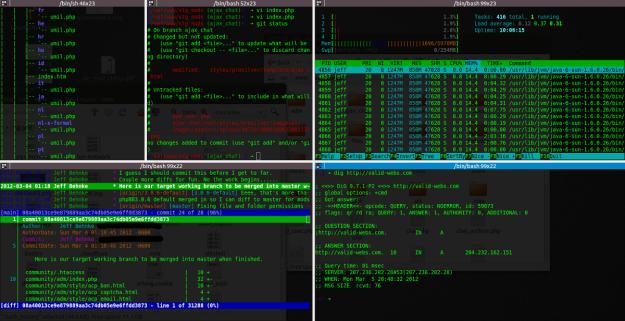
if you prefer to monitor your RAM in real time.

screenshot-bin-bash1

Courtesy of validwebs.com

3 steps to install DNScrypt to improve your privacy – Ubuntu version

Also if you use OpenDNS to improve your standard of privacy, you are not protected by “last mile” dangers but you can boost your security installing DNScrypt on your digital device. DNScrypt “works by encrypting all DNS traffic between the user and OpenDNS, preventing any spying, spoofing or man-in-the-middle attacks”.

DNScrypt “is a protocol that authenticates communications between a DNS client and a DNS resolver” and it “is not a replacement for a VPN, as it only authenticates DNS traffic, and doesn’t prevent “DNS leaks”, or third-party DNS resolvers from logging your activity”.

For this reason you have to be conscious that DNScrpt is just a -very good- improvement of your privacy but not the definitive solution to all your privacy concerns.

DNScrypt is so versatile that you can install it on every kind of device you prefer. In fact it is possible to download DNScrypt for servers, IOS, OSX, Android, Windows and Linux computers (DNScrypt-proxy version). Obviously the installation and setup will vary a little depending the OS you installed on your device.

Concept-Skyscraper-Feeds-on-Air-Pollution-Uses-It-to-Grow-433607-2

Image from softpedia.com

Here we are talking about DNScrypt installation on Ubuntu.

For this purpose I suggest to use the Terminal that allows you to install DNScrypt i just 3 steps:

sudo add-apt-repository ppa:anton+/dnscrypt
sudo apt-get update
sudo apt-get install dnscrypt-proxy

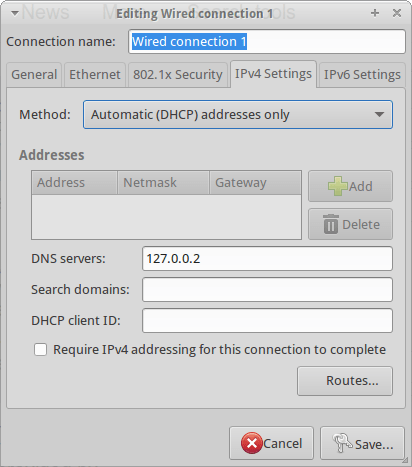
Last but not least, you need to interface the Internet traffic of your computer through the DNScrypt-proxy. For this reason you have to Edit your Network Configuration and add the address 127.0.0.2 to the “DNS Servers” line as for the below screenshot:

DNSCrypt

Now you can start DNScrypt just typing:

sudo dnscrypt-proxy -R opendns -a 127.0.0.2:53 -u okturtles

Where, in my specific case, okturtles is the name of the remote DNS resolver I decided to use. I chose that specific risolver from the list I found into into my computer after DNScrypt-proxy installation:

/usr/share/dnscrypt-proxy/dnscrypt-resolvers.csv

As usual in similar situations, you may want to spend another couple of minutes to configure your computer to start DNScrypt at the computer boot. Open the Session and Startup manager through the desktop Dash and Add this specific command to the Application Autostart menu:

sudo dnscrypt-proxy -R opendns -a 127.0.0.2:53 -u dnscrypt

Configure OpenDNS on your Ubuntu Computer through DDclient in just 6 steps – Tutorial

1 – Why should I change DNS? 
You “use” them in any moment, every time you are in front of a computer but usually you don’t consider to directly manage or change them because you think that it is not worthy to do anything with them. 
On the contrary, you know that many different online companies offer dedicated DNS addresses you can use to substitute the default DNS addresses provided by your ISP.
So, at this point, your main question is “Why should I change DNS on my route or my computer”?
For example, for one or more of these different reasons:
– to have a chance of a possible increasing of speed and reliability when you surf Internet; 
– if you want to delegate to a third “professional” part some security tasks (e.g. third party security filtering to protect yourself against phishing or viruses);
acces websites that are normally geoblocked by commercial policies/agreements or censorship imposed by Governments;
parental monitoring if you prefer to have a rough idea of what websites your children visit or if you whant to filter some specific contenents.
2 – Choose a reliable DNS provider
If you decide that you want to try a different DNS provider you need to choose a reliable one. A quick search on Internet will help you to find the most appropriate DNS Provider for your needs.
In this specific case we are examining how to configure the DNS from OpenDNS.com so, if you want to test it, you have to sign up for a free account on opendns.com or simply copy the DNS addresses you find in the bottom right of their homepage or sign up for a OpenDNS.com free account. In the last case, you have the possibility of monitoring your traffic in a professional statistical way and probably you will satisfy one or more of the reasons that may explain your choice to use different DNS. 
3 – Install DNS from OpenDNS on your router
If you want to use OpenDNS on your LAN you have to configure the router through the its configuration interface. The way you can do this varies from one router to another but in all the popular models you will easily find a specific sub-menu where you could activate the “use predefined DNS” option compiling the two addresses provided by OpenDNS.
In this way all your LAN traffic will be pipelined through OpenDNS and you will not need to singularly configure each computer you have.

dns4

Image from: oriental-press.com

4 – Install DNS from OpenDNS on your Linux computer
4a – Preliminary configuration.
The problem with opendns.com is that it doesn’t provide an official tutorial to correctly install its DNS on a Linux machine. For this reason you can follow this brief notes that I wrote after installing it on a Ubuntu 14.04 LTS Ubuntu computer.
Go to the OpenDNS.com support page dedicated to the installation on Ubuntu and follow their instructions:
I exactly followed all the instruction till the point 8 but, when I had big problems when I typed:
sudo ifdown eth0 && sudo ifup eth0
because this message appeared:
ERROR unknown interface eth0=eth0
The matter is that my ethernet is really named eth0 (I double checked using the commands ifconfig and netstat -r -n) but it was not possible to operate on it.
To solve this problem I used the Poorak’s Blog suggestion and I had to open the interface file via Terminal with:
sudo nano /etc/network/interfaces 

– or if you prefer:

sudo gedit /etc/network/interfaces
and manually add these lines:
auto eth0
iface eth0 inet dhcp
then I restarted my networking
sudo /etc/init.d/networking restart
4b – Install DDclient on Ubuntu if you have a dynamic IP
Normally the Internet Service Provides provides a dynamic IP to users that may change over time. So, if you don’t want to pay more to obtain a static IP, you need to install a software that could constantly communicate your actual IP address to OpenDNS.com. In my case, I dedcided to install DDclient to be able to continue to properly use the OpenDNS.com services.
To install DDclient I preliminarly had to install coreutils through Terminal:
sudo apt-get install coreutils
and the required SSH and SSL sockets:
sudo apt-get install ssh libio-socket-ssl-perl
and finally the DDclient:
sudo apt-get install ddclient
At this point you manually edit the configuration file:
sudo nano /etc/ddclient.conf
(or, if you prefer sudo gedit /etc/ddclient.conf)
typing:

##
## OpenDNS.com account-configuration
##
use=web, web=myip.dnsomatic.com
ssl=yes
server=updates.opendns.com
protocol=dyndns2
login=opendns_username
password=opendns_password
opendns_network_label

where:

– ‘opendns_network_label’ is the label given to the network you’re updating in your account.
If you have spaces in your network label, replace them with an underscore ( _ ) 
You can find the network label in the Settings Tab of the OpenDNS Dashboard.
– the login is your email address with OpenDNS
– the password is your opendns password. 
“If you have special characters in your password wrap the password in single-quotes ( ‘ ). 
If there are any single-quotes in your password, put backslash ( \ ) before the single-quote to escape the character”.
References:
5 – Start OpenDNS and DDclient on your Ubuntu computer
At this point you have all the elements to start  so you can open a Terminal and type: 
sudo /usr/sbin/ddclient chkconfig ddclient on && sudo /usr/sbin/ddclient service start
On the other side, if you want to check the status of DDclient, you will type:
sudo /etc/init.d/ddclient status

6 – Configure Linux OS to start DDclient at boot on Ubuntu

On Ubuntu is really simple to configure DDclient to start at the computer boot. You have to open the Session and Startup manager through the desktop Dash. Now you are able to Add a specific command to the Application Autostart menu to run DDclient at the boot:
sudo /usr/sbin/ddclient chkconfig ddclient on && sudo /usr/sbin/ddclient service start
If you are configuring OpenDNS through DDclient on a different Linux distribution you can google the right tutorial or follow the guide created on aboutLinux.info.
At this point you will automatically use OpenDNS on your Ubuntu computer. 

Link

ubuntugnomea

Image: Jack Wallen


Ubuntu GNOME 15.10: The perfect Linux desktop distribution


What about the low-cost Tablet Market?

Newcomers  are not always the happiest guy…. This because not often there is not  much room left by the first-comers that usually had the “good idea” and  consequently became the market leaders.

But sometimes things go differently. This is the case of low-cost tablet market where a  big number of semi-unknown producers from Asia have been able to create good products at a very affordable price.

If you google “tablet”  and visit some specialised, B2C, websites you can find some interesting  products. Obviously I’m not talking about the top of the production and you will not find any top level tablet but you could be interested to some of them if you consider their prices.

The middle level market wasn’t considered interesting by big players till now. But the  potential  increase of demand in this segment has changed the scenario. 

Tablets are very common devices and today many of us could be interested to have a second or third device to avoid the matter of carrying our expensive, branded tablet everywhere. Personally I am not planning to buy a second “branded” tablet to increase my comfort when in remote places but I could really consider to buy a second, not the top, device if it is really cheap. I am sure it will be a little be slower and less performant than the one I use every day but what does it matter if its price will be just a fraction of my main tablet?

For above marketing reasons Amazon is planning to sell a low-cost 50 USD tablet before the end of the year.

On one end the attended success of this marketing strategy could be read as another way to chain its customers to the brand. On the other end low-cost tablets represent a real remunerative economic niche that worths a good slice of the market (and consequently a lot of money).

Moreover the tablet market starts to be “mature” and this niche could be one of the last ones before the decline. Moreover Ubuntu is coming

In fact Ubuntu is actively working on a new generation of tablets that will run a native version of Linux. The tablet devices we are using today have enough power to smoothly run some of the main common Linux OS and overcome the main problems that were registered when some “primitive” Linux tablets were launched some years ago.

For this reason Linux enthusiasts like me hope in something new… and useful in the near future. Cross your fingers!

——————-

References:

http://www.wsj.com/articles/amazon-to-release-50-tablet-as-it-struggles-to-sell-pricier-devices-1441653902

Hibernate for Ubuntu

Since the Ubuntu 12.04 LTS the hibernate icon disappeared as possible option at the shutdown. It is not a big loss if you are not used to use (or overuse) it as I often do. Personally I think that the hibernate feature is really useful when you want to freeze your computer maintaining all the windows -and the work- you are working on at a precise moment. 

Ubuntu decided to “cut” this particular command from its GUI because it registered a remarkable number of problems caused by hardware conflicts in modern computers. 

If you use Ubuntu and you think that hibernate could till be useful for you (especially during busy working days), it is possible to insert again this specific feature as GUI on your Desktop.

First of all you have to test if your computer contains the right hardware for “hibernate” so open Terminal and type:

sudo pm-hibernate

The computer will hibernate itself but you have to reboot it to understand if hibernate worked properly in your case.

I hope (as it was for my PC) that all has gone well. In this case you can start to create the dedicated icon on your upper bar.

Before of starting it’s necessary to understand that the hibernate command will use the SWAP partition to save your temporarily data. Usually it is recommended to have a SWAP partition with, at least, the double of space of your RAM.

So I suggest to install Gparted to check the SWAP space and, only if necessary, increase your SWAP partition reducing the primary partition. Please, do this only after you safely backup all the data in your computer because this procedure could be risky if you are doing it for the first time and you have not enough experience:

sudo apt-get install gparted

Open a Terminal and install gedit and gksu (if you don’t have them already installed on your machine) typing:

sudo apt-get install gksu && sudo apt-get install gedit
Then type:
sudo gksu gedit /etc/polkit-1/localauthority/50-local.d/com.ubuntu.enable-hibernate.pkla
Now a blank gedit document, named enable-hibernate.pkla will appear on your screen.

Copy and paste the following text to “compile” it:

[Enable Hibernate]

Identity=unix-user:*

Action=org.freedesktop.upower.hibernate

ResultActive=yes

Save it and reboot your computer.

A new icon will appear on the right corner of the upper bar. When you click on it, a Terminal window will appear asking for the system password. Type it and click on Return and your PC will immediately hibernate. 

Good busy working days!

GrooveDown vs. GrooveOff: my personal experience using Grooveshark

Grooveshark is an online music service, very well-known and common especially in Europe. The quality of its mp3, offered just for listening is higher than what you find on YouTube and some programs were developed to allow listeners to search and listen songs without visiting the Grooveshark website.  Some of these software let you save sample of songs for a later listening but this habit doesn’t complain with the copyright laws in many countries so we discourage this kind of practice.

Today we would like to just endorse the ability of a single developer (www.caleta.fm) who was able to modify one of these programs, GrooveDown, and adapt it to the new website requisites.

This developer, using wireshark, was able to identify the misconfiguration between GrooveDown and the Grooveshark’s server and to positively update the data (client version and password) exchanged.

More in general I think that GrooveDown is the best client to listen to Grooveshark also because it is more powerful, fast and easy to use than its competitors. In particular, during some tests I did, I was positively impressed by the results I obtained using GrooveDown because I received better and more complete search results than using, for example, GrooveOff which is too a good software but, for my personal experience, gave back less impressive results.

Last but not least I want to underline that the caleta.fm development of GrooveDown is really stable and it was developed in two different versions just to be used with Java6 or Java7 platform. Recommended!

How to manually mount USB drives on Ubuntu

The first time I had this kind of problem was when I was trying to create a bootable USB drive and a pop-up windows appeared informing me that “you must first mount USB drive /dev/sdc1 to a mount-point. Most distributions will do this automatically after you remove and reinsert the USB drive”. I had never had this matter on Linux because, normally, all the USB drives are immediately recognized and mounted but there is always a first time….

After some googling I discovered that a specific program dconf-editor could help me to check the Linux settings and to consequentlyresolve the situation.

First of all you need to install dconf-editor on your Linux so you have to open a Terminal and type:

sudo apt-get install dconf-tools

After the installation you launch dconf-editor (for MATE environment it’s into the System Tool menu) and navigate it to media-handling:

org –> gnome –> desktop –> media-handling

Now you have to be sure that commands automount and automount-open are both flagged.

If you discover that they are already flagged, its necessary to manually create a mount point using the Terminal.

Open a Terminal and type:

df -H

to see the mounted disks. If you are not able to find the USB drive that you want to mount then type:

sudo fdisk -l

and you’ll see all disks (mounted/unmounted).

Now you are able to know the right drive identity (e.g. sdb1, sdc1, sdd1) that your OS assigned to that specific drive. Memorize it and start to create the mount point:

sudo mkdir /media/newusb

where “newusb” is the mount point name you want to assign to your USB drive.

Then type:

sudo mount /dev/sdb1 /media/newusb

where “sdb1” is the drive identity we found before and “newusb” the mount-point name you choose.

That’s it, now your USB drive has a mounting point and you can use it (in my case I was able to create a bootable USB drive usiing Unetbootin)

You can find some extra useful tips about mounting USB drives at the Ubuntu community.  AddThis