Category Archives: Linux

CD Burning Applications for Ubuntu

There are not many applications for recording optical media under Linux. On the other hand, applications for Windows that allows a user to write a CD or DVD are numerous, but the most important difference is that those available on Linux are free and / or open source, with some exceptions. But all have basically the same purpose – to write or copy a disk.

In the world of Linux, the most common applications for burning optical media are usually pre-installed with the operating system chosen by the user. If not, they can be downloaded and installed easily on almost any platform.

Here are some of the most common such programs for Ubuntu:

Applications for Gnome / GTK

Brasero

Brasero is one of the most popular tools in the world of burning CDs. It usually comes pre-installed in most distributions that use Gnome. Brasero provides the user with a very friendly and simple interface while keeping all the important features needed by a user. Brasero is an application that requires minimal resources, providing maximum functionality, all integrated in one intuitive interface.

GnomeBaker

GnomeBaker is another GTK application with the same functionality as Brasero, but with a different interface. GnomeBaker gives the user an interface similar to Nero and K3B. The difference in use depends on the visual tastes.

X-CD-Roast

X-CD-Roast is an application to burn discs with its basic functions, but comes with a relatively primitive interface. Many users might find its interface as hard to use.

KDE Applications

K3B

K3B is probably one of the most popular programs available in the Linux world. It has many advanced features and options that would satisfy most users of such a program. It is available for both KDE and Gnome. Generally, K3B is regarded as the Nero of Linux.

AddThis Flattr this

Including a Ubuntu Machine into a Windows Domain

One of the great problems of interoperability between Linux and Windows has been the impossibility of Linux systems for joining a Microsoft Windows network. Subsequently, several standards to achieve this were developed over the years (see Samba), but they were far from offering normal user the chance to achieve this easily.
The infrastructure of many companies around the world, of all sizes, also relies on the use of a Windows domain. In all companies, one priority always stands out. That is to reduce information costs and expenses. Because of this, many of them have opted for the use of computers with Linux operating systems. But in many cases their integration into Active Directory environments was a problem.
Recently, a new tool was created to facilitate the full integration of a Linux system in an AD environment. And as far as today, it seems very promising. Thanks to likewise-Open5 (http://www.likewiseopen.org/), the difficulty of integration is almost null.

The following lines will illustrate the inclusion of Ubuntu in a Windows domain via likewise-Open5.

Installation

Likewise-Open5 Installation process is very simple. It can be done both through the graphical environment and command line. We will use the second variant. Therefore, a new terminal window must be open, in which you specify the following command:

sudo apt-get install likewise-open5

This command should resolve all the dependencies necessary to prepare the machine to be integrated in the Windows domain.

Adding a new machine

To actually add the machine, specify the following command in the terminal window:

sudo domainjoin-cli join domain used

Where DOMAIN is the area used for integrating the machine, and USER is the username that has the corresponding rights. You will be asked for your user password, and once successfully logged in, you are officially added the desired machine. AddThis Flattr this

How to open PDF files (and other formats) through Mozplugger on Ubuntu

This article comes as a useful help for all Linux (Ubuntu) users, which will be presented with a new way of opening PDF files in the browsers compatible with this operating system. First of all, most of you probably know that Google Chrome is capable of doing this by default, without the user being required to make a particular setting.

However, Firefox does not currently have this built in feature, so it needs some help (usually in the form of a plugin) in order to open the PDF files you download or see online. In addition to the official plugin from Adobe (which contains numerous bugs and can sometimes be really annoying because if its way of loading PDFs), there is the option known under the name of Mozplugger. This is actually a plugin that allows the integration of different applications with the Firefox browser so that it can open some files not recognized automatically by default. If you want to install Mozplugger, the following simple steps are required and can be done by anyone.

After installing Mozzplugger, the following text muse be written in mozpluggerrc:

application / pdf: pdf: PDF file
application / x-pdf: pdf: PDF file
text / pdf: pdf: PDF file
text / x-pdf: pdf: PDF file
application / x-postscript: ps: PostScript file
application / postscript: ps: PostScript file
repeat noisy swallow (Evince) fill: Evince “$ file”

After making these changes, a restart is totally recommended. If you do not restart your browser right after that, changes might not take the desired effects. You will surely enjoy everything this great plugin has to offer. Not only will you be able to read PDFs directly in your browser, but there will also be some extra formats that you never thought they could be read directly from Firefox. AddThis

Terminate unresponsive programs on Ubuntu

Xkill is part of the X11 utilities pre-installed in Ubuntu and a tool for terminating misbehaving X clients or unresponsive programs. You can easily add a shortcut key to launch xkill with the steps below:
– Go to System > Preferences > Keyboard Shortcuts.
– Click the Add button to create a custom shortcut.
– Enter xkill to both the Name and Command boxes and click the Apply button.
– Click on Disabled at the xkill row in the Keyboard Shortcuts window (Disabled is then changed to New shortcut…).
– Press a new key combination, e.g. Ctrl+Alt+X (New shortcut… is then changed to Ctrl+Alt+X).
– Click the Close button.
Xkill is ready for use. Press the above key combination to turn the cursor to an X-sign, move the X-sign and drop it into a program interface to terminate the unresponsive program, or cancel the X-sign with a right-click. AddThis

Changing the default text editor on Ubuntu

There is a few software that will use the editor command to find out what text editor to use. Example commands will be dch to add a new .deb changelog entry, revision control softwares when prompting for commit a message …
There is basically 2 ways for changing the default editor:

1. System Wide
Run Terminal and type:
$ sudo update-alternatives –config editor
And then choose whichever editor you want to be default.

2. User Level
As a user, you cannot change the setting for the whole system, but you can add an alias for editor to let say vim.
Open and edit ~/.bashrc and add:
alias editor=vim
Next time you will open a bash prompt, your default editor will be vim. AddThis

How to Install Inkscape on Linux (with special instructions for Ubuntu)

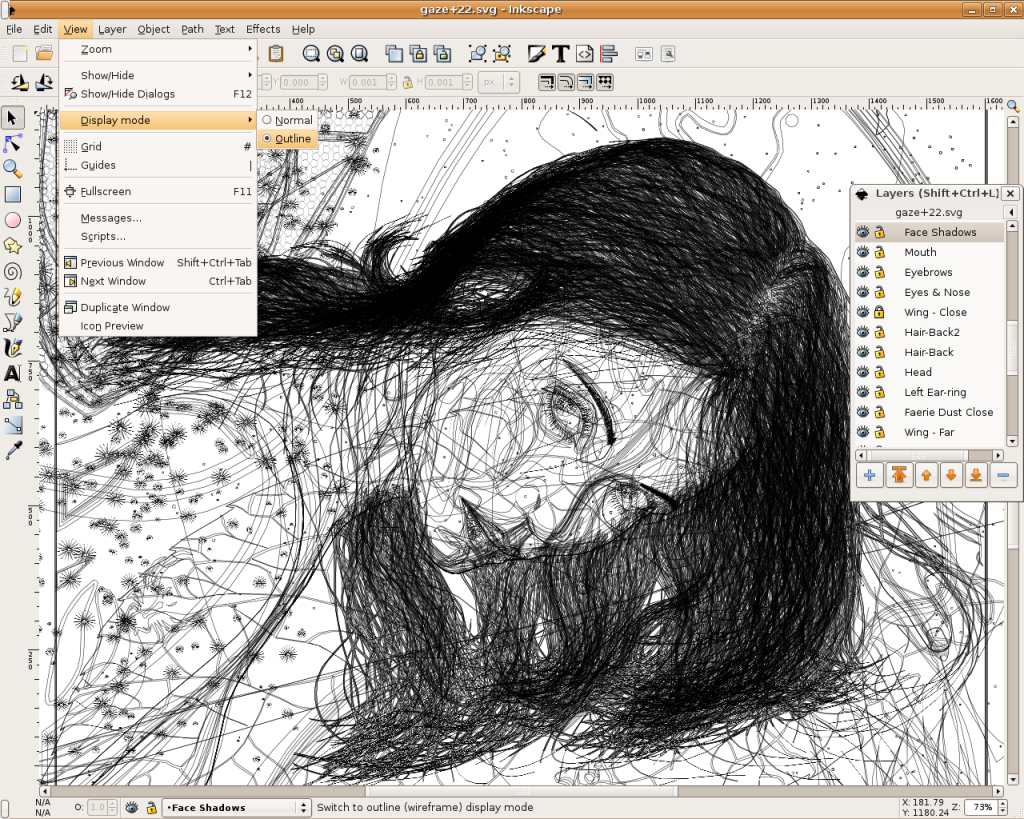
Inkscape is an open-source SVG editor with capabilities similar to Illustrator, CorelDraw, Visio, etc. Supported SVG features include basic shapes, paths, text, alpha blending, transforms, gradients, node editing, svg-to-png export, grouping, and more. Its main motivation is to provide the Open Source community with a fully XML, SVG, and CSS2 compliant SVG drawing tool.
These are the founding goals for Inkscape:
– Full SVG (plus XML, CSS2) compliance
– Core written in C/C++
– Gtk-based user interface following the standards set out in the GNOME Human     Interface Guidelines (HIG)
– Emphasis on a small core and extensibility. Usually Inkscape’s extensions are always first-class so we can say “no” to features in the core without guilt.
– Open, community-oriented development processes
– Baseline is the Sodipodi Hydra codebase
Where a better solution cannot be found, default to the way Illustrator does it.

Probably the easiest way to install on Ubuntu is to use the apt command.
Open a terminal and type;
sudo apt-get update (enter)
sudo apt-get install inkscape (enter)

  • Ubuntu Linux Development Versions

As it approaches release, nightly i386 and AMD64 builds of the latest Inkscape development version are provided at http://ubuntu.cafuego.net. On that site, one should select the appropriate Ubuntu or Debian release, then the Inkscape link, and finally the provided package. AddThis mp3 link Flattr this!

Recovering root password under Linux with single user mode

It happens sometime that you can’t remember root password. On Linux, recovering root password can be done by booting Linux under a specific mode: single user mode.
This tutorial will show how to boot Linux in single user mode when using GRUB and finally how to change root password.
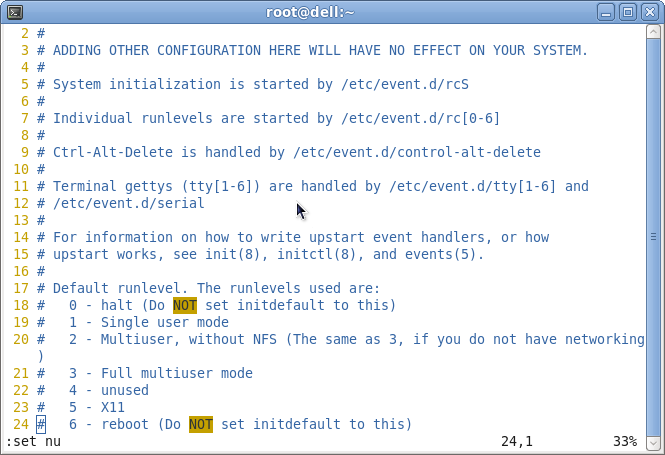
During normal usage, a Linux OS runs under runlevels between 2 and 5 which corresponds to various multi-user modes. Booting Linux under runlevel 1 will allow one to enter into a specific mode, single user mode. Under such a level, you directly get a root prompt. From there, changing root password is a piece of cake.
Some Linux distribution, such as Ubuntu for instance, offer a specific boot menu entry where it is stated “Recovery Mode” or “Single-User Mode“. If this is your case, selecting this menu entry will boot your machine into single user mode, you can carry on with the next part. If not, you might want to read this part.
Using GRUB, you can manually edit the proposed menu entry at boot time. To do so, when GRUB is presenting the menu list (you might need to press ESC first), follow those instructions:
– use the arrows to select the boot entry you want to modify.
– press e to edit the entry
– use the arrows to go to kernel line
– press e to edit this entry
– at the end of the line add the word: single
– press ESC to go back to the parent menu
– press b to boot this kernel
The kernel should be booting as usual (except for the graphical splash screen you might be used to), and you will finally get a root prompt (sh#).
Here we are, we have gained root access to the filesystem, let’s finally change the password.
As root, changing password does not ask for your old password, therefore running the command:
# passwd
will prompt you for your new password and will ask you to confirm it to make sure there is no typo.
That’s it, you can now reboot your box and gain root access again. AddThis mp3 link

Auto Mount Drives at System Startup on Ubuntu

Ubuntu is capable of reading and writing files stored on Windows formatted partitions, but partitions must be ‘mounted’ before they can be accessed each time you start up the system. With these steps, you can auto mount the drives or partitions without the need to manually mount them for access.
Install Storage Device Manager if it has not been added.
– go to Applications (or Main Menu) > Ubuntu Software Center.
– enter pysdm in the Search Box.
– select Storage Device Manager, click the “Install” button.
– go to System > Administration > Storage Device Manager.
– extend the list of sda and select the sda you want to auto mount, click ‘OK’ to configure.
– click the “Assistant” button.
– uncheck “Mount file system in read only mode” and keep “The file system is mounted at boot time” checked.
– click the “Mount”, “Apply” then “Close” button, and restart the system.
In case you wish to remove the auto-mount of a certain drive or partition, you can similarly use Storage Device Manager to do the setting.

Note: If you need to identify disk partitions by label, paste ls /dev/disk/by-label -g in Terminal, or to view partition sizes and file systems, enter sudo fdisk -l. Disk Utility mentioned in “Name or Label a Partition” also gives you a glance of device numbers, partition types, sizes and labels. AddThis mp3 link

Enable Windows 7 Aero Snap in Ubuntu

In Windows 7, you can click and drag a window to the left or right edge of the desktop and it will fill half of the screen, or snap a window to the top edge of the desktop and it will be maximized.

In Ubuntu, you can click and drag a window to the left, right or top edge of the desktop to achieve the same result.

In addition to CompizConfig Settings Manager, install WmCtrl if not added:
– go to Applications (or Main Menu) > Accessories > Terminal.
– enter sudo apt-get install wmctrl
– enter password when prompted.
– go To System > Preferences > CompizConfig Settings Manager.
– select “General” from the left panel and click “Commands”.
In Command line 0, 1 and 2, paste the following codes:

Command line 0, paste:

WIDTH=`xdpyinfo | grep ‘dimensions:’ | cut -f 2 -d ‘:’ | cut -f 1 -d ‘x’` && HALF=$(($WIDTH/2)) && wmctrl -r :ACTIVE: -b add,maximized_vert && wmctrl -r :ACTIVE: -e 0,0,0,$HALF,-1

Command line 1, paste:

WIDTH=`xdpyinfo | grep ‘dimensions:’ | cut -f 2 -d ‘:’ | cut -f 1 -d ‘x’` && HALF=$(($WIDTH/2)) && wmctrl -r :ACTIVE: -b add,maximized_vert && wmctrl -r :ACTIVE: -e 0,$HALF,0,$HALF,-1

Command line 2, paste:

wmctrl -r :ACTIVE: -b add,maximized_vert,maximized_horz

In the same window, click “Edge Bindings” tab.
Change Run Command 0, 1 and 2 from “None” to “Left”, “Right” and “Top” respectively.
Click “Back” button and select “General Options”, change “Edge Trigger Delay” to about 500. AddThis mp3 link