
Category Archives: Linux Distros

“Username is not in the sudoers file. This incident will be reported…” How to add a specific user to sudoers on Linux

Sooner or later, if you use Linux and you prefer Terminal to GUI you will stumble on this message:

Username is not in the sudoers file. This incident will be reported

The first thing to clarify is that the “incident” will never be reported outside your computer but in the auth.log file. But if you have previously configured your Linux OS to send these kind of logs to you by email, you receive an alert about.. your own activity with sudo…

In any case, to solve the above mentioned specific sudo matter, use Terminal and type:

sudo gedit /etc/sudoers

At this point the text file “sudoers” will be opened and you will be able to modify it using e.g. gedit.

Obviously you can use another text editor you prefer as, for example, nano. In this case the command will be:

sudo nano /etc/sudoers

Now you have to peer into the text and find the “#User privilege Specification” section and add the command:

your-username ALL=(ALL:ALL) ALL

where ALL=(ALL:ALL) ALL stands for: allow the specific user (your-username) to access all the terminals, as if he/she were any other user, and allow him/her to execute the full range of commands.

And you will obtain something similar to this:

# User privilege specification
root ALL=(ALL:ALL) ALL
your-username ALL=(ALL:ALL) ALL

Try it! (..if you need…)

——————-

References:

https://help.ubuntu.com/community/RootSudo

Bodhi: a less known but powerful Linux distribution

If you are looking for a light Linux OS for your computer you can test Bodhi Linux. This specific Linux version, based on Ubuntu, utilizes the enlightenment graphical interface. For this reason Bodhi is particularly indicated also to give new life to computers with no updated hardware.
The graphical interface is really “zen” or rather clean, easy to navigate but complete. We tested the 32 bit version and it was a smooth experience also if we used a single core pc with 2 GB of RAM.

Before testing Bodhi you have to keep in mind that this Linux OS is really user oriented. It means it has just some few pre-installed programs and so you are free to customize it as you prefer. Last thing to remember is that Bodhi is a semi-rolling distribution ans so it will be updated in occasion of Ubuntu Long Term Releases (LTS). Try it, it is worth a chance!

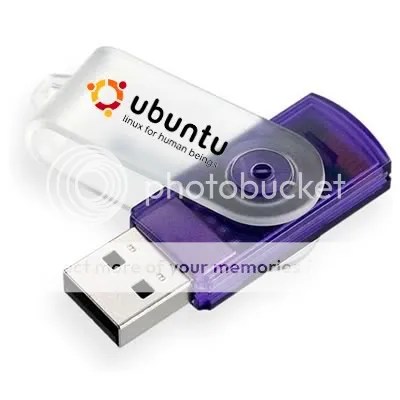
How to Boot Ubuntu from USB

When it comes to the most recent generation of computers, there is an option to start an operating system right from a USB stick, without an actual installation process. This may be an option to use or test a different operating system without affecting in any way the one that is already installed.

Starting from version 8.10, Ubuntu can be installed on a USB stick in a more easy way by every single user, regardless of their knowledge in Linux. To perform the installation, the user must have a version of 8.10 or later on CD and a USB stick with a capacity of at least 700 MB free space available, but this can vary according to the version of Ubuntu that you want to use for this process.

To install Ubuntu on the USB stick, you can simply boot the Live CD mode of Ubuntu or alternatively, if already installed on your on your system, you can follow the following simple procedure to do this, which is described in some basic steps below.

First of all, you need to access the Ubuntu menu bar, via System> Administration, choose Create a USB startup disk.

At this point, you will be asked to specify the source disk image of Ubuntu. If you have the Ubuntu CD in optical drive, it should appear in the list and will be selected. Otherwise, click Other and specify the location of the image. The .iso format will do it, but other versions may work as well.

When completed, you can use the stick on any computer that can boot from such units. Just tell the computer’s BIOS to use this option and restart the respective machine. The same procedure can be applied for the any distribution of Linux, so this is a helpful tutorial for everyone. AddThis

Maximize internet speed connection in Ubuntu via sysctl

Do you want to maximize your bandwidth? Here are few important settings you should do to speed up your internet and it works in Ubuntu and all Linux operating system via sysctl.
First open a Terminal via Applications->Accessories->Terminal
Type:

sudo gedit /etc/sysctl.conf

Then Paste the Following at the end of the file:

# increase TCP max buffer size setable using setsockopt()
net.core.rmem_max = 16777216
net.core.wmem_max = 16777216
# increase Linux autotuning TCP buffer limits
# min, default, and max number of bytes to use
# set max to at least 4MB, or higher if you use very high BDP paths
net.ipv4.tcp_rmem = 4096 87380 16777216
net.ipv4.tcp_wmem = 4096 65536 16777216
# don’t cache ssthresh from previous connection
net.ipv4.tcp_no_metrics_save = 1
net.ipv4.tcp_moderate_rcvbuf = 1
# recommended to increase this for 1000 BT or higher
net.core.netdev_max_backlog = 2500
# for 10 GigE, use this, uncomment below
# net.core.netdev_max_backlog = 30000
# Turn off timestamps if you’re on a gigabit or very busy network
# Having it off is one less thing the IP stack needs to work on
#net.ipv4.tcp_timestamps = 0
# disable tcp selective acknowledgements.
net.ipv4.tcp_sack = 0
#enable window scaling
net.ipv4.tcp_window_scaling = 1

Press Ctrl-S to save, then alt-F4 to exit and then type:

sudo sysctl -p

to apply the settings.

Now, check your speed using speed-test site or download files in the net.

You can disable all these settings by removing these lines you added via:

sudo gedit /etc/sysctl.conf

AddThis mp3 link

Dear Readers: Computer Borders is back!

We need to apologize to all of you because we promised weekly posts and then we took quite a long hiatus. We didn’t mean to be gone for so long, but life got strange, and so on and so forth. But now we are back, and we would like to apologize with all you.

On a more positive note, though, we just checked our reader’s statistics, only to see that we still have almost 200 daily readers. And, believe us, we are shocked! Thanks for waiting our return, everybody.We decided to change something on our blog. First of all we will not duplicate our posts in the Linux and Freeware pages but we post them just in the homepage. In this way, we will have some posts in English and other in Spanish… it is not orthodox but…. why not? We dare!

We would like to know what you all think of the blog so far. What would you like to read? Leave us plenty of criticism in the comment sections. And, you will see a weekly post, starting Monday! AddThis mp3 link

Linux on Laptops!

This week, in our Linux Page (in Spanish) we added a brief post about www.linux-on-laptops.com: a very useful website where you can find tons of useful information about the best Linux version for your laptop. Linux-on-laptops is graphically very poor but the information it contains are terrific; in fact you just select your laptop brand and in a new webpage you are able to find all the laptop models related to that specific brand. With a couple of clicks you select your favourite Linux OS and you are redirect to external webpages and blogs where you receive all the necessary information to quick install that specific Linux version on your laptop. In a week time we made many tests and we found all the infos we were looking for. Moreover, linux-on-laptops is really updated with the most recent laptop models and Linux versions. Recommended! AddThis mp3 link

Skype 2.1.0.47 beta released!

Today, in our Linux Page (in Spanish), we posted some brief information about the new Linux beta version of Skype (2.1.0.47). The updated Skype distribution contains a new chat feature with an integrated SMS service. Also the audio and video codecs have been developed and a bluetooth option has been added. This beta release seems to be very stable and we hadn’t any problems during our tests. Skype released different versions related to main Linux distributions: Ubuntu, Debian, Fedora, OpenSuse and a very useful tar.bz2 for all the other Linux versions. Recommended! AddThis mp3 link

How to test Moblin 2.0 beta – an experimental Linux OS, optimized for Netbook and Mobile Internet Devices (MID).

Today, in our Linux Page (in Spanish) we posted a brief tutorial about the beta version of Moblin: a new Linux OS, -by the Linux Foundation and supported by Intel to increase the diffusion of its Atom processor- which has been developed especially for MID and Netbooks. Moblin, in its Beta version looks stable and full of features (Wimax included) and it is in constant development. At the moment we suggest to test it on a USB key. For this, after dowloading the .img file we can us imageWriter (Applications – Accessories – ImageWriter). If you need to install ImageWriter, please use Synaptics (System – Administration – Synaptics Package Manager) and in the search file type usb-imagewriter and install this program using the right button on your mouse. In our opinion, Moblin 2.0 beta, is realy well developed, all the menus are intuitive and easy to use and the graphics is more than sufficient. At the moment Moblin guys are testing this new version on Acer Aspire One, Asus eeePC 901, 1000H, Dell Mini 9, MSI Wind, Lenovo S10, Samsung NC10, HP Mini 1010 and 1120NR and we hope they could extend the Netbooks models in the near future. Recommended! AddThis mp3 link

AHTEC Lug N011 and Eeebuntu: a perfect sinergy!

This week, in our Linux Page (in Spanish), we have posted a brief review about eeebuntu and the netbook Lug N011 produced by AHTEC. In fact after some different tests, Frank has really appreciated the results obtained by joining the netbook version of eeebuntu and the Lug N011 in terms of stability and hardware compatibility. Eeebuntu recognized immediately the lan card without the need of any specific drivers ad it was possible to utilize the wi-fi connection. Eeebuntu has been release in three different versions. The first one, the most famous is the Netbook we have used for our tests with the Lug N011, moreover the second version is the standard eeebuntu which contains all the software we are used to finding on the Ubuntu distribution. Last but not least, we tested also the Base version which contains just the basic software and features and, also in this case, we did not find relevant problems. Recommended especially for all the people using a AHTEC Lug N011! AddThis mp3 link

How to install a new Linux distribution -Linux4One- on your Netbook Acer Aspire One

Today, on our Linux Page (in Spanish), we have posted an enthusiastic review about Linux4One a very stable new Linux distribution which represents a real opportunity if you want to test a new OS on Your Acer Aspire One. Linux4One website is essential but well structured; unfortunately it does not contains many information so the best thing yo do is downloading their specially developed Ubuntu based Linux4One and test it. This particular distribution, with a customized Kernel, perfectly runs on our Aspire One: we did not find any problem with the hardware and smoothly passed all the tests. Last but not least, the Italian guys are developing a Linux4One special edition which should be mounted directly from a Usb key, we hpe it will be ready ASAP. Something you must try if you like Ubuntu and want it on your Aspire One! AddThis mp3 link