Category Archives: Free Software Magazine

Video – Install Macbuntu on Ubuntu 11.04 by seaner992

AddThis

How to Make Your Ubuntu Desktop Look Like the One of Mac OS

If you are a fan of the design proposed by Apple for most of its operating systems, particularly Mac OS X, then there are a couple of things that you should take into consideration and some simple steps to follow. Therefore, you are advised to read the following information carefully in order to achieve the expected outcome in the shortest time.

There are two free pieces of software that can transform your Ubuntu desktop into one that looks identical to the one of Mac OS in no time. The Ubuntu version is called Macbuntu. First of all, you will need to install this program onto your local hard drive. Here is what you need to do for this step:

– If you are using Ubuntu 10.4 Lucid Lynx, you will need to open a new terminal and type the following lines into it:

$wget https://downloads.sourceforge.net/project/macbuntu/macbuntu-10.04/v2.2/Macbuntu-10.04.tar.gz -O /tmp/Macbuntu-10.04.tar.gz
$tar xzvf /tmp/Macbuntu-10.04.tar.gz -C /tmp
$cd /tmp/Macbuntu-10.04/
$./install.sh

– On the other hand, if Ubuntu 10.10 Maverik Meerkat or a similar version is installed in your system, you will need to use a different version of Macbuntu, which can be accessed by typing the following:

$wget https://downloads.sourceforge.net/project/macbuntu/macbuntu-10.10/v2.3/Macbuntu-10.10.tar.gz -O /tmp/Macbuntu-10.10.tar.gz
$tar xzvf /tmp/Macbuntu-10.10.tar.gz -C /tmp
$cd /tmp/Macbuntu-10.10/
$./install.sh

During the install process, you will be provided with the chance of choosing between different options. These are usually dependent on the different ways you wish your desktop to look like. Most of the choices will be based on your visual tastes, so make sure you choose according to them.

Finally, whenever you need to uninstall this special package for some reason you can follow the same procedure described above, with just an exception. Instead ./install.sh you will need to use the ./uninstall.sh command. AddThis

Install Conky system monitor for Linux and configure it in few basic steps

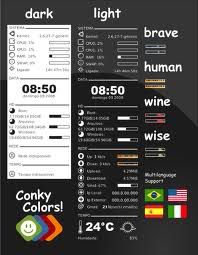
Conky is one of the most powerful and versatile system monitors for Linux desktops. It allows you to monitor and display all the information about your hardware, top processes, network, emails and more. At the moment more than 300 different feature has been built for Conky and searching on the web you always find the perfect feature already developed by someone.

– Installation on Ubuntu:

in Terminal run: sudo apt-get install conky

– Configuration:

In Terminal run: sudo nautilus

Go to File System: /etc/conky/conky.conf

Save a copy of the original conky.conf in another location and open the original file with Gedit Text Editor

First of all change: own_window yes to own_window no

Choose your preferred alignment (some samples below…):
alignment top_right
or
alignment middle_right
or
alignment bottom_right

Play with: update_interval 1.0
and change the interval value till you find the right ratio to obtain the best speed for you (in my case it was 0.80).

Add this line to eliminate any flickering:
double_buffer yes
but, on some computers, all the icon on your desktop will be hidden and you need to use (move) the mouse to discover them if you will not add this parameter: own_window_type normal

Add, as last line (or in other position if you prefer):
${color red} ${cpugraph} to have a clear graph about cpu (obviously you can choose the color you prefer)

For automatic start of Conky at startup, please follow the following instructions:
Run Startup Applications in System –> Preferences
Click on Add and save after updating the following instructions
Name: Conky
Command: /usr/bin/conky

Restart Ubuntu to check your new Conky “applet”

Link to Conky: http://conky.sourceforge.net/

For more info about Conky’s variables: http://conky.sourceforge.net/variables.html

Find online some pre-compiled Conky configuration files, searching, for example, on: http://gnome-look.org
AddThis

How to Install Sopcast for free live TV in Ubuntu

Sopcast represents one of the most popular technologies for live TV streaming, being based on the famous p2p system. However, until recently, there was no version of this software for Ubuntu and Linux in general. But now every single user can enjoy live TV right on their desktop or laptop computer with this absolutely amazing program.

In order to install Sopcast on your machine, here is what you need to do:

1. Open a new terminal. This is a classic step and is used in most of the installation processes you will encounter in Ubuntu.

2. In order to add Sopcast to Synaptic (the package administrator software integrated into Ubuntu) you will need to type the following command:
sudo add-apt-repository ppa:jason-scheunemann/ppa

3. The next step is related to the update of the sources list. This can be done with the following command, which needs to be typed into the same terminal in order to achieve the right effects:
sudo apt-get update

4. Now you will need to run Synaptic in order to finalize the process. This is usually done through the System menu (System -> Administration -> Synaptic). Alternatively, you can use the following simple command:
sudo synaptic

5.  Look for the Sopcast package and install it. A very important step at this point is to not forget about all its dependencies. If you do not install everything, then Sopcast will not run correctly or not at all.

This is basically all you need to know if you want to install Sopcast on your machine. Whenever you need to run the player you can find it in the Application menu -> Multimedia -> Sopcast. You will surely enjoy the great variety of the channels available for every user through this system.

AddThis

System Recovery Tools: a possible cross-platform approach through open source and proprietary solutions

The following system recovery tools will be useful to you if you are facing problem of data loss or if your system is simply crashing. It is advisable to burn copies of these tools much before any disaster strikes.

Open Source and Free approach:

G4L aka Ghost for Linux is one of the system recovery tools that is mainly a cloning and hard disk and partition imaging tool. This tool is similar to “Norton Ghost”. The images created are compressed optionally and transferred to a FTP server instead of opting for cloning locally. Ideally, of the several tools described above it is advisable to use the most suitable tool for your needs. The tool that will be most useful during a crisis like a crash or server failure will be a better tool.

The Ultimate Boot CD is one of the system recovery tools which will be very helpful when you want to run CDRom-based diagnostic tools thereby consolidating as many diagnostic tools into one bootable CD as possible. Since you can now boot from USB memory devices a script you can run “Ultimate Boot CD” from USB memory stick and a script on the script on the CD will enable you to boot newer systems from your USB sticks. This is many steps ahead than many of the other recovery tools. Moreover it gives you the flexibility of booting your system with a USB memory stick.

Knoppix is one of the system recovery tools which is essentially a bootable CD with GNU/Linux software. It ensures automatic detection of hardware and supports a wide range of devices like sound cards, most of the graphic cards, USB and SCSI devices and other peripherals. It can be used as an educational CD, a Linux demo or for system recovery purposes. Alternatively it can be used as a commercial platform for software demos. There is no need to install anything on the hard-disk as the CD is capable of storing 2GB of software installed in it. Thus this tool is a truly multi-purpose recovery tool.

Proprietary solutions:

O&O Disk recovery: This software tool scans every portion of your hard-disk, digital camera or memory card for lost files. It is so effective and reliable that it is possible to reconstruct data even when files systems have been destroyed or formatted. More than 350 types of files like music formats, word documents, movie, graphics, Excel workbooks, photo and access databases can be recognized, reconstructed and restored.

SuperDuper is one of the system recovery tools makes recovery effortless as it creates a completely bootable backup effortlessly. The strengths of this software are that it is user-friendly, easy to use with a built-in scheduler that it makes backup automatically. Moreover it performs well independent of the processor that is both on Power PC Macs as well as Intel PCs. It is particularly useful when your software application with the latest update is not working or when your hard drive begins to make noise. It is also very handy when you want to restore a stable copy of your system though you do not want t lose your existing system files or cases like this. AddThis mp3 link

Open Source tools and applications for web developers

Several open source tools have evolved in the past and have become popular with the developers too.  These tools have gained popularity not only because they come free but because of the ease to work with and the features.  First let us see some code editors:

Aptana:  It is a free, JavaScript focused development environment, cross-platform and open source for building Ajax applications.  It supports HTML, JavaScript, CSS languages, FTP/SFTP and has a powerful JavaScript debugger that can help in troubleshooting your code.

Eclipse :  It is an open source software framework written mainly in Java.  It is an integrated development environment consisting Java development toolkit (JDK) and compiler (ECJ) for developing applications in Java.  Developers can extend its capabilities by installing plug-ins such as development toolkits for other programming languages written specifically for eclipse software framework.  Language packs for over a dozen languages are available.

JEdit : It is a programmer’s text editor which has many hundreds of man-hours of development behind it. It is a java-based solution  and a cross-platform product  which can work on many operating systems like Windows, VMS, UNIX,  OX/2 and Mac OS X.

NVU : It is a web authoring system for Linux desktop users, Macintosh users as well as for Microsoft windows and  is a competitor for similar products like Dreamweaver and Frontpage.  Nvu actually means new view and makes managing a website very easy.  Now even people without knowledge of HTML or technical expertise can create web pages and manage a website.

Quanta Plus : It is a web development environment with a lot of features and is highly stable.   Quanta has a vision of achieving maximal user extensibility through the best architectural foundations, best, efficient design and natural use of code.

We shall see other tools in other posts. AddThis mp3 link

Get Kindle for PC to Ubuntu (if you really don’t like Calibre)

Amazon’s Kindle a popular portable e-book reader device, lately made Kindle for PC application that allows you to download and have books on your computer rather than having a portable e-book reader device. There’s only Kindle Windows version but the nice thing is you can have this application in Linux.
This is tested in Ubuntu 9 running Gnome. You can use different version of Linux, but first you must have Wine HQ installed to you computer. Then download the EXE file of Kindle for PC application in Amazon.
Install this with Wine HQ software loader and proceed to the normal installation, the same thing that you do in Windows environment.
Note:

– At your first run you won’t see anything at all

– Configure Wine first and add Kindle for PC as an application and make it run in Windows 98 mode

– If it won’t work, change to other mode

– When it opens successfully you have to input you Amazon email add and password to register the software.

But, please, don’t forget that if you prefer open source software, you can directly use Calibre, a powerful free software we posted a while ago. AddThis

LuckyBackup: Copias de Seguridad Sin Complicaciones

En estos días he estado buscando un programa que permita hacer Copias de Seguridad y que sea de uso practico, sencillo y muy intuitivo. Después de ver varios programas me he decantado sin lugar a duda para LuckyBackup. Para instalarlo es posible directamente desde los repositorios de nuestro sistema (Ubuntu y derivados) o directamente desde su propia Web y bajar la ultima versión 0.4.4 . Yo he instalado esta ultima versión y tengo que confirmar que es el mejor programa de Copias de Seguridad que he encontrado hasta el momento. LuckyBackup es muy fácil de configurar y permite efectuar diferentes sincronizaciones y mantener a salvo nuestros datos y todos los archivos. También he echo diferentes pruebas pasando carpetas a memorias USB, Disco Duro Externo y Disco Duro Interno, todo sin ningún problema (Descarga LuckyBackup).

AddThis mp3 link

Como arreglar la conexión de red en Kubuntu 10.04

Hace unos días tuve un problema con mi Kubuntu 10.04 y la conexión de red. Cuando fui por apagar el PC, en lugar de apagarlo le dí a hibernar por error y cuando fui otra vez a encenderlo no tenia conexión de red disponible. Mirando en el icono que informa respecto a la conexión de red tenia un único mensaje que decía: Gestión de Redes Desactivada. Por tanto que yo intentara de buscar la forma de activar el gestor de redes, no encontraba nada y ninguna opción disponible. Después de varios intentos tuve que ponerme a buscar en la Web con mi portátil para ver si encontraba la forma de solucionar el problema. Afortunadamente encontré que el problema surge en cuanto se apague el PC de forma instantánea o como en mi caso por hibernar, por esos motivos parece que NetworkManager no borra el archivo de estado y cuando se vuelve a reiniciar el PC se genera este error. Para solucionar el problema hay que escribir una serie de comandos en el Terminal para borrar e archivo y volver a reactivar el Gestor de Redes. Os añado las líneas de comandos porque puedo garantizar que es una solución realmente efectiva:

sudo service network-manager stop

cd /var/lib/NetworkManager/

sudo rm NetworkManager.state

sudo service network-manager start

AddThis mp3 link

Rediscover Prism by Mozilla (Ubuntu, MAC and Windows tips)

In 2007, when Prism was launched, there were some enthusiastic reviews about this application. Then the widget era began and Prism popularity decreased. Anyway, Prism is still a powerful application for all that people who desire to run their more often used web application saving RAM and CPU resources. Prism, based on XULRunner, is multi platform, easy to use and very flexible. To use it on Ubuntu you can launch the Terminal and type:

sudo apt-get install prism

or using the Synaptics Package Manager (System —> Administration —> Synaptics Package Manager). Then go to Applications —> Internet —> Prism and a small windows appears. Now, fill in all the required information: the web application URL, the name you prefer, settings and do not forget to click on the Desktop shortcut option. At this point you will find a new rough icon on your Desktop with the name you chose. The first time you use it, with the right mouse button click on it and go to Properties —> Permissions and Allow executing file as program. If you want to change the icon you have to click on it (with the right mouse button), go to Properties —> Basic and choose your favorite icon clicking the icon on the upper left corner. If all are steps are annoying for you, it is possible to use Prism as add-on for Firefox. In this case, on Firefox, go to Tools —> Add-ons —> Get Add-ons and type Prism on the search bar. You will install Prism as a simple add-on for Firefox. Now, you can automatically generate a Prism application just clicking on Tools —> Convert Website to  Application when you are in the web application page.

On Windows or MAC we suggest to download the standalone package directly from the official web page or install Prism as Firefox add-on following the same steps we described for Ubuntu. If you use the Prism standalone package you have to decompress it in your favorite location. For Windows users: when you set up a new Prism application, try the tray menu option but do not forget to click on the Desktop shortcut or you will not be able to find again the application after you close it.

In my experience, Prism is really useful with all the Google web applications, with Zoho services and Pandora. Try and enjoy it! AddThis mp3 link