
Tag Archives: Linux

Synkron: a flexible & powerful way to synchronize your files or folders on Linux – An “encrypted” example for security and privacy reasons

Sometimes it is really easy, other times you waste your time. A good synchronization between files or folders is something you need everyday but it could become a nightmare if you miss something.

In my specific case I need to automate a synchronization between a folder (F1) where I usually save my office files (Documents) with a second folder contained, for security reasons, in an encrypted volume/partition (F2). This last folder (F2) automatically synchronize its content with a third folder (F3), located in the same encrypted volume/partition, that is the client folder of a remote storage hosting (F4).

This also means that when I am out of the office and I add a file in the online storage host (F4) the document is automatically copied to the client folder of the remote storage hosting and to the folder located in an encrypted volume/partition (F2 and F3).

Moreover, I need to erase the Documents folder F1 as soon as it is synchronized with its mirror F2 in the encrypted volume.

The described scenario is common in the everyday working life and it is conceptually not hard to solve… in theory… When I tried to set up the above described operations using grsync on Fedora and Ubuntu I had big problems to obtain an acceptable result.

Many times the synchronization was unidirectional and I was not able to run it properly just using grsync still I found one right solution with Synkron. Synkron  is a multi platform software (Linux, OSX, Windows and portable) written in C++ that is really flexible for all multitasking synchronization needs.
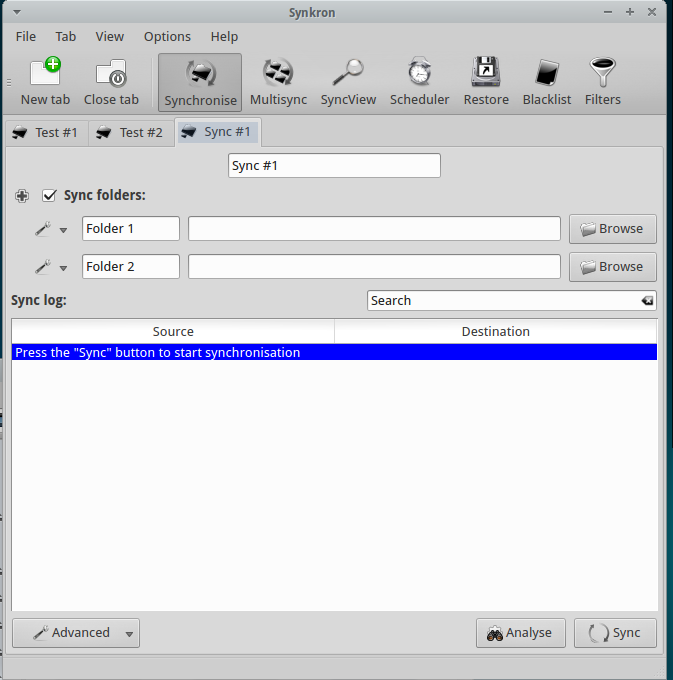
First of all, Synkron is multi-tab and this is a winning features because it let you to “slice” any problem (synchronization matter) into simple, easy to solve, tasks.

In my example I determined the two Folders I wanted to sync – F1 & F2) and  decided thath both folders had to be considered as Master by the software.
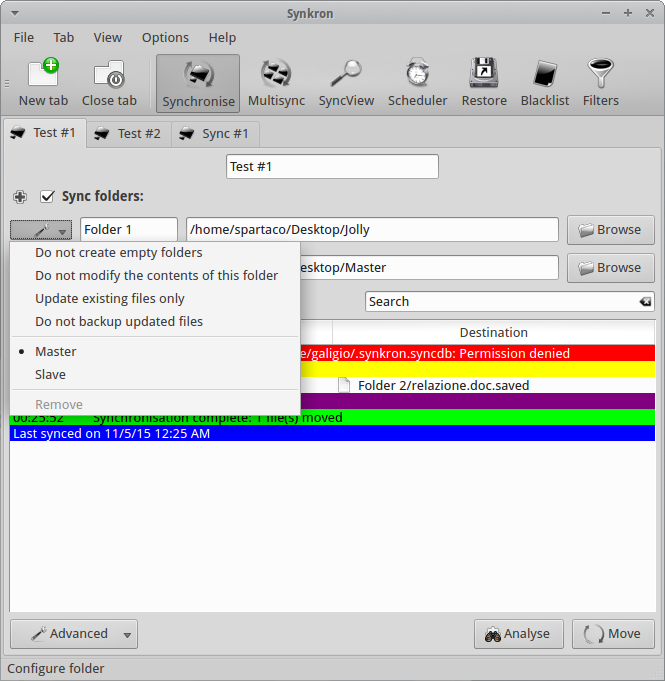
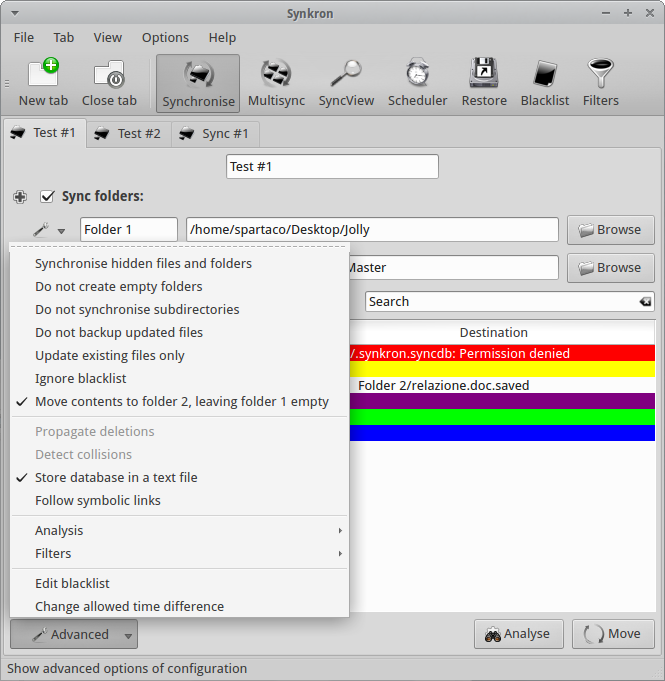
Then I used the Advanced Menu and I chose to “Move contents to Folder 2, leaving folder 1 empty” and to “Store database in a text file” for my convenience (F1 to F2 deleting F1 contents after synchronization).
At this point, I opened a second synchronization tab where I selected two folders (F2 to F3 sync) and I also asked Synkron to “Synchronize hidden files and folders” and to “Detect collisions”.
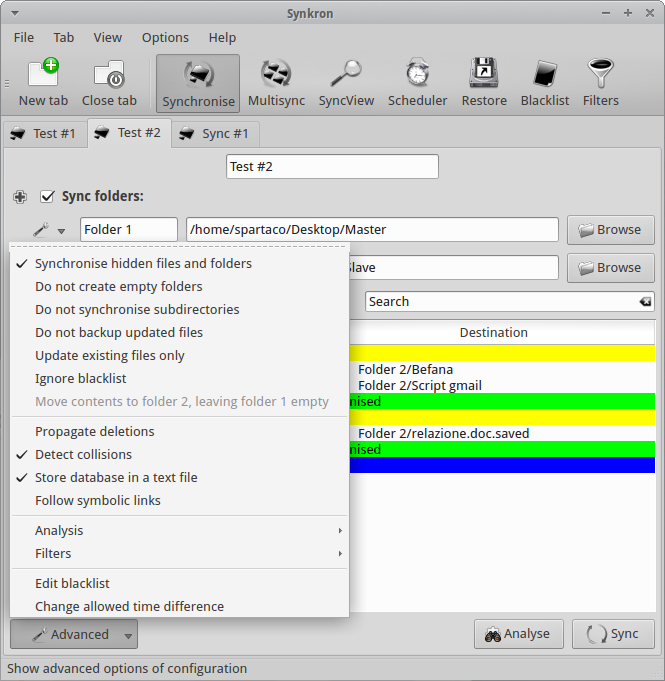
At this point I had obtained an acceptable solution to my initial task, simply dividing my problem into two separate operations.

Moreover, I’ld like to focus your attention on the fact that Synkron has a specific feature for multi-synchronizing three or more folders at the same tome. The tuning of this particular feature is really intuitive and you can also selected many of the different advanced options we described here above.
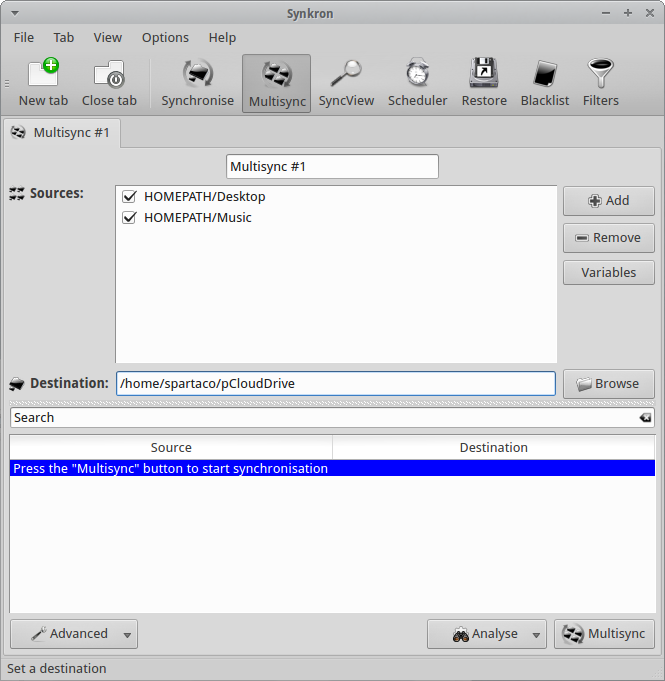
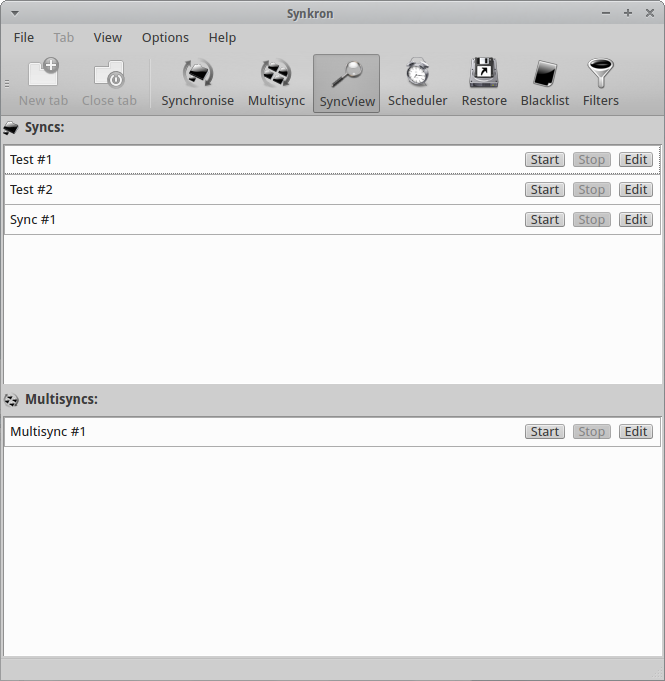
If you have complex synchronization needs and you have many tabs configured you can always choose what tabs you want to activate or deactivate using the “Sync folders” option you find in the upper part of each tabs. Another option for this specific issue is represented by the SyncView visualization that let ypu to have a quick general glimpse about the state of all the sync and multisync tabs.
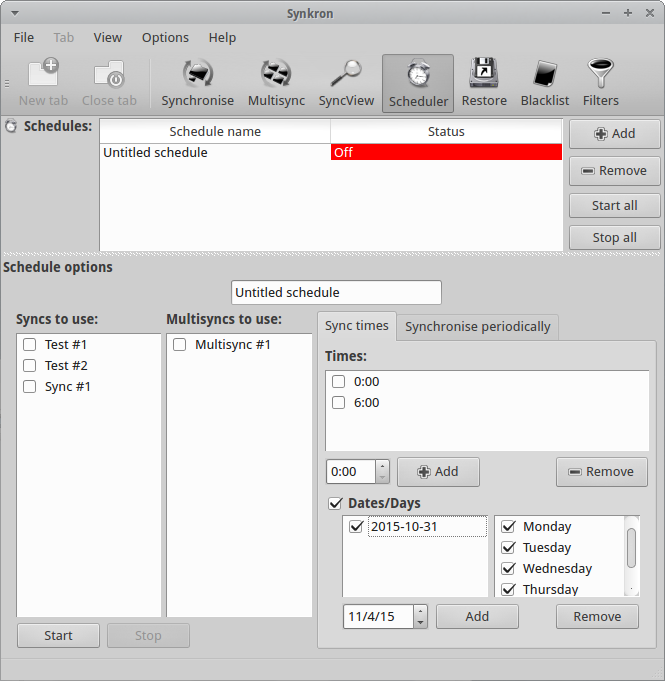
Synkron has simply fantastic scheduling options that are able to solve any need you may have.
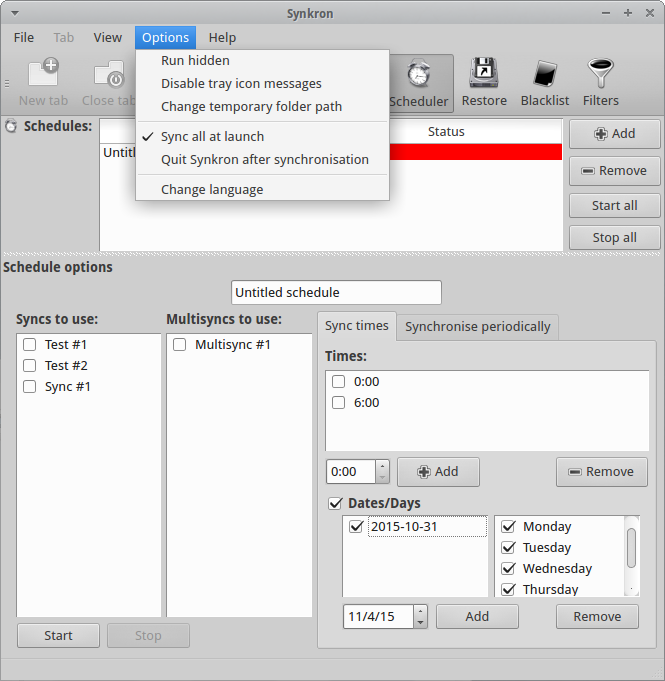
Furthermore you can decide to automatically synchronize your folder as soon as you launch Synkron.

You can also decide to automatically run Synkron at the startup but, in this case, you need to manually configure your Startup Menu.
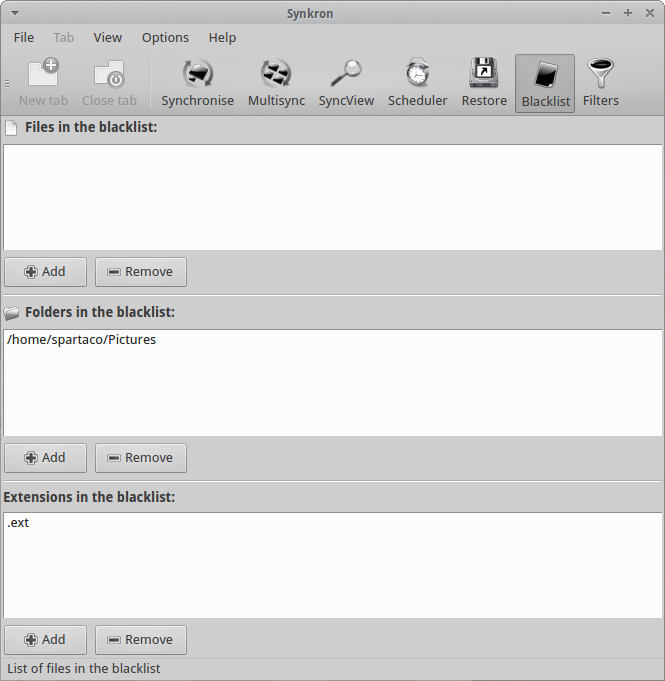
As extra features you can always decide to create Blacklists that will exclude specific files, folders or extensions from the synchronization.
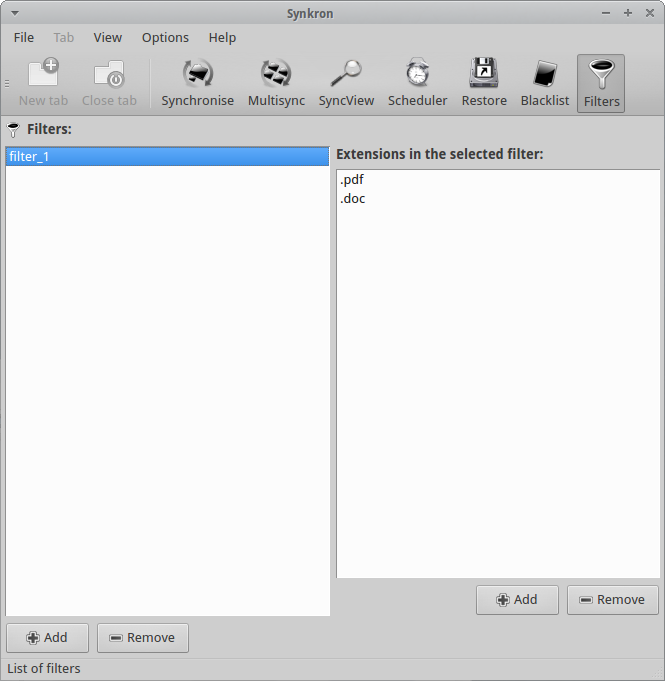
In addition you can define Filters by extensions to better refine your synchronization.
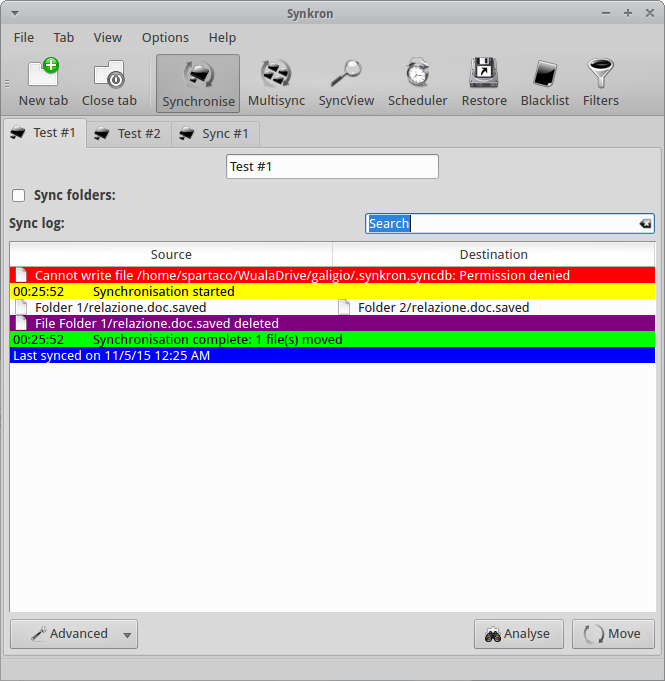
Last but not least, when you run Synkron you obtain a detailed report in real-time where you can check the state of operations by colors.
“Username is not in the sudoers file. This incident will be reported…” How to add a specific user to sudoers on Linux

Sooner or later, if you use Linux and you prefer Terminal to GUI you will stumble on this message:

Username is not in the sudoers file. This incident will be reported

The first thing to clarify is that the “incident” will never be reported outside your computer but in the auth.log file. But if you have previously configured your Linux OS to send these kind of logs to you by email, you receive an alert about.. your own activity with sudo…

In any case, to solve the above mentioned specific sudo matter, use Terminal and type:

sudo gedit /etc/sudoers

At this point the text file “sudoers” will be opened and you will be able to modify it using e.g. gedit.

Obviously you can use another text editor you prefer as, for example, nano. In this case the command will be:

sudo nano /etc/sudoers

Now you have to peer into the text and find the “#User privilege Specification” section and add the command:

your-username ALL=(ALL:ALL) ALL

where ALL=(ALL:ALL) ALL stands for: allow the specific user (your-username) to access all the terminals, as if he/she were any other user, and allow him/her to execute the full range of commands.

And you will obtain something similar to this:

# User privilege specification
root ALL=(ALL:ALL) ALL
your-username ALL=(ALL:ALL) ALL

Try it! (..if you need…)

——————-

References:

https://help.ubuntu.com/community/RootSudo

What about the low-cost Tablet Market?

Newcomers  are not always the happiest guy…. This because not often there is not  much room left by the first-comers that usually had the “good idea” and  consequently became the market leaders.

But sometimes things go differently. This is the case of low-cost tablet market where a  big number of semi-unknown producers from Asia have been able to create good products at a very affordable price.

If you google “tablet”  and visit some specialised, B2C, websites you can find some interesting  products. Obviously I’m not talking about the top of the production and you will not find any top level tablet but you could be interested to some of them if you consider their prices.

The middle level market wasn’t considered interesting by big players till now. But the  potential  increase of demand in this segment has changed the scenario. 

Tablets are very common devices and today many of us could be interested to have a second or third device to avoid the matter of carrying our expensive, branded tablet everywhere. Personally I am not planning to buy a second “branded” tablet to increase my comfort when in remote places but I could really consider to buy a second, not the top, device if it is really cheap. I am sure it will be a little be slower and less performant than the one I use every day but what does it matter if its price will be just a fraction of my main tablet?

For above marketing reasons Amazon is planning to sell a low-cost 50 USD tablet before the end of the year.

On one end the attended success of this marketing strategy could be read as another way to chain its customers to the brand. On the other end low-cost tablets represent a real remunerative economic niche that worths a good slice of the market (and consequently a lot of money).

Moreover the tablet market starts to be “mature” and this niche could be one of the last ones before the decline. Moreover Ubuntu is coming

In fact Ubuntu is actively working on a new generation of tablets that will run a native version of Linux. The tablet devices we are using today have enough power to smoothly run some of the main common Linux OS and overcome the main problems that were registered when some “primitive” Linux tablets were launched some years ago.

For this reason Linux enthusiasts like me hope in something new… and useful in the near future. Cross your fingers!

——————-

References:

http://www.wsj.com/articles/amazon-to-release-50-tablet-as-it-struggles-to-sell-pricier-devices-1441653902

A small collection of Firefox add-ons that you can install to improve (a little bit) your privacy

When I read news and reports about modern spyware I am a little bit discouraged about  my privacy. But I also think that something can always be done to improve privacy levels.

This time I don’t want to talk about password strength but I will try to focus your attention on some Firefox add-ons can could positively impact on your privacy.

The first is about Random Agent Spoofer that is able to obfuscate your computer configuration (better: identity) when you connect to a remote server = Internet.

This add-on is really flexible and you will spend just a couple of minutes to decide what  configuration can be useful for you. In particular you can decide how often you desire to change your agent profile and if you prefer to use just desktop agents or to appear as if you were connected through a mobile device. 

Moreover, you can choose if you want to:

  • Send spoofed ‘If-None_Match’ headers (ETags)
  • Send spoofed ‘X-Forwarded-For’ headers                         
  • Send spoofed ‘Via’ headers                                                                     
  • Accept headers match the selected browser profile
  • Spoof accepted documents
  • Spoof accepted encoding
  • Spoof accepted language (US English)

And if you have time you can also play with the many extras as:

  • Use standard font set
  • Disable local dom storage
  • Limit tab history to 2
  • Disable browsing and download history
  • Disable browser cache
  • Disable geolocation
  • Disable link prefetching 
  • Disable dns prefetching
  • Disable webgl

If you prefer a less complex agent spoofer or you are planning to use it seldom, you can use User-Agent Switcher that contains fewer features and needs to be manually configured but it’s intuitive and equally effective.

The second add-on I suggest to install is TrackMeNot that will help to defend your privacy contrasting web search engines profilation with a (huge,-if you want-) number of false queries from your browser. The (huge) number of queries about general topics will obfuscate search engines’ profile about your personal preference. Also in this case this add-on allows you to decide what kind of false queries you want to submit and how often TrackMeNot will “search” the web.

The third recommended add-on is ZenMate, a free VPN service that has obtained positive reviews by the Electronic Frontier Foundation (EFF) also because ZenMate is “based in Berlin and operates under strict German data protection laws”. ZenMate is free, easy to use and let you choose between four different exit node also if using the free base version:

– Germany 

– Romania

– Hong Kong

– USA

Last but not least, keep attention on Flash Files. Do they are so essential for you? You have to keep in mind that sometimes, also if you use a VPN as Zen Zone, you can be betrayed by Flash files. In fact, videos based on Flash can potentially leak your identity also if you try to hide your IP behind a VPN or a proxy.

Hibernate for Ubuntu

Since the Ubuntu 12.04 LTS the hibernate icon disappeared as possible option at the shutdown. It is not a big loss if you are not used to use (or overuse) it as I often do. Personally I think that the hibernate feature is really useful when you want to freeze your computer maintaining all the windows -and the work- you are working on at a precise moment. 

Ubuntu decided to “cut” this particular command from its GUI because it registered a remarkable number of problems caused by hardware conflicts in modern computers. 

If you use Ubuntu and you think that hibernate could till be useful for you (especially during busy working days), it is possible to insert again this specific feature as GUI on your Desktop.

First of all you have to test if your computer contains the right hardware for “hibernate” so open Terminal and type:

sudo pm-hibernate

The computer will hibernate itself but you have to reboot it to understand if hibernate worked properly in your case.

I hope (as it was for my PC) that all has gone well. In this case you can start to create the dedicated icon on your upper bar.

Before of starting it’s necessary to understand that the hibernate command will use the SWAP partition to save your temporarily data. Usually it is recommended to have a SWAP partition with, at least, the double of space of your RAM.

So I suggest to install Gparted to check the SWAP space and, only if necessary, increase your SWAP partition reducing the primary partition. Please, do this only after you safely backup all the data in your computer because this procedure could be risky if you are doing it for the first time and you have not enough experience:

sudo apt-get install gparted

Open a Terminal and install gedit and gksu (if you don’t have them already installed on your machine) typing:

sudo apt-get install gksu && sudo apt-get install gedit
Then type:
sudo gksu gedit /etc/polkit-1/localauthority/50-local.d/com.ubuntu.enable-hibernate.pkla
Now a blank gedit document, named enable-hibernate.pkla will appear on your screen.

Copy and paste the following text to “compile” it:

[Enable Hibernate]

Identity=unix-user:*

Action=org.freedesktop.upower.hibernate

ResultActive=yes

Save it and reboot your computer.

A new icon will appear on the right corner of the upper bar. When you click on it, a Terminal window will appear asking for the system password. Type it and click on Return and your PC will immediately hibernate. 

Good busy working days!

Blogilo: the Linux blog client to create new posts on your local computer

Yes, I know! Talking about Blogilo is not an hot news but the “recent” version 1.1 (according to the Help Menu in Blogilo software) has added some new features and something has changed. Some years ago, when I tested Blogilo, I thought that this software was a good “concept” but it lacked of too many features as compared with e.g. online WordPress.com platform. With version 1.1 these lacks have been reduced and now Blogilo becomes interesting if you are looking for a software that could be used daily for offline posting.
Blogilo now has less bugs than in the past and it is possible to write posts with just few seldom crashes. The user interface is intuitive and after the installation you spend just few minutes for adding and setting your blog. The positive thing is that Blogilo works with all the main blog platforms and it could be considered as one of the most complete blog client for Linux.
The matter is that blog platforms evolve quickly and Blogilo, as all its competitors, seems to be slower than many of them. In fact, it could happen that some up-to-date features are immediately not supported and you have to manually modify your post and adding them directly through the host website (e.g. WordPress). 
One of the most annoying problems I continue to have with Blogilo is about wrapping text around the image/picture I am used to put at the beginning of every post I write. It is a simple matter to solve but at every post I have to manually change the html code. 
As for my experience you have two different ways to solve this isssue.
The first is to edit the image/picture after you inserted it into the post and add the value “allign” selecting the right options in the Advanced Menu (why the Advanced Menu is not available when you insert a new image/picture?).
The second (faster) is to go to the Html Editor tag into Blogilo and add this code at the end of the image <img> tag:
align="left"
For example writing this post I added:
<img src="http://i119.photobucket.com/albums/o158/galigio/blogilo_logo_zps3pmqrnq1.png" align="left" width="160" height="105">
Simple to solve but really annoying when you have so little time to dedicate to your blog….
To sum up it is possible to affirm that Blogilo really contains all the features to write a blog but if you need something more professional you have to spend some hours, after the installation, to learn how to find the right solutions for your specific needs. 
———–
References:

Wireless Power Transmission: real available technology and marketing advantages

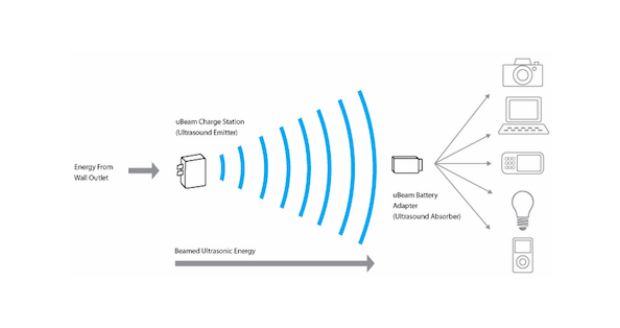
ubeamWireless energy transmission for remote charging is one of the most strategic key factor for the development of a new generation of tech devices in the near future. Few years ago some futuristic thinkers forecasted the possibility of wireless energy transmission between far places. In particular the academic community was interested in energy transmission between the planet earth and orbiting satellites equipped with solar power stations. 
This long range power transmission technology would radically change the energetic, economic and power equilibrium of our world but unfortunately, at the moment, this technology is not available. 
On the contrary, near range power transmission is something near the corner. 
After long researches an USA company  is launching the first generation commercial version of a wireless power transmitter with ultrasound that will allow to recharge (for the moment) mobile phones in a range of 15 feet (4.5 meters) just using a special cover. 
Fifteen feet are not a long range nor a medium one but the important thing is that it is contactless and that 15 feet start to be an interesting distance. 
So interesting that a big coffee shop chain as Starbucks  is considering to introduce these remote charging devices in all its shops. 
In this way all the customers will be able to automatically and freely charge their mobile devices as soon as they enter into the coffee shop. A good added value considering how much energy our devices need when strongly used during the day. And consequently, for many people, a good reason to prefer a store to another one. A potentially viral added value as well as a magnetic marketing strategy!
Last but not least, it must be considered that the success of this kind of technology operations is determined by costs. At the moment it is not possible to find any information about prices for the mobile device covers at the end consumer side. If the end users price for covers will be high, the huge, positive effects of a partnership with a big player as Starbucks couldn’t be enough without some kind of tech fashion pivot. 
Good luck uBeam! You have the right idea!
————–
References:

Update from Fedora 18 to 20 or 21 in few simple clicks and without (I hope) problems!

Fedora 21Sometimes simple things become hard problems. This happened to me when I discovered that my Fedora 18 OS was obsolete (very old indeed) and I tried to upgrade it to the Fedora 20 version.

Fedora 18 doesn’t support the automatic OS upgrade so I had to spend some hours to find information on Internet and create the right DIY solution for my case. At the end of my little (sic!) research I discovered that I was able not only able to upgrade the PC to Fedora 20 but I also found a good “trick” to upgrade to the latest Fedora 21 following in just a couple of steps with the help of fedup and some other escamotages.

This is how I succeed…

First, you have to open a Terminal and type:

su
init 3

but you will immediately leave the Fedora GUI and so it’s better if you write the below commands on an -old style, paper notepad- to be sure to have all the right information in you hands and correctly manage the upgrade from Fedora 18 to Fedora 20

sudo su -
yum update
yum install fedup
fedup-cli --network 20 --nogpgcheck

It’s better to add –nogpgcheck because often you are not able to complete your upgrade for the “old”, “bad saved” gpg key in your system.

reboot

Now, at the boot-up menu (GRUB 2 menu) you have to choose “System Upgrade (Fedup)”.

Then just to be sure you really have an up to date OS, in Terminal, type:

Yum update

If you have problems with one or more of your “old” repositories don’t forget to deconfigure them. In my case I had to launch this command line in Terminal due to skip an old repository and proceed with the upgrade:

yum-config-manager --save --setopt=home_moritzmolch_gencfsm.skip_if_unavailable=true

At this point, to upgrade from Fedora 20 to Fedora 21 you have to open (again) the Terminal and type:

su
fedup --network 21 --product=workstation --nogpgcheck

OR

fedup --network 21 --product=server --nogpgcheck

(if your Fedora version is the server one)

OR

fedup --network 21 --product=cloud --nogpgcheck

(for the Fedora cloud edition for generic virtual machines or Container)

Take it easy and go to bed for a long snap because, in my case, the download took some hours as for 2,577 files to be upgraded…

At the end, as before, you have to Reboot and select “System Upgrade (Fedup)” at the boot-up menu (GRUB 2 menu) and all the necessary files will be installed. Again, take a good book to read while you wait the installation.

Good luck and remind you MUST backup all your data before you start any upgrade because unforeseen risks are always around the corner!

References:

https://ask.fedoraproject.org/en/question/37247/upgrade-fedora-18-to-fedora-20-via-yum-or-fedup/

http://tecadmin.net/steps-to-upgrade-fedora-19-to-20-using-fedup-tool/

http://www.unixmen.com/upgrade-fedora-20-fedora-21-using-fedup/

https://ask.fedoraproject.org/en/question/39558/how-to-remove-a-repository-from-my-system