
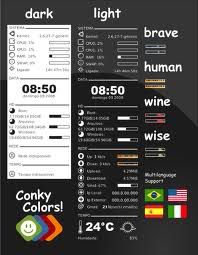
 Conky is one of the most powerful and versatile system monitors for Linux desktops. It allows you to monitor and display all the information about your hardware, top processes, network, emails and more. At the moment more than 300 different feature has been built for Conky and searching on the web you always find the perfect feature already developed by someone.
– Installation on Ubuntu:
in Terminal run: sudo apt-get install conky
– Configuration:
In Terminal run: sudo nautilus
Go to File System: /etc/conky/conky.conf
Save a copy of the original conky.conf in another location and open the original file with Gedit Text Editor
First of all change: own_window yes to own_window no
Choose your preferred alignment (some samples below…):
alignment top_right
or
alignment middle_right
or
alignment bottom_right
Play with: update_interval 1.0
and change the interval value till you find the right ratio to obtain the best speed for you (in my case it was 0.80).
Add this line to eliminate any flickering:
double_buffer yes
but, on some computers, all the icon on your desktop will be hidden and you need to use (move) the mouse to discover them if you will not add this parameter: own_window_type normal
Add, as last line (or in other position if you prefer):
${color red} ${cpugraph} to have a clear graph about cpu (obviously you can choose the color you prefer)
For automatic start of Conky at startup, please follow the following instructions:
Run Startup Applications in System –> Preferences
Click on Add and save after updating the following instructions
Name: Conky
Command: /usr/bin/conky
Restart Ubuntu to check your new Conky “applet”
Link to Conky: http://conky.sourceforge.net/
For more info about Conky’s variables: http://conky.sourceforge.net/variables.html
Find online some pre-compiled Conky configuration files, searching, for example, on: http://gnome-look.org


 There are not many applications for recording optical media under Linux. On the other hand, applications for Windows that allows a user to write a CD or DVD are numerous, but the most important difference is that those available on Linux are free and / or open source, with some exceptions. But all have basically the same purpose – to write or copy a disk.


 Several open source tools have evolved in the past and have become popular with the developers too. These tools have gained popularity not only because they come free but because of the ease to work with and the features. First let us see some code editors:

 En estos días he estado buscando un programa que permita hacer Copias de Seguridad y que sea de uso practico, sencillo y muy intuitivo. Después de ver varios programas me he decantado sin lugar a duda para
 In 2007, when
  Computer Borders